Meta Ads Reporting Tool for Freelancers: How to Report on Client Ads Without Manual Spreadsheets
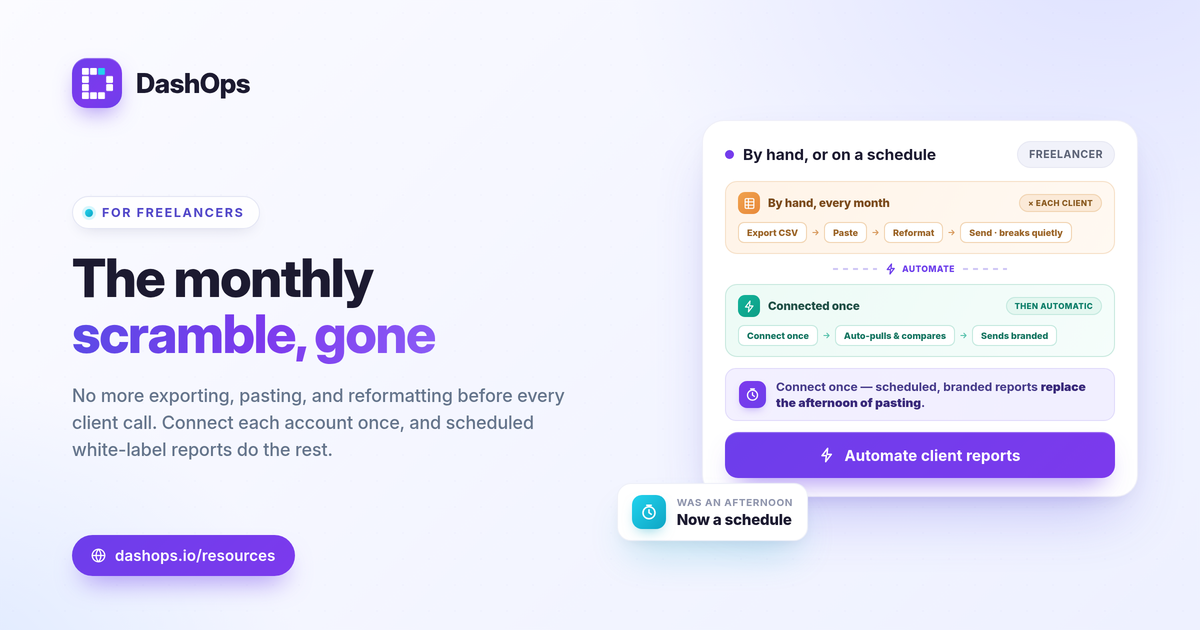
A Meta Ads reporting tool for freelancers replaces the monthly scramble of exporting CSVs, pasting them into a spreadsheet, and reformatting charts before every client call. Instead, you connect each client ad account once, and the dashboard pulls every KPI, builds the comparison, and exports a branded report on a schedule. The payoff is simple: less manual work, fewer copy-paste errors, and a report the client actually reads. This guide walks through how to move freelancer Facebook Ads reporting off brittle spreadsheets and onto automated, white-label reports, step by step.
Why spreadsheets break down for freelancers
A spreadsheet works for one account in month one. It stops working the moment you add clients or someone asks what changed since last month.
- They go stale. Every report means re-exporting from Ads Manager and re-pasting. One client with three campaigns is tedious; five clients is a part-time job.
- They break quietly. A shifted column, a wrong date range, or a broken formula produces a number that looks right and is not. You may not catch it until the client does.
- They do not show trend. A flat table of this month’s totals answers nothing. The client wants to know whether the money worked better or worse than last month, and a static export hides that.
If you want the longer version of this comparison, the post on Meta Ads dashboards vs spreadsheets covers where each one fits.
Step 1: Connect each client ad account once
The first move is to stop pulling data by hand. Connect each client’s Meta ad account to the dashboard a single time, and reporting becomes automatic from then on.
- One place for every client. Managing several accounts in one login removes the constant switching inside Ads Manager. The guide on managing multiple Meta ad accounts goes deeper on this.
- Native Meta numbers. A good tool reports the same figures Meta reports, so there is nothing to reconcile against the platform. Note that iOS and App Tracking Transparency cause some conversions to be undercounted, which affects every reporting tool equally, so frame results to clients honestly rather than implying perfect tracking.
Step 2: Pick the KPIs the client cares about
Do not dump all 17 metrics into the report. Lead with the numbers tied to the client’s goal, and let the dashboard adapt to whether they run lead gen or e-commerce.
- For e-commerce: spend, purchases, ROAS, and cost per purchase. ROAS is conversion value divided by spend, so the client sees return at a glance.
- For lead gen: spend, leads, and cost per lead, where cost per lead is spend divided by leads.
- Efficiency always: CPC (spend divided by clicks), CPM (spend divided by impressions times 1000), and CTR (clicks divided by impressions) explain why the cost per result moved.
For a deeper breakdown of which numbers to put front and center, see Meta Ads KPIs to track. If you are unsure which efficiency metric to feature, ROAS vs CPL vs CPA explained helps you match the metric to the objective.
Avoid telling a client a number is “good” against a universal benchmark. Judge each KPI against their own margin, their goal, and the prior period. A rising cost per lead is only a problem if it pushes you past what a lead is worth to that client.
Step 3: Show the trend, not just the total
This is the difference between a report a client skims and one they trust. A single month of totals answers nothing on its own.
- Period-over-period comparison. Put this month next to last month so the client sees direction, not just a snapshot.
- Trend charts. A line over time shows whether spend is pacing as planned and whether results are climbing or slipping.
- Breakdowns when they matter. Demographic (age and gender) and placement breakdowns explain where budget is working. Frequency, tracked as a KPI over time, is how you spot creative fatigue before the client asks why costs are rising.
Step 4: Brand it and automate the delivery
This is where freelancer reporting stops looking improvised. White-label reports for freelancers let you put your own logo and styling on the output, so the report reads like a finished product rather than a raw Meta export.
- White-label output. Export branded PDF, Excel, or CSV reports under your own identity. On DashOps, Growth includes white-label Lite and Enterprise adds white-label Full with custom domains.
- Scheduled digests. Set a weekly or monthly email digest so the report sends itself. No more late-night exporting before a Monday call.
- Read-only share links and a client portal. Send a live, read-only link or a simplified client portal instead of granting Ads Manager access. The client sees their KPIs and nothing else, and you keep control. The white-label client reporting guide covers how to set this up cleanly.
Step 5: Decide what stays in Ads Manager
A reporting tool does not replace Ads Manager; it replaces the manual reporting layer on top of it. You still build and optimize campaigns where it makes sense, and on Growth and Enterprise plans you can create and edit campaigns from the dashboard too.
The practical split: use Ads Manager for the operational work, and use the dashboard for everything client-facing. If you want the full contrast, Facebook Ads Manager vs a reporting dashboard lays out which tool owns which job.
One detail worth flagging for lead-gen clients: Meta only lets you download Instant Form leads directly from the Page for a limited window, about 90 days, after which leads must be retrieved through the API or a connected tool. A reporting tool that captures and exports those leads on a schedule keeps you from losing them.
Bringing it together
DashOps is built for exactly this workflow: connect your client Meta ad accounts, read every KPI with period-over-period comparison in one dashboard, and send white-label PDF, Excel, or CSV reports on a schedule, plus read-only share links and a client portal so clients never touch Ads Manager. It gives a freelancer a Meta Ads dashboard that does the reporting work that used to eat an afternoon. See what each plan includes on the pricing page, and the help center walks through connecting your first account.
The takeaway: connect each account once, lead with the KPIs tied to the goal, and let scheduled white-label reports do the work you used to do by hand.
Frequently asked questions
What is the best Meta Ads reporting tool for freelancers?
How do I send white-label Meta Ads reports to clients without an agency tool?
Do I need to give clients access to Meta Ads Manager to share results?
See it in your own dashboard
DashOps brings Meta Ads reporting, campaign management, and white-label client portals into one place. Pick the plan that fits how you run ads.