How Do You Automate Meta Ads Reports? A Guide to Scheduled Reporting
You automate Meta Ads reports by connecting your ad accounts to a reporting tool once, then letting it pull the numbers and send them on a schedule you set. Instead of opening Ads Manager, exporting a spreadsheet, and rebuilding the same layout every week, you point a live dashboard at your data and turn on scheduled email digests. The report assembles itself: current spend, results, cost per result, and a period-over-period comparison, delivered to your inbox or your client’s. The goal is simple, which is to stop building reports manually so your time goes to reading the numbers and acting on them rather than formatting them.
Why manual Meta Ads reports waste so much time
The manual loop is the same every reporting cycle, and it is slow for a predictable reason: the data lives in one place and your report lives in another.
- Export and re-import. You download a CSV from Ads Manager, then paste it into a sheet or slide.
- Rebuild the layout. Headers, totals, and charts get formatted again from scratch.
- Recalculate comparisons. Last period versus this period is worked out by hand, which is where copy and paste errors creep in.
- Repeat per account. If you run several ad accounts, you do the whole thing again for each one.
None of that analysis changes a single decision. It is assembly work, and assembly work is exactly what software should do for you. If your manual numbers and the platform never seem to agree, that mismatch is usually a date range or attribution issue, which our guide on why Ads Manager numbers do not match reports walks through.
What “automated Meta Ads reports” actually means
Automation has two parts that work together, and it helps to separate them.
- A live dashboard. Your KPIs are connected to Meta and refresh on their own. You open one screen and the data is already current, with no export step.
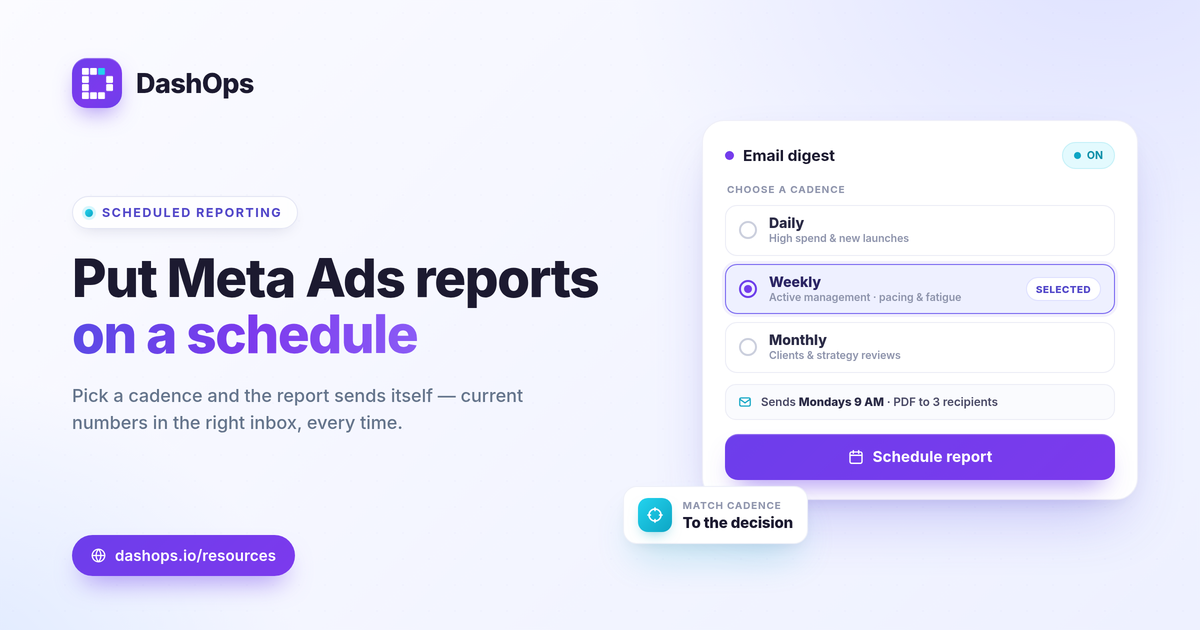
- Scheduled delivery. On top of that live data, a report goes out on a set cadence: a daily, weekly, or monthly email digest that lands without anyone pressing a button.
The dashboard answers “what is happening right now.” The schedule answers “tell me, or my client, on a regular rhythm without me remembering to.” Automated Facebook Ads reports are really just these two things switched on at the same time.
How to set up scheduled Meta Ads reporting
The setup is a one-time configuration, and then it runs by itself.
- Connect your ad accounts. Link each Meta ad account so KPIs flow in automatically. Managing several accounts in one place is covered in reporting multiple ad accounts in one dashboard.
- Choose the metrics that match the goal. Spend and results for everyone, ROAS and purchases for e-commerce, leads and cost per lead for lead gen. If you are unsure which to include, see the Meta Ads KPIs to track.
- Turn on period-over-period comparison. This is what makes a report useful rather than a snapshot, because it shows what changed since last time.
- Set the schedule and recipients. Pick the cadence and add who receives it, whether that is you, your team, or a client.
- Decide the format. A live link, a PDF, or an Excel or CSV file, depending on who reads it.
After that, the report sends itself. You only touch it when you want to change what is in it.
Scheduled digests versus live share links
Automation is not only email. Different readers want different access, and you can run both at once.
- Scheduled email digests. Best for a regular pulse: a weekly summary to a client, or a Monday morning digest to your team. The reader gets the numbers pushed to them.
- Live share links. A public read-only link or a simplified client portal lets someone check current performance any time, without waiting for the next send. Nothing is exposed beyond what you choose to show.
- Alerts. For time-sensitive changes, Slack and Discord alerts catch movement between scheduled sends, so a pacing or spend issue does not wait for the next report.
Most setups combine a scheduled digest with an always-available live link, so routine updates are automatic and the curious reader can self-serve.
Choosing the right cadence
The cadence should follow the decision the report informs, not a fixed habit.
| Cadence | Best for | What it catches |
|---|---|---|
| Daily | High spend or new launches | Sudden pacing or delivery shifts |
| Weekly | Active management | Fatigue, rising cost per result, budget pacing |
| Monthly | Clients and strategy reviews | Overall return, trend, what changed |
A short weekly digest plus a fuller monthly report covers most needs. The trade-offs between the two are laid out in weekly versus monthly Meta Ads reports.
A note on accuracy and trust
Automation does not change where the numbers come from. A good reporting tool reflects Meta-native figures pulled from the same source as Ads Manager, so totals line up when the date range, time zone, and attribution window match. It is worth knowing that iOS privacy changes cause some conversions to be undercounted in Meta’s own reporting, so an automated report inherits that, the same as a manual one would. Automation removes the formatting and the human error, not the platform’s measurement limits.
For client-facing work, automation pairs naturally with branding. Scheduled white-label client reports go out under your own look, so the delivery is hands-off and still feels like yours.
Where DashOps fits
DashOps is built for exactly this: connect your Meta ad accounts, and a live dashboard reads 17 or more KPIs with period-over-period comparison already on. From there you turn on scheduled email digests, white-label client reports, public share links, and Slack or Discord alerts, plus PDF, Excel, and CSV exports when someone needs a file. The reporting features are available across plans, with white-label and campaign editing on the higher tiers. See what each plan includes on the pricing page, and the help center covers connecting accounts and setting up your first scheduled report. If you are weighing a dashboard against staying in Ads Manager, the comparison guide lays out the difference.
Set the schedule once, and your reporting time shifts from building reports to reading them.
Frequently asked questions
Can I automate Meta Ads reports without exporting from Ads Manager?
How often should automated Facebook Ads reports go out?
Will an automated report match the numbers in Ads Manager?
See it in your own dashboard
DashOps brings Meta Ads reporting, campaign management, and white-label client portals into one place. Pick the plan that fits how you run ads.