Why Your Facebook Ads Manager Numbers Do Not Match Your Reports
When your Facebook Ads Manager numbers do not match your reports, the cause is almost never bad data. It is a settings difference: a different attribution window, a different time zone, or a date range that does not line up. Both Ads Manager and a good reporting tool pull from the same Meta source, so when the inputs match, the outputs match. This guide walks through each reason ad numbers differ and how to reconcile them, so the figure in your dashboard, your PDF, and your CSV all agree with what you see inside Meta.
Why do my Facebook Ads numbers differ at all?
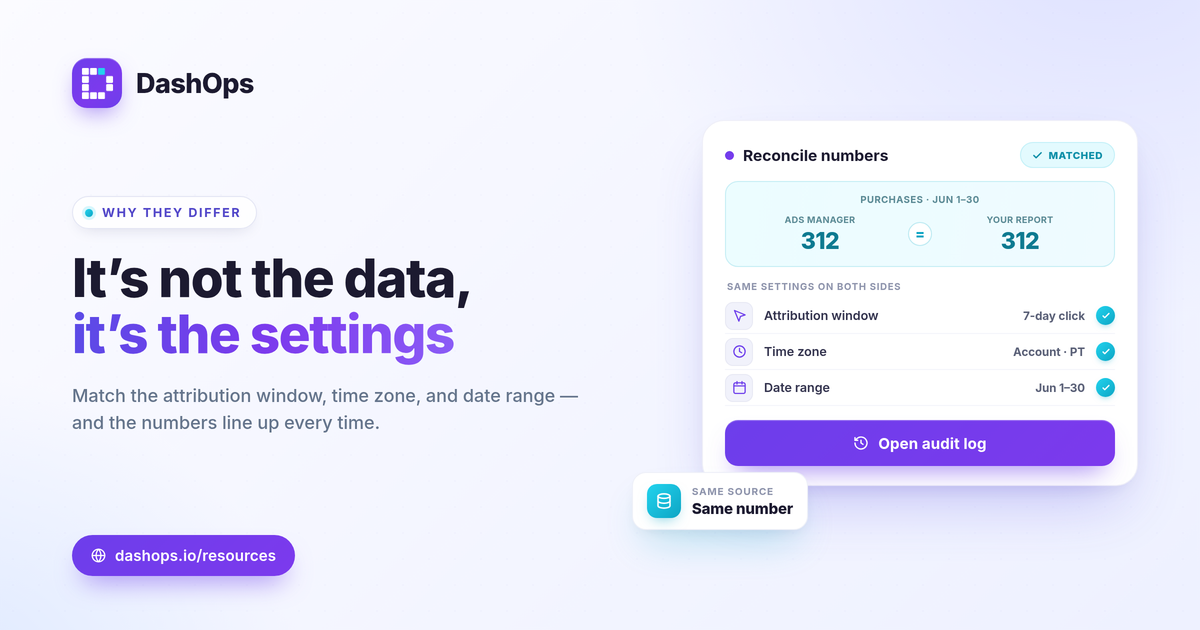
Ads Manager is a live view with its own default settings. A report or dashboard is a snapshot built from specific parameters you chose, possibly weeks ago. Any Ads Manager vs report discrepancy usually comes down to one of three knobs being set differently on each side:
- Attribution window. How long after a click or view a conversion still counts.
- Time zone. Which clock decides what day a result belongs to.
- Date range. The exact start and end days being summed.
Get all three to match and a Meta ads data mismatch almost always disappears. Below, each one in turn.
The attribution window is the most common cause
Attribution window reporting is the single biggest reason your numbers diverge. Meta credits a conversion to an ad based on a chosen window, for example a 7-day click or a 1-day view. If Ads Manager is showing 7-day click and your report was built on 1-day click, the report will show fewer purchases or leads, because it is counting a narrower slice of credited conversions.
This is not an error. It is two correct answers to two different questions.
- Check the comparison window in Ads Manager. It sits in the columns or the attribution setting menu and can quietly default to something you did not pick.
- Check the window your report or dashboard used. Confirm it matches before you call anything wrong.
- Pick one window and standardize on it. Use the same setting everywhere so every export, dashboard, and screenshot tells the same story.
Spend, impressions, reach, and clicks are not affected by attribution, since those are counted as they happen. So if your spend matches but your purchases or leads do not, attribution window is the first place to look.
Time zones quietly move results between days
Meta reports in the ad account time zone. A row labeled for a given day reflects that account’s clock, not your local one and not your spreadsheet’s. If your reporting tool, export, or formula applies a different time zone, results get reassigned to the day before or after, and your daily totals stop matching Ads Manager.
For a single day this can look like a large gap. Across a full month it often shows up only at the edges, the first and last day, where conversions land on one side of midnight in one time zone and the other side in another.
- Find your ad account time zone in the account settings inside Meta.
- Confirm every report uses that same time zone, not your browser’s or your computer’s.
- Remember the time zone is fixed per account. You cannot change it retroactively, so the fix is to make your reporting match the account, not the other way around.
Date ranges are easy to misalign
This sounds obvious, yet it is one of the most common reasons why ad numbers differ. “Last 30 days” in Ads Manager is a rolling window anchored to today, so it shifts every single day. A report labeled “last month” is a fixed calendar block. Compare a rolling range against a fixed one and the totals will never agree, because they cover different days.
- Compare like for like. Set both sides to the same explicit start and end dates, for example the first to the last of the month, rather than relative presets.
- Watch for partial days. A range that includes today is still accumulating spend and results, so it will keep changing if you re-pull it an hour later.
- Be consistent about inclusive end dates. Make sure both tools count the final day the same way.
If you frequently compare periods, having that comparison standardized helps. Our guide on comparing Facebook Ads month over month covers how to keep the two periods aligned.
A few smaller reasons numbers shift
Beyond the big three, a handful of factors create smaller gaps worth knowing:
- Reporting lag and restatement. Meta updates recent numbers as conversions finish attributing and as data settles. A figure pulled this morning can change slightly by tomorrow, so a report and a live view taken at different moments may differ on the most recent days.
- iOS and ATT undercounting. App tracking limits mean some conversions are modeled or simply not observed, which causes undercounting in Meta’s own reported results. This is qualitative, not a fixed amount, but it explains why Meta’s numbers can sit below what your own backend records.
- Filters and account scope. A report scoped to one campaign, or excluding deleted items, will not match an Ads Manager view that shows everything. Confirm both cover the same accounts and the same active or deleted status.
How to keep your numbers consistent
The goal is not to make Meta and your reports identical by luck. It is to make the settings identical on purpose, so they agree every time.
- Standardize the attribution window across every report and dashboard.
- Lock the time zone to the ad account on both sides.
- Use fixed calendar date ranges for anything you compare or archive.
- Note the pull date on saved reports, so anyone reading later understands why a recent day might restate.
When these four are consistent, what you see in Meta and what you hand to a client or stakeholder will line up.
DashOps reads your KPIs directly from the Meta API, so a connected dashboard reflects the same source as Ads Manager, with attribution, time zone, and period-over-period comparison applied consistently across every ad account. When numbers are questioned, the audit log and a public read-only share link let you show exactly what was pulled and when. See what each plan includes on the pricing page, and the help center covers connecting accounts and report settings. For more on which figures to put front and center, see our guide to the Meta ads KPIs to track, and on choosing the right tool, Ads Manager vs a reporting dashboard.
The practical takeaway: before you assume a number is wrong, match the attribution window, time zone, and date range on both sides, because the data is usually the same once the settings line up.
Frequently asked questions
Why does my exported report show fewer purchases than Ads Manager?
Does the time zone really change my Facebook Ads numbers?
Should I trust the dashboard number or the Ads Manager number?
See it in your own dashboard
DashOps brings Meta Ads reporting, campaign management, and white-label client portals into one place. Pick the plan that fits how you run ads.