How to Give Access to a Facebook Ad Account: Steps
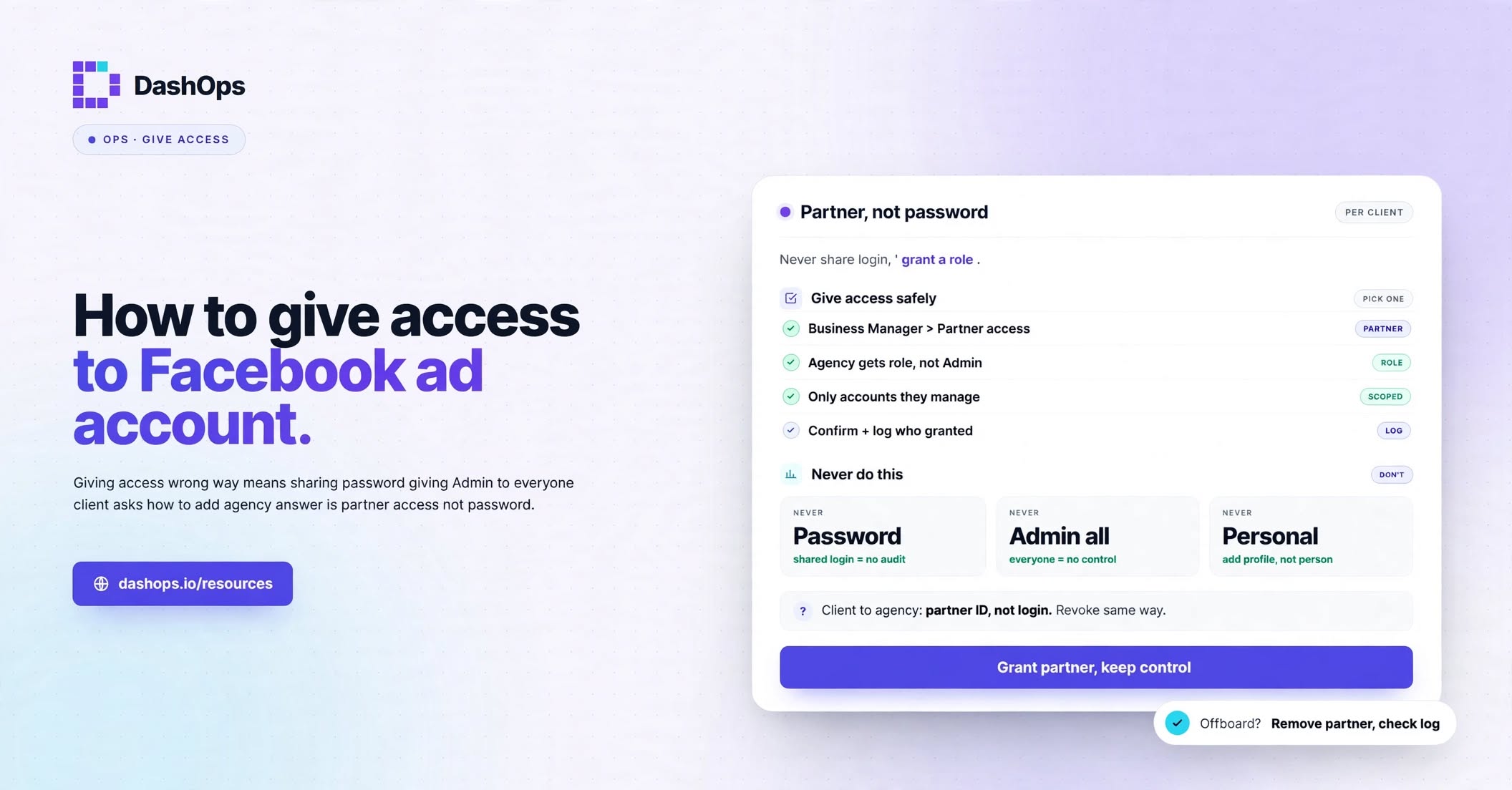
To give someone access to a Facebook ad account, open Settings in Meta Business Suite, click People, then Invite people, and choose the ad account and what they can do with it. For an agency, use Partners in the same Settings menu and enter the agency’s business portfolio ID.
If a label on your screen differs from these steps, which follow Meta’s help pages as of 5 November 2026, open the Meta page linked in that section. Meta’s own words vary too: business portfolio is its current name for Business Manager, and full access is its newer name for full control, though some of its pages still use the old words.
Pick your route
| Who needs access | Where the ad account sits | Where to go |
|---|---|---|
| A new teammate or a freelancer | In a business portfolio | Settings, People, Invite people |
| Someone already in your portfolio | In a business portfolio | Settings, People, their name, Assign assets |
| An agency or another company | In a business portfolio | Settings, Partners, Add |
| Any person | Not in a portfolio | Ads Manager, Ad account settings, Add people |
To see where an account sits, open Settings in Meta Business Suite and look under Accounts, then Ad accounts. If it is not listed there and you reach it directly in Ads Manager, use the last row.
The first three routes need full control of the portfolio. If People or Partners is missing from your menu, Meta says you may not have it, so ask whoever does. If nobody in your organization has it, you can submit a request to Meta for full control.
Give one person access
These steps follow Meta’s page on adding people to a portfolio:
- Go to Settings in Meta Business Suite for the right portfolio.
- Click People in the left menu, then Invite people at the top right.
- Enter the person’s email address. It has to match the one on their Facebook account.
- Click Next and choose their access to the portfolio as a whole. Keep this at basic access unless they help run the business: basic access limits them to what you assign, while full access covers everything in the portfolio.
- Click Next, select the ad account and choose what they can do on it.
- Click Invite.
They then have to accept the invitation. Meta warns that some features can take a few days to appear after someone joins, so a missing button on day one does not mean the invite failed.
If the person is already in the portfolio, no invitation is needed. Under People, click their name, click Assign assets, pick the ad account, set what they can do, and click Assign assets to finish. Meta’s page on assigning assets also shows the same job starting from the ad account.
For a one-off job, use temporary access when you add the person. Meta allows temporary access for between 3 and 75 days, and it gives basic access only. When it ends, Meta removes the person from the portfolio and from anything assigned to them. Meta’s steps for adding people do not show where this option sits, so look for it as you go through the invitation.
Give an agency access
An agency should come in as a partner. It then works from its own portfolio and looks after its own staff, so you never have to add each person. Before you start, the agency must have a business portfolio and send you its ID, which it can find in Settings under Business portfolio info. Meta also tells you to turn on two-factor authentication for your portfolio.
From Meta’s page on giving a partner access:
- Go to Settings in Meta Business Suite for your portfolio.
- Click Partners in the Users section of the left menu.
- Click Add, then Give a partner access to your assets.
- Enter the agency’s business portfolio ID and click Next.
- Choose the ad account and the level of access. For partial access, pick the tasks.
- Click Assign assets.
Another person with full control of your portfolio may have to approve this. After that, you and the agency can both see the shared account in Settings. The agency can only pass on to its staff the tasks you gave it, and even with full control it cannot share your account with a third business. If you are on the agency side, read how to structure a Business Manager for client work.
An ad account share does not cover your Facebook Page. Meta asks for full control of the Page, or partial access with the Ads task, before someone can run ads for it, so share the Page in the same step if they will build ads.
Give access when the account is not in a portfolio
An ad account outside a portfolio uses three roles, explained on Meta’s page about adding people in Ads Manager. You must be an admin on the account, and Meta says the person must be your Facebook friend.
- On a computer, open Ad account settings in Ads Manager. You may be asked for your password again.
- In the Ad account roles section, click Add people.
- Search for the person and select them.
- Pick a role from the menu and click Confirm.
Access starts straight away. Here is what each role allows, from Meta’s table of roles:
| Role | View ads and reports | Create and edit ads | Edit payment method | Manage who has access |
|---|---|---|---|---|
| Admin | Yes | Yes | Yes | Yes |
| Advertiser | Yes | Yes | No | No |
| Analyst | Yes | No | No | No |
An agency has another way in here, which avoids the friend rule. If it has its own portfolio, it can enter your ad account ID and request access to an account owned by a person, as Meta’s page on adding ad accounts describes. It can use the account once you approve as the owner.
Which level to choose
Give the smallest level that lets the person do the job. You can change it at any time, so a wider level is easy to add later. Inside a portfolio, partial access is a list of tasks on Meta’s page about asset access, and this is how they map to real jobs:
- Someone who reads results and builds reports: View performance.
- A media buyer who builds and edits ads: Manage campaigns.
- A designer preparing previews in Creative Hub: Manage Creative Hub mockups.
- Someone who must change settings, billing or who has access: Manage ad accounts, which is full access. This is the portfolio version of admin access.
Access set on the portfolio overrides access set on an account, so a person with full control of the portfolio keeps their reach whatever you tick on the account. For help deciding who should hold what, see who should have access to your ad accounts.
How to take access back
- One person, one ad account: In Settings, click People, click their name, click Manage beside the ad account, then Remove access and confirm.
- One person, everything: In People, click their name, click Remove and confirm. This ends their access to the portfolio and to everything they were assigned.
- An agency: Click Partners, click Options at the top right, select Remove from business portfolio, then Remove partner. Meta’s steps do not mention choosing a partner, so if several are listed, check that the right one is selected first.
- An account outside a portfolio: In Ad account settings, find Ad account roles and select Remove user. If you see Open business settings instead, follow it and remove them there.
Meta’s pages for these are change access, remove a person, remove a partner and remove someone in Ads Manager. When a person is leaving, read this guide to removing ad account access when someone leaves.
If it does not work
- You cannot add anyone. Check that you have confirmed your email under Business info in Settings. Neither you nor the other person can have a disabled or restricted account.
- It says approval is needed. When you add or remove a person, someone else with full control can approve it under Requests in Settings.
- You cannot offer full control. If a partner shared this account with you, you can only pass on what the partner gave you.
- The person does not appear in the search. On an account outside a portfolio, only Facebook friends can be added.
Never share a password
Do not hand over your Facebook login instead. Meta says sharing an account breaks its terms, and the routes above let people work on your ads without logging in as you or seeing private things on your profile.
Apply the same test to any reporting tool that asks for client accounts: it should use Meta’s permission screen and never ask for a password. With DashOps, you connect through Meta’s own permission screen, so DashOps never sees a Facebook password.
Frequently asked questions
How do I give an agency access to my Facebook ad account?
How do I give admin access to a Facebook ad account?
Can someone I add to my ad account see my personal Facebook profile?
Why can't I see People or Partners in Meta Business Suite Settings?
How do I remove someone's access to a Facebook ad account?
See it in your own dashboard
DashOps brings Meta Ads reporting, campaign management, and white-label client portals into one place. Pick the plan that fits how you run ads.