How to Track ROAS on Facebook Ads: A Practical Reporting Guide
Facebook Ads ROAS tracking comes down to one question: for every unit of spend, how much tracked revenue came back, and is that ratio improving over time. ROAS, or return on ad spend, is conversion value divided by spend, and the formula itself is simple. The hard part is tracking it consistently across campaigns and ad accounts, comparing it against the prior period, and understanding why the number Meta shows you rarely matches your store’s actual sales. This guide walks through setting up reliable ROAS reporting so the figure you report is one you can defend.
Start with the ROAS formula and what it actually measures
ROAS = conversion value / spend. If Meta attributes a purchase value to your ads and you divide that by what you spent, you get the ratio. A ROAS of 3 means three units of tracked revenue for every unit spent.
Two things matter before you trust a single number:
- Conversion value is what Meta can attribute, not your full revenue. It reflects purchases the pixel or Conversions API matched back to an ad within the attribution window.
- ROAS hides volume. A campaign with a high ratio and tiny spend may matter less than a slightly lower ratio at scale. Always read ROAS next to spend and purchase count.
If ROAS is new to you, the breakdown in what is ROAS in Meta Ads covers the basics before you build reporting around it.
Set up consistent tracking before you report
ROAS is only as trustworthy as the conversion tracking feeding it. Before reporting, confirm the foundation is in place.
- Pixel and Conversions API. Server-side events recover conversions the browser pixel misses. The difference between pixel and Conversions API reporting directly affects the conversion value Meta records.
- Attribution window. A 7-day click window will report a different ROAS than a 1-day click window for the same campaign. Pick one window and keep it fixed across reports so comparisons stay honest.
- One clean value per conversion. Make sure purchase events pass an accurate value so ROAS reflects real order value, not a default.
Lock these settings once. Changing the attribution window mid-quarter makes period-over-period comparison meaningless.
Track ROAS by campaign, not just account-wide
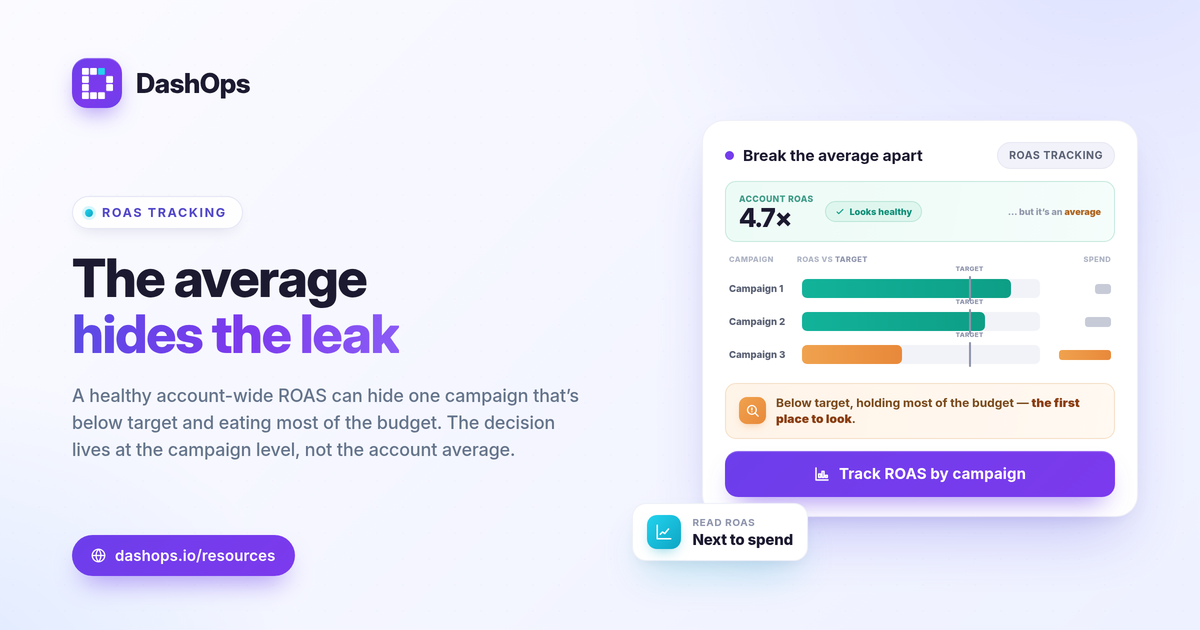
A single account-level ROAS tells you almost nothing about what to do next. The decisions live at the campaign level.
To measure return on ad spend usefully, break it down so you can see:
- Which campaigns clear your target ratio and which sit below it.
- Where spend is concentrated. A low-ROAS campaign holding most of your budget is the first place to look.
- The trend per campaign, not just the current snapshot.
Tracking Facebook Ads ROAS by campaign is what turns a report into a decision. The campaign that looked fine at the account level is often dragging the average down once you isolate it.
Use period-over-period comparison to see real change
A ROAS number on its own answers nothing. The question anyone reading a report has is whether returns are getting better or worse.
Period-over-period comparison answers that directly. Comparing this month against last month, or this week against the prior week, shows the direction of travel rather than a static figure. A ROAS that looks healthy may be sliding, and a modest ratio may be climbing steadily. The change is the story.
When you compare periods, hold the variables steady:
- Same attribution window in both periods.
- Same date length, so a 30-day month is not compared against a 28-day stretch.
- Same ad accounts in the comparison set.
If you report to clients or stakeholders, framing the comparison clearly matters as much as the number. The approach in comparing Facebook Ads month over month pairs well with ROAS trend reporting.
Judge whether a ROAS is good against your own goal
There is no universal “good” ROAS, and any single benchmark number you see quoted ignores your margins. The right way to judge is against your own break-even point and your prior-period trend.
- Break-even ROAS = 1 / profit margin. If your margin on a sale is 50 percent, your break-even ROAS is 2. Below that, ads lose money before any other cost.
- Your target sits above break-even, with enough headroom for overhead, returns, and profit.
- Your trend is the other half. A ROAS above break-even that is falling each period still needs attention.
Lead-gen accounts often track cost per lead or cost per acquisition instead of ROAS, since there is no purchase value at the click. The differences are laid out in ROAS vs CPL vs CPA explained.
Reconcile Meta ROAS with your real sales
The ROAS in Ads Manager and the revenue in your store will not match, and that is expected rather than a bug.
- iOS App Tracking Transparency causes undercounting. When users opt out of tracking, some real purchases never get matched back to the ad that drove them, so Meta’s conversion value reads low.
- Attribution windows clip the edges. A sale that converts outside the window does not count toward that campaign’s ROAS.
- View-through and refunds shift the figure in both directions.
Treat Meta ROAS as the best signal for comparing campaigns against each other, and reconcile total tracked revenue against your store’s actuals as a separate exercise. The reasons reports diverge are covered in why Facebook Ads conversions are lower than sales.
Bring ROAS tracking into one dashboard
Pulling ROAS by campaign across several ad accounts in Ads Manager means exporting, combining, and rebuilding the comparison every reporting cycle. A ROAS reporting dashboard removes that. DashOps reads ROAS alongside spend, purchases, and conversion value across every connected Meta ad account, breaks it down by campaign, and applies period-over-period comparison automatically so you see whether returns are actually improving. See what each plan includes on the pricing page, and the help center covers connecting your accounts. For the wider set of metrics worth watching beside ROAS, see the Meta Ads KPIs to track.
The single most useful habit in ROAS tracking is keeping your attribution window fixed, so every period-over-period comparison reflects real performance and not a settings change.
Frequently asked questions
What is ROAS on Facebook Ads and how is it calculated?
Why does Facebook Ads ROAS not match my Shopify or sales numbers?
How do I track ROAS by campaign across multiple ad accounts?
See it in your own dashboard
DashOps brings Meta Ads reporting, campaign management, and white-label client portals into one place. Pick the plan that fits how you run ads.