How to Automate Facebook Ads Reporting for an Agency With Many Clients
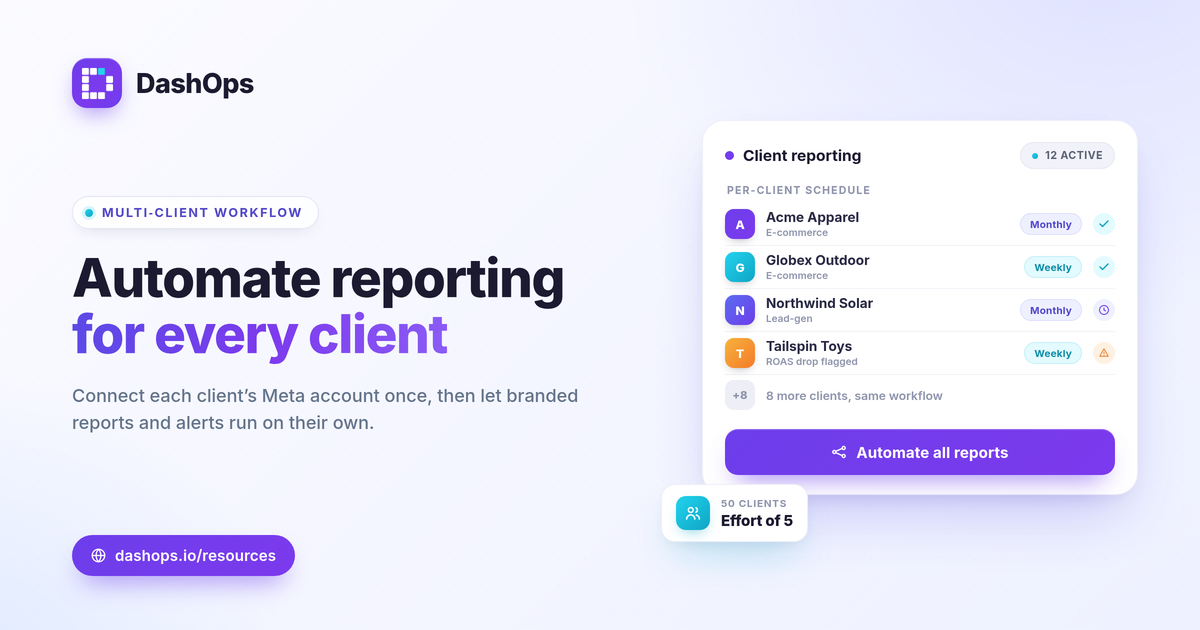
Automating Facebook Ads reporting for an agency comes down to one shift: stop building reports per client and start building one workflow that fans out across all of them. You connect every client’s Meta ad account once, design a branded report template once, set delivery schedules per client, and add alerts that flag the accounts that need attention. After that, reporting runs in the background and your team spends billable hours on strategy instead of copy-pasting numbers. The goal is not faster manual work. It is removing the manual step entirely so that fifty clients take roughly the same effort as five.
Why per-client reporting eats billable hours
Manual agency reporting scales linearly, which is the core problem. Every client added means another export, another deck, another round of pasting Meta numbers into a template and proofreading them. At a handful of accounts this is tolerable. At dozens it becomes a recurring monthly fire that pulls senior people off the work clients actually pay for.
The fix is to separate the two things that are tangled together: pulling the data and presenting it. Once a tool pulls Meta-native KPIs automatically and renders them into a consistent layout, the only human judgement left is interpreting what changed and writing the commentary that matters. That is the part worth your time.
Step 1: Connect every client ad account in one place
Multi-client Meta ads reporting starts with consolidation. Instead of logging into each client’s Ads Manager separately, connect each Meta ad account to a single dashboard so they all live in one view. Managing multiple Meta ad accounts in one place is the foundation everything else sits on, because schedules and alerts can only fan out if the accounts are already centralized.
- One connection per client. Add each ad account once, for example act_DEMO_001 for Acme Apparel and another for Globex Outdoor.
- Adaptive KPIs per account. A lead-gen client like Northwind Solar should surface cost per lead and lead volume, while an e-commerce client like Tailspin Toys surfaces ROAS and purchases. The same dashboard adapts to each account’s objective.
- No tab juggling. Switching clients becomes a dropdown, not a fresh login.
For the deeper case on running many accounts together, see managing multiple Meta ad accounts.
Step 2: Decide which KPIs every report carries
Before automating anything, lock down what each report shows so the template is consistent across clients. A report that includes every metric Meta returns is harder to read than one built around the goal.
- Spend and results. What the client spent and what it produced.
- Efficiency. Cost per result, which is cost per lead for lead-gen accounts or cost per purchase for e-commerce.
- Return. ROAS for sales accounts, pipeline value for lead-gen accounts.
- Context breakdowns. Demographic and placement breakdowns plus top campaigns, so the report explains the trend rather than just stating it.
Judge “good” against each client’s own margin, goals, and prior period rather than a universal number. A useful starting list is in the Meta ads KPIs to track.
Step 3: Build a branded template once, reuse it everywhere
This is where agency automated reporting pays off. You design the report layout and branding a single time, and every client report inherits it. White-label keeps your agency’s identity on the report instead of the tool’s.
- White-label Lite applies your logo and colors to reports, available on Growth.
- White-label Full adds custom domains so the client portal and share links live under your own domain, available on Enterprise.
- Consistent structure. Acme Apparel and Contoso Studios get the same clean layout, just populated with their own numbers.
White-label reporting is worth setting up deliberately, and white-label client reporting walks through the difference between Lite and Full.
Step 4: Schedule reports per client
Scheduled client reports are the heart of the workflow. Instead of sending reports manually, you set a cadence per client and the system delivers automatically.
- Email digests on a schedule. A weekly summary for one client, a monthly PDF for another, each going out without anyone pressing send.
- Format per audience. PDF for a polished client-facing recap, Excel or CSV when the client wants the raw rows.
- Read-only access for hands-on clients. A public share link or a simplified client portal lets a client check live numbers any time, which cuts down on “can you send me an update” emails between scheduled reports.
Some clients want the static recap, others want the live view, and many want both. The tradeoffs between them are covered in scheduled email digests vs live dashboard links.
Step 5: Add alerts so you only look when it matters
Scheduling handles the routine. Alerts handle the exceptions, and together they are what let one person oversee dozens of accounts. Rather than opening every report to check for problems, you let the accounts tell you when something moved.
- Spend spike alerts flag an account pacing ahead of budget before it overspends.
- ROAS drop and performance alerts surface a client whose returns slipped, so you investigate that one rather than all of them.
- Slack and Discord delivery push these to where your team already works, so nothing waits for the next scheduled report.
This is the difference between watching dashboards and being told when to act. Pairing scheduled reports with alerts means your review time goes to the two or three accounts that changed, not the forty that are steady.
Step 6: Keep an audit trail and lead exports clean
Two operational details keep an agency reporting workflow defensible at scale. First, audit logs record who accessed what, which matters when several team members and client users touch the same dashboards. Second, for lead-gen clients, lead handling has a hard deadline.
Meta only lets you download Instant Form leads directly from the Page for a limited window, about 90 days, after which the leads must be retrieved through the API or a connected tool. If you run lead-gen accounts, pulling leads into your dashboard and exporting them to CSV or Excel on a regular cadence avoids losing data to that window. The full constraint is explained in the Meta 90-day lead retention limit.
How this compares to working inside Ads Manager
Ads Manager is built for running campaigns, not for sending dozens of branded recurring reports. Exporting from it per client, formatting, and emailing is exactly the manual loop this workflow removes. A reporting dashboard sits on top of the same Meta data and adds scheduling, branding, alerts, and multi-account consolidation. The side-by-side is in Facebook Ads Manager vs a reporting dashboard.
DashOps is built for exactly this fan-out: connect every client’s Meta ad account, apply your white-label branding, schedule PDF, Excel, or CSV reports per client, and route spend and ROAS alerts to Slack or Discord, all from one dashboard. See what each plan includes on the pricing page, and the help center covers connecting accounts and setting schedules.
Automate the data and delivery, then spend the hours you reclaim on the commentary and strategy that clients actually keep you for.
Frequently asked questions
How do you report on many Facebook Ads clients without rebuilding each report?
Are automated client reports accurate enough to send without checking every one?
What should an automated agency report actually include?
See it in your own dashboard
DashOps brings Meta Ads reporting, campaign management, and white-label client portals into one place. Pick the plan that fits how you run ads.