How to Email Facebook Ads Reports to Clients Every Week Automatically
A weekly client report should land in the inbox on the same day every week, answer the question of whether the money worked, and require nothing from you to produce it. The way to email Facebook Ads reports to clients weekly without it eating your Monday is to set up a scheduled email digest once: pick the ad account, the recipients, the cadence, and the metrics, then let the report build from live Meta data and send itself. This guide walks through how to configure an automated client report that goes out on a fixed schedule, what to put in a weekly recap, and how to brand it so each client sees their numbers and your name.
Why automate the weekly report at all
Manual weekly reporting is the task that quietly consumes the most time and is the easiest to forget. Every week you log in, pull the same date range, screenshot the same charts, write the same recap, and attach it to an email. Multiply that by every client and the weekly recap becomes a half-day chore that adds no analysis, only repetition.
A scheduled email digest removes the repetition without removing the report. The recipient still gets a recap on a predictable day. You simply stop being the one who assembles and sends it. That frees the time for the part a client actually pays for: reading the numbers and deciding what to change.
Decide weekly versus monthly first
Before you schedule anything, be clear on what a weekly cadence is for. A weekly report is for spotting movement early: a cost per result creeping up, spend pacing ahead of budget, a campaign that stalled. A monthly report is for the bigger verdict on whether the money worked over a full cycle.
If you are unsure which cadence fits a given client, the trade-offs are covered in weekly vs monthly Meta Ads reports. Many setups run both: a short weekly pulse and a fuller monthly review.
Set up the scheduled digest once
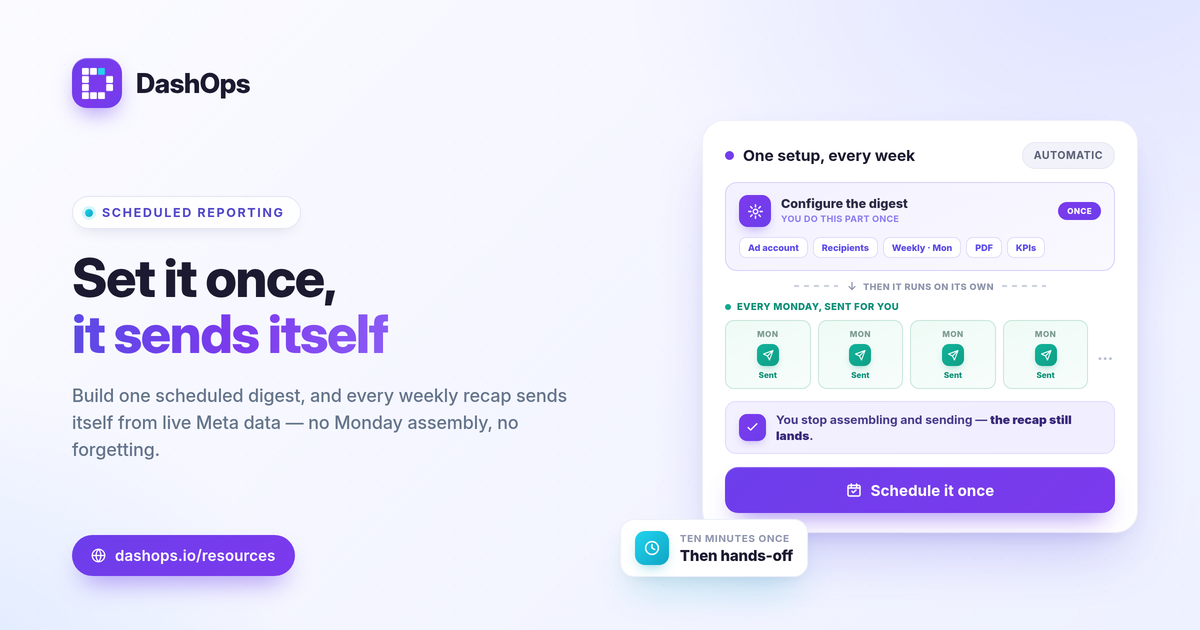
The whole point is that this is a one-time setup. Walk through it deliberately and you will not touch it again unless the client changes.
- Choose the ad account. Point the digest at the specific Meta ad account for that client. If you manage several, each client gets their own scheduled report tied to their own data.
- Pick the recipients. Add the client email addresses that should receive the recap. You can include yourself so you see exactly what they see.
- Set the cadence and timing. Select a weekly frequency and the day and time it should send. A consistent slot, such as every Monday morning, trains clients to expect it.
- Choose the format. Decide whether the recap arrives as an attached PDF, an Excel or CSV file, the figures inline in the email body, or a combination. A PDF reads well for a client who just wants the summary.
- Select the metrics. Limit the report to the KPIs tied to the goal rather than every number Meta returns.
Once saved, the schedule runs on its own. The report pulls fresh figures each week, so it always reflects the latest data rather than a static snapshot you exported once.
Put the right numbers in the recap
A weekly email is short by design. Lead with what changed, then support it. Because every metric is shown against the prior week, the trend does the talking.
- Spend and results. What was spent and what it produced, side by side.
- Efficiency. Cost per result, whether that is cost per lead or cost per purchase, calculated as spend divided by results.
- Return. ROAS for sales (conversion value divided by spend) or pipeline value for lead gen.
- One line on movement. The single most important change versus last week, good or bad.
For “is this good” framing, judge each number against the client’s own goal, their margin, and the prior-period trend rather than a universal benchmark. A cost per lead is fine if it sits inside what a lead is worth to that business. If you want a fuller list of which metrics belong in the recap, the KPIs worth tracking covers them and how each is read.
Brand it so it looks like it came from you
A report that carries the DashOps logo tells the client which tool you use. A white-label report carries your logo and tells them nothing about your stack, which is usually what you want for client-facing work.
- Growth plans include white-label Lite, which replaces the branding on reports with your own.
- Enterprise plans add white-label Full, including custom domains for a fully branded experience.
Set the branding once and every scheduled digest inherits it, so each client receives a recap that looks like your own product. The practical details of branded client reporting are in white-label client reporting.
Handle many clients without multiplying the work
If you run reporting for a roster of clients, the model stays the same: one scheduled digest per client or per ad account, each pointing at the right data and recipient list. Because each schedule is independent, you can run a different day, cadence, or recipient set per client without any of them interfering.
This is also where managing accounts in one place pays off. Pulling every client into a single dashboard, as described in managing multiple Meta ad accounts, means you configure and review all of those digests from one screen rather than logging in and out of separate accounts.
When a live link beats an attachment
A scheduled email is the right tool when the client wants a recap pushed to them on a rhythm. When a client prefers to check in whenever they like, a read-only share link or a simplified client portal gives them a live view without granting access to anything they should not see. Many setups use both: a weekly digest for the push, and a share link for the client who wants to look between reports.
If you are weighing the two, scheduled email digests vs live dashboard links lays out when each fits. For teams that want movement flagged the moment it happens rather than on a weekly cadence, Slack and Discord alerts cover spend spikes and ROAS drops between reports.
Where DashOps fits
DashOps reads every Meta KPI across your ad accounts and turns the weekly recap into a scheduled email digest you set up once. Choose the account, recipients, day, and format, add white-label branding on Growth or Enterprise, and each client gets a branded performance recap with period-over-period comparison built in, sent automatically. See what each plan includes on the pricing page, and the help center walks through scheduling and white-label setup.
The takeaway: spend ten minutes building the schedule once, and the weekly client email handles itself for as long as the client stays.
Frequently asked questions
How do I send a weekly Facebook Ads report to a client without doing it manually?
What should a weekly ad report email include?
Can I send a weekly report to several clients at once with different branding?
See it in your own dashboard
DashOps brings Meta Ads reporting, campaign management, and white-label client portals into one place. Pick the plan that fits how you run ads.