How to Get Discord Alerts for Facebook Ad Performance
If your team lives in Discord, you can route Discord Facebook ad performance alerts straight to a channel so spend, ROAS, and pacing changes show up where people already talk, instead of someone logging into Ads Manager to check. The setup is the same idea behind any Meta Ads Discord integration: a tool watches your ad account against rules you set, and when something crosses a threshold it posts a message through a Discord webhook. Below is how to plan the alerts that matter, create the webhook, and connect DashOps so the right people see the right number at the right time.
Why send Facebook ad alerts to Discord at all
Discord is not just for communities and gaming servers. Plenty of agencies, e-commerce brands, and in-house marketing teams run their day-to-day in Discord channels, and a dedicated channel for ad performance keeps everyone on the same page without a daily dashboard ritual.
The point of Discord ad alerts is to shorten the gap between something changing and a human noticing.
- No login friction. A ROAS drop or a spend spike lands in a channel people already watch.
- Shared visibility. A media buyer, a client, and a founder can all see the same alert at once, with no one forwarding screenshots.
- A timeline you can scroll. The channel becomes a running log of what happened and when, which is useful when you review a campaign later.
Alerts do not replace a real report. They flag that something needs a look. The dashboard is still where you go to understand why.
Decide which alerts are worth sending first
Before you touch a webhook, decide what actually deserves a ping. Too many ad performance notifications in Discord and people mute the channel, which defeats the purpose. Start with a small set tied to money and goals.
- Spend spike. Daily or hourly spend crosses a ceiling you set, so a runaway budget gets caught early.
- Budget pacing. You are on track to over or under spend the budget for the period. If pacing alerts are new to you, the idea is covered in what is a budget pacing alert.
- ROAS drop. Return on ad spend falls below your floor. ROAS is conversion value divided by spend, so judge the threshold against your own margin, not a universal number.
- Cost per result climbing. Cost per lead or cost per purchase rises above what your funnel can absorb. Cost per lead is spend divided by leads.
Set thresholds against your own goals and your prior-period trend, not against a benchmark you read somewhere. A good ROAS for one business is a loss for another, which is why the floor should come from your break-even, calculated as 1 divided by your profit margin.
Create a Discord webhook for the channel
A Facebook Ads Discord webhook is just a URL that lets an outside tool post into one specific channel. You create it once inside Discord.
- Pick or create a channel. A dedicated channel like #ad-alerts keeps signal separate from chat.
- Open channel settings. Hover the channel, open its settings, and find the Integrations section.
- Create the webhook. Choose New Webhook, give it a clear name like DashOps Alerts, and optionally set an avatar so messages are easy to spot.
- Copy the webhook URL. This is the address your alert tool posts to. Treat it like a password: anyone with the URL can post to that channel, so do not share it publicly or paste it into a public share link.
That is the whole Discord side. You do not need a bot or any code for a standard webhook integration.
Connect the webhook to your ad data
A webhook only posts what something sends it, so you still need a tool watching your Meta ad account and deciding when to fire. Pulling alert rules from raw Ads Manager exports by hand is not practical, which is why a reporting layer that reads your Meta numbers and triggers on them does the heavy lifting.
In DashOps, the flow looks like this:
- Connect your Meta ad account so the dashboard reads spend, ROAS, purchases, leads, and the rest of the 17 plus KPIs.
- Paste the Discord webhook URL into the alert settings for the account you want to watch.
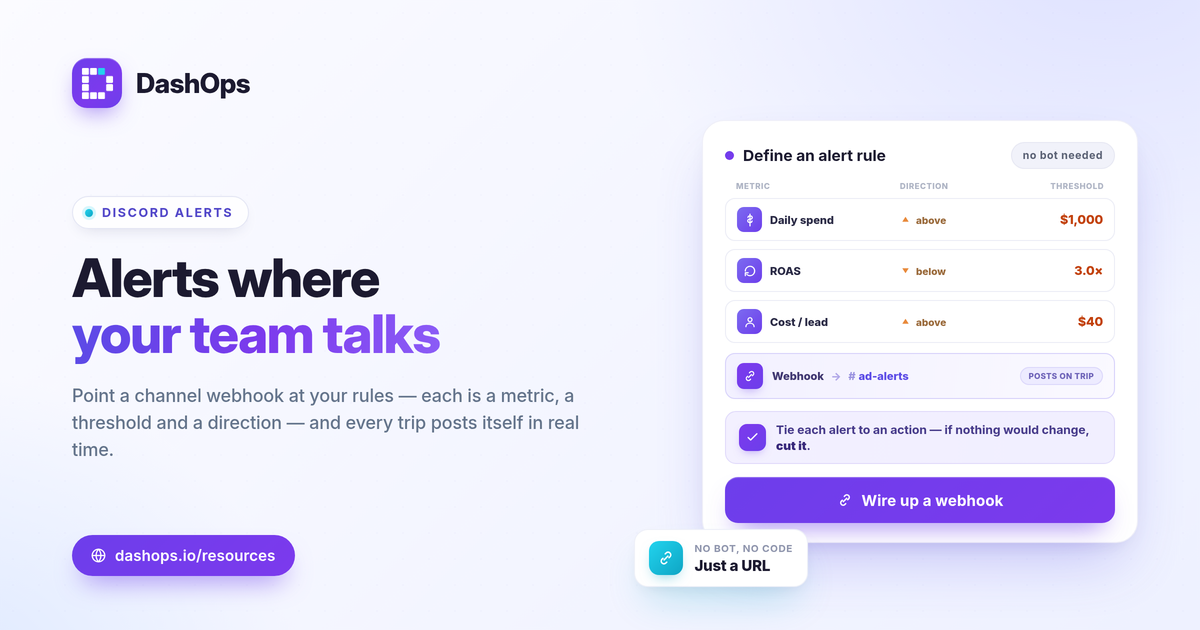
- Define each rule with a metric, a threshold, and a direction, for example notify when daily spend goes above your ceiling or when ROAS falls under your floor.
- Choose the channel. Different ad accounts or clients can post to different channels, which keeps a multi-account setup tidy. Managing several accounts at once is covered in managing multiple Meta ad accounts.
When a rule trips, DashOps posts a message to the channel with the metric, the value, and the account, so the reader knows what changed without opening anything.
Discord, Slack, or email: which channel for which alert
You do not have to pick one. Different alerts suit different channels, and DashOps can send to more than one.
| Channel | Best for | Why |
|---|---|---|
| Discord | Teams and communities already living in Discord | Real-time pings land where the conversation happens |
| Slack | Workspaces standardized on Slack | Same instant alerting, different home base |
| Email digest | Scheduled summaries and client recaps | A periodic roundup rather than an interrupt |
If your team is on Slack instead, the same approach applies and the steps are in Facebook Ads Slack alerts setup. For anything that should arrive on a schedule rather than the moment it happens, an email digest is the better fit than a real-time ping.
Keep the channel useful over time
An alert channel earns its place only if people trust it. A few habits keep it that way.
- Tune thresholds after the first week. If a rule fires constantly, the threshold is too tight. If it never fires, it is too loose.
- Separate urgent from informational. Spend spikes and ROAS drops are urgent. A weekly pacing note can sit in a quieter channel or an email digest.
- Tie every alert to an action. If no one would do anything differently when an alert fires, it is noise. Cut it.
- Watch fatigue signals in the dashboard, not just the alert. Rising frequency alongside a falling CTR often explains a climbing cost per result, and you read that from the demographic, placement, and period-over-period views, not from a single ping.
Where DashOps fits
DashOps connects your Meta ad accounts, reads every KPI in one dashboard with period-over-period comparison, and sends Discord and Slack alerts plus scheduled email digests from the same place, so spend, ROAS, and pacing changes reach your team without a manual check. To see which plans include alerting, look at the pricing page, and the help center walks through connecting an account and adding a webhook. If you are still weighing a live dashboard against Ads Manager itself, Facebook Ads Manager vs a reporting dashboard lays out the tradeoffs, and the Meta Ads KPIs to track help you decide which metrics deserve an alert.
The practical takeaway: start with two or three money-tied alerts, tune the thresholds after a week, and only keep the pings that would actually change what someone does next.
Frequently asked questions
Do I need a Discord bot to get Facebook ad alerts?
Which Facebook ad metrics should I send to Discord first?
Is Discord or email better for ad performance alerts?
See it in your own dashboard
DashOps brings Meta Ads reporting, campaign management, and white-label client portals into one place. Pick the plan that fits how you run ads.