How to Set Up Facebook Ads Slack Alerts in Minutes
A live Slack channel that pings the moment something moves is the fastest way to keep a whole team on the same page about Meta Ads. Facebook Ads Slack alerts push spend spikes, ROAS drops, and pacing problems into the chat your team already watches all day, so nobody has to remember to open Ads Manager. The setup is quick: connect your ad account, pick the conditions that matter, choose a channel, and you are done. This guide walks through the steps, the alerts worth turning on first, and how to keep the channel useful instead of noisy.
Why route Meta Ads alerts into Slack at all
Ads Manager does not come and find you. Someone has to log in, pull the right date range, and notice a problem, which usually means issues sit for hours or a full day before anyone reacts. A Meta Ads Slack integration flips that. The dashboard watches the numbers and posts to Slack when a condition you set is crossed.
The payoff is shared awareness. When an alert lands in a team channel, the buyer, the account lead, and the strategist all see it at once. No forwarded screenshots, no “did you see that spend last night” the next morning. The issue and the response happen in the same place.
Step 1: Connect Slack to your Facebook Ads data
Before any alert can fire, the dashboard needs two connections: your Meta ad account on one side and your Slack workspace on the other.
- Connect the ad account. Authorize your Meta account so the dashboard can read your KPIs. If you run several accounts, connect each one you want monitored.
- Connect Slack. Authorize the Slack workspace and grant permission to post in the channels you choose. This is the integration that lets the dashboard deliver messages.
- Pick the destination channel. Choose where alerts land. A dedicated channel like #meta-alerts keeps them separate from general chatter.
Once both sides are connected, you are ready to define what counts as alert-worthy.
Step 2: Choose the conditions that trigger an alert
This is the part that decides whether your channel stays useful. An alert fires when a metric crosses a threshold you set, so the skill is picking conditions that map to a real decision.
Good starting conditions for ad spend Slack notifications:
- Spend spike or pacing. Flag when daily spend runs ahead of where it should be, so a runaway budget gets caught the same day. This is the core of a budget pacing alert.
- ROAS drop. For e-commerce, alert when return on ad spend falls below your floor. ROAS = conversion value / spend, and your floor is your own break-even, not a universal number. Break-even ROAS = 1 / profit margin.
- Cost per result climbing. For lead gen, alert when cost per lead rises past what your pipeline can absorb. Cost per lead = spend / leads.
- Zero or stalled spend. A campaign that suddenly stops spending is often a rejected ad or a billing problem. Catching it fast saves a wasted day.
Set thresholds against your own goals and prior-period trend rather than a benchmark you read somewhere. The right ROAS or cost per lead floor is the one your margins can carry. If you want a refresher on which metrics deserve a watch, the guide to Meta Ads KPIs to track covers the full set.
Step 3: Send a test and confirm it lands
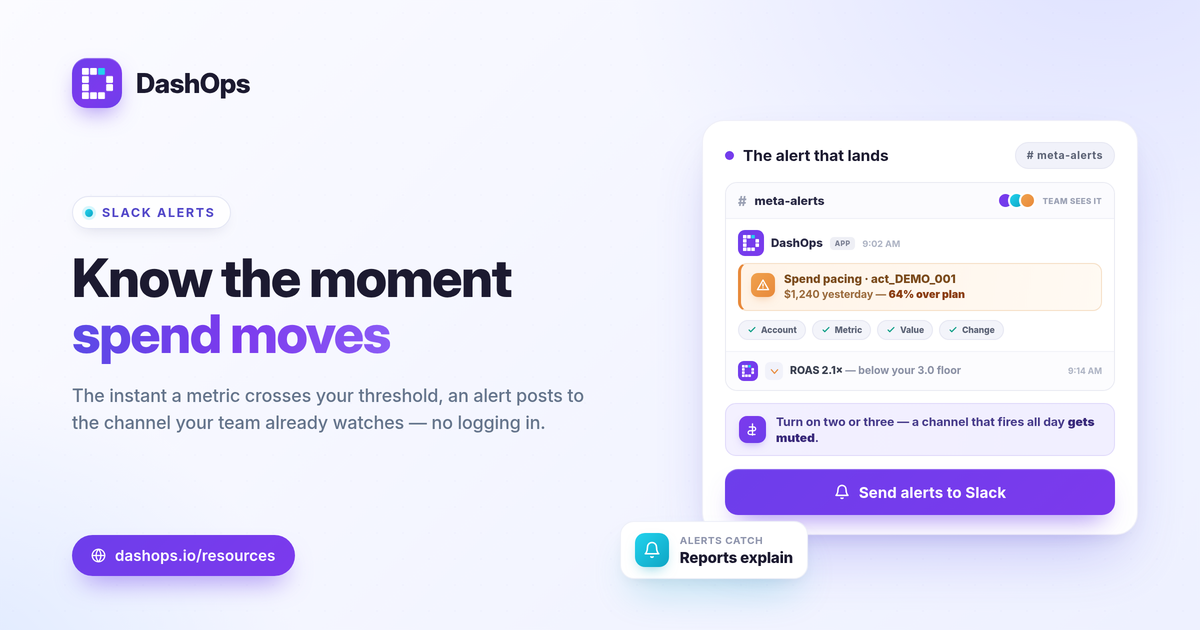
Do not assume the wiring works. Trigger a test alert or set a temporary low threshold and confirm the message actually appears in the channel, that the right people are in that channel, and that the alert reads clearly at a glance. A good Slack ad performance alert names the account, the metric, the value, and what changed, so the reader knows whether to act without opening anything else.
What a useful alert message contains
The difference between a helpful alert and noise is context. A bare “spend is high” forces someone to go investigate. A complete alert answers the obvious follow-up questions in the message itself.
A strong alert includes:
- Which ad account. Essential when you manage more than one, for example act_DEMO_001 versus another client.
- The metric and its value. “CPM up sharply” means little; the actual number and the comparison period mean something.
- The direction and size of the change. Period-over-period framing tells the reader if this is a blip or a trend.
- Enough to decide. The goal is a reader who can choose to act or wait without logging in first.
Keep the channel signal, not noise
The fastest way to ruin alerts is to turn on too many. When a channel fires constantly through the day, the team mutes it, and the one alert that mattered gets missed. Treat restraint as part of the setup.
- Start with two or three alerts, not a long list. Add more only when a real gap shows up.
- Tune thresholds after a week. If an alert fires too often, the threshold is too sensitive; if it never fires, it is too loose.
- Match the channel to the audience. Internal ops alerts and client-facing summaries are different things. Keep raw alerts in a team channel and send clients a clean view separately.
Alerts are for the moments that need a fast human reaction. They are not a substitute for reviewing the full picture, which is what a dashboard and scheduled reports are for. If you want the distinction between catching live issues and reading the complete story, Facebook Ads Manager vs a reporting dashboard lays it out.
Alerts, reports, and client visibility
Slack alerts are one channel; your clients usually want another. Most teams route internal notifications to a private ops channel and give clients a read-only share link or a scheduled email digest instead, so the people paying for the work see a polished view rather than raw spend pings. If you report to clients under your own brand, white-label client reporting covers how that side fits together. Alerts keep your team fast; reports keep your clients informed.
DashOps connects your Meta ad accounts to a single dashboard and can push performance alerts straight into Slack or Discord, alongside scheduled email digests and public share links for the people who should not see the internal channel. See what each plan includes on the pricing page, and the help center walks through connecting Slack step by step.
Pick the two or three alerts tied to money and goals, send a test to confirm they land, and tune the thresholds after the first week.
Frequently asked questions
What Facebook Ads Slack alerts are worth setting up first?
Do Slack alerts replace my regular Meta Ads reports?
Can clients see the Slack alerts, or just my internal team?
See it in your own dashboard
DashOps brings Meta Ads reporting, campaign management, and white-label client portals into one place. Pick the plan that fits how you run ads.