Are Automated Meta Ads Reports Safe to Send Clients? Permissions, Privacy, and Read-Only Access Explained
Automated Meta Ads reports are safe to send clients when the access you grant is read-only and scoped to reporting, not to the ad account itself. The trust question is really an access question, so whether automated Meta Ads reports are safe depends entirely on whether the client can see numbers without being able to touch campaigns, billing, or account settings. Done correctly, a client never logs into Meta Ads Manager, never sees your other accounts, and cannot change a single thing. They receive a clean view of their own performance, on a schedule, while you keep full control of the underlying account. Here is how read-only roles, share links, and a simplified client portal make that possible.
What “safe” actually means for an ad report
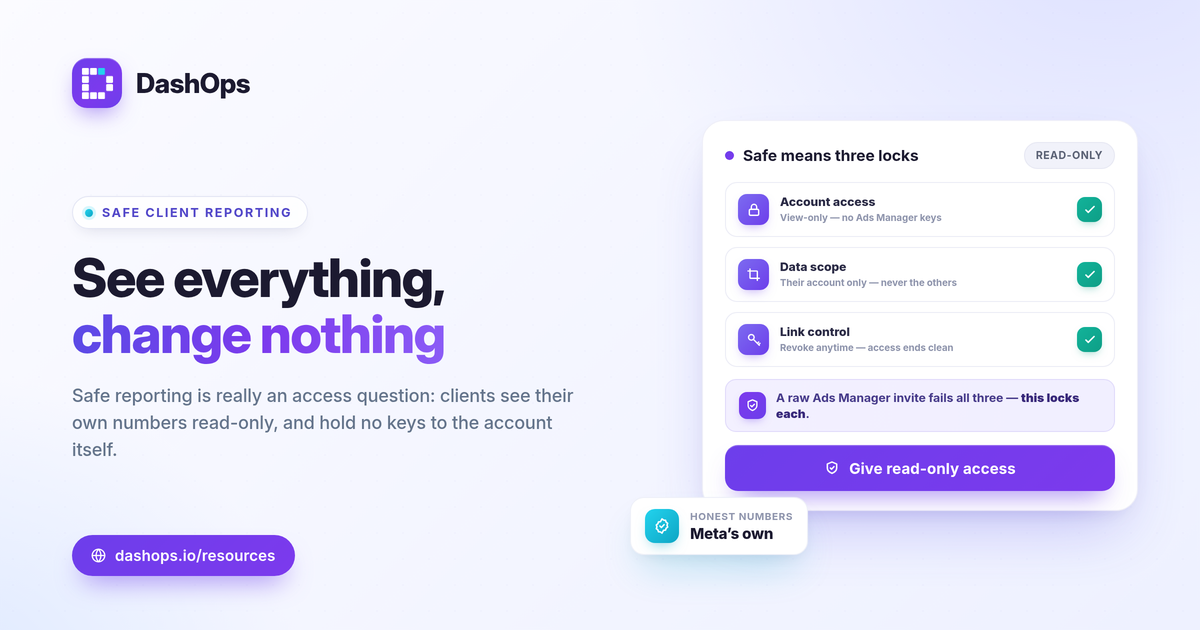
Safety in client reporting comes down to three separate concerns that people tend to blur together.
- Account access. Can the recipient reach Meta Ads Manager, change budgets, pause campaigns, or see billing? This is the highest-stakes layer and the one to lock down first.
- Data scope. Does the client see only their own ad account, or could they glimpse other clients, internal notes, or accounts they should not?
- Link control. Once a report is shared, who can open it, and can you revoke that access later?
A good automated reporting setup answers all three without asking you to hand over a login. Sending a raw Ads Manager invite fails on every count: it exposes the account, mixes data, and is hard to claw back. A read-only report layer is built to do the opposite.
Read-only client access keeps the account untouched
The cleanest way to share is a dedicated role that can view but not act. In DashOps, roles are explicit: Admin (owner), Team member, and Client user. The Client user role is read-only client access by design.
- Client users can view dashboards, KPI trends, demographic and placement breakdowns, top campaigns, and finished reports.
- Client users cannot create, edit, pause, or delete campaigns, cannot reach billing, and cannot change account settings.
- Campaign create and edit stay with Admin and Team member roles on Growth and Enterprise plans, so the people who run the account are the only ones who can change it.
This separation matters because it removes the most common reporting accident: a well-meaning client clicking something in Ads Manager they did not understand. If they never have the keys, they cannot turn anything off. For a deeper look at how these roles map to a reporting workflow, the post on client access roles for a Meta Ads dashboard walks through each level.
Public share links: convenient, and still read-only
Sometimes a client just wants a link, no login, no account. A public read-only share link covers that. It renders the report in the browser as a view-only page, scoped to the specific report you choose to share. It does not grant any account access, and it does not expose Ads Manager.
The trade-off is straightforward and worth stating plainly: anyone who has the link can open it. So the link itself becomes the thing to protect, not the account behind it.
- Share it privately. Send the URL over a channel you trust rather than posting it publicly.
- Use it for low-sensitivity views. A topline performance summary is a fine candidate; treat anything more detailed with more care.
- Revoke when the relationship changes. If a client offboards, disable or rotate the link so the old URL stops working.
Because a share link is read-only and scoped to one report, the blast radius is small by design. The practical guide on how to share a read-only Facebook Ads report link covers the day-to-day mechanics.
The client portal: a simplified, private view
For ongoing relationships, a simplified client portal is the middle ground between a one-off link and full account access. The client logs into their own private space and sees only their data, presented in a stripped-down interface without the operational controls you use day to day.
Client portal security rests on the same principle as the role system: the portal surfaces reporting, not account management. The client sees their KPIs, trends, and breakdowns. They do not see other clients, they do not see billing, and they cannot reach campaign controls. On Growth, white-label Lite removes the platform branding from that view; on Enterprise, white-label Full adds custom domains so the portal lives on your own URL. If white-labeling is part of your plan, the overview of white-label client reporting explains what each tier includes.
Privacy of the numbers themselves
Safe report sharing is not only about access control. It also means the numbers you send are honest about what they can and cannot show, so a client does not draw the wrong conclusion from a clean-looking chart.
- Report Meta-native figures. DashOps reports the numbers Meta returns, with period-over-period comparison and trend charts. It does not invent a blended or server-side attribution figure, so what the client sees matches what Meta measured.
- Be clear about attribution limits. iOS privacy changes and the App Tracking Transparency prompt cause Meta to undercount some conversions, which means platform-reported results can sit below what actually happened. Naming that in a report builds trust rather than eroding it. The explainer on iOS and Facebook Ads underreporting is a useful companion to send.
- Pick the KPIs that fit the goal. Lead-gen and e-commerce accounts need different headline metrics, and showing only the relevant ones keeps a report focused. The list in Meta Ads KPIs to track is a good starting point.
A simple checklist before you automate
Before you turn on scheduled reports for a client, confirm the access model:
- Use the Client user role or a scoped share link, never a direct Ads Manager invite.
- Confirm the client cannot edit campaigns or reach billing from the view you gave them.
- Decide on portal versus link based on how ongoing the relationship is.
- Set a revoke plan so access ends cleanly when the engagement does.
- State attribution caveats in the report so the numbers are read correctly.
If you want this without building permissions logic yourself, DashOps separates reporting from account control out of the box: read-only Client users, scoped public share links, a simplified client portal, and white-label options on the higher tiers. See what each plan includes on the pricing page, and the help center covers setup and role configuration.
The takeaway: automated reports are safe to send when the client can see everything and change nothing, so build your sharing around read-only access first.
Frequently asked questions
Do clients need a Meta account to view an automated report?
Can a client user change or pause my campaigns?
Are public share links a security risk?
See it in your own dashboard
DashOps brings Meta Ads reporting, campaign management, and white-label client portals into one place. Pick the plan that fits how you run ads.