Client Access and Roles in a Meta Ads Dashboard: A Setup Guide
Client access roles in a Meta Ads dashboard exist to answer one question: who can see what, and who can change it. The safe pattern is simple. Give each person the least access they need to do their job, scope clients to only their own ad accounts, and keep campaign editing in the hands of the people who run the ads. DashOps uses three roles for this: Admin, Team member, and a read-only Client user. This guide walks through what each role can do and how to give clients access to their Meta Ads data without exposing budgets, settings, or other accounts.
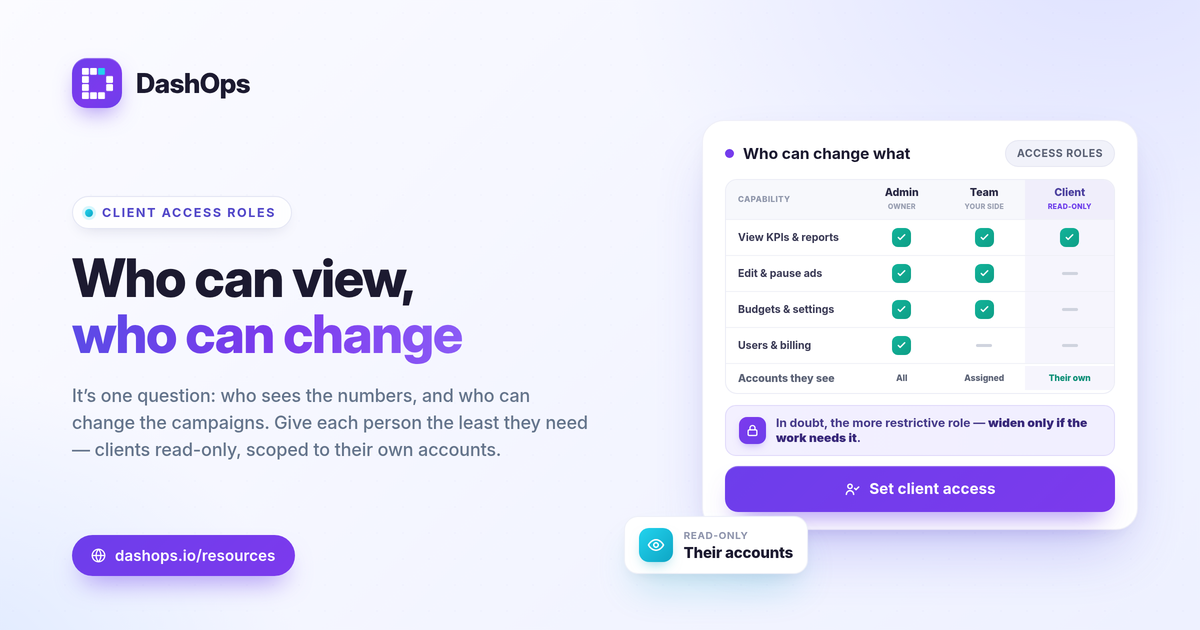
The three roles, in plain terms
Most access problems come from one mistake: giving someone more than they need. These three roles map to the three jobs people actually do.
- Admin (owner). Full control. Connects Meta ad accounts, manages billing and plan, adds and removes users, sets who sees which accounts, and creates or edits campaigns where the plan allows. This is you, or whoever owns the account.
- Team member. Works on your side. Can be given operational access to dashboards and reports, and campaign create and edit on Growth and Enterprise plans. Use this for staff, freelancers, and contractors who help run or report on the ads.
- Client user. A read-only viewer scoped to their own ad accounts. They see their KPIs, trends, and reports, and nothing else. They cannot edit, pause, or change anything, and they cannot see other clients.
Getting these Meta Ads dashboard roles right at the start saves you from untangling permissions later.
What a read-only Client user can and cannot do
The read-only Client user is the role most people set up wrong, usually by sharing too much. Here is the line.
A Client user can:
- View the dashboard for the ad accounts you have shared with them, with the full set of KPIs such as spend, CPC, CTR, ROAS, leads, and cost per lead.
- See period-over-period comparison and trend charts so they understand what changed.
- View demographic and placement breakdowns, top campaigns, and spend pacing for their accounts.
- Open reports and exports you have made available to them.
A Client user cannot:
- Edit, pause, or create campaigns, or change any budget or setting.
- See ad accounts that are not theirs, or any other client’s data.
- Manage users, billing, or connections.
This is the difference between read-only client user access and operational access. The client gets a clear, simplified window into their results. The controls stay with you.
How to give a client safe, scoped access
Managing client access well is mostly about scoping. Follow this order and you will not over-share.
- Decide the scope first. Identify exactly which ad accounts belong to this client, for example act_DEMO_001 for Acme Apparel. A client should only ever be mapped to their own accounts.
- Add the person as a Client user. Invite them with the read-only Client user role rather than Team member. The role sets the ceiling on what they can do.
- Assign only their ad accounts. Map the user to their accounts and nothing else. This is the single most important step for keeping clients separated.
- Choose the view. For an ongoing relationship, give them the simplified client portal they log into. For a quick look with no login, send a public read-only share link to a specific report instead.
- Confirm before you send. Log in as, or preview, the client view and check that they see only their accounts and cannot reach edit controls. Confirming the actual view beats assuming the settings did what you intended.
For a deeper look at what a client should actually see in their reports, the guide on white-label client reporting pairs well with this setup.
Team member permissions for staff and contractors
Team member permissions are for people on your side of the work, not the people you report to. The distinction matters because Team members can be trusted with operational access that a client should never have.
- Reporting help. A contractor who builds and sends reports needs dashboard and export access, but does not need to touch campaigns.
- Hands-on management. A team member who runs the ads needs campaign create and edit, available on Growth and Enterprise plans. On Starter, the dashboard is view-only reporting, so editing lives on the higher plans.
- Mixed teams. You can keep some Team members reporting-only and give others editing, depending on the job.
A good rule: if the person works for the client rather than with you, they should be a Client user, not a Team member. When in doubt, choose the more restrictive role and widen it only if the work requires it.
Why scoped roles beat sharing your Meta login
It can be tempting to just hand a client or a freelancer access to your Meta Ads Manager or a shared login. Scoped dashboard roles are safer and cleaner for a few concrete reasons.
- No accidental edits. A read-only client cannot pause a campaign or change a budget by mistake, because the role does not allow it.
- Clean separation. Each client sees only their own accounts, so one login never exposes another client’s spend or results.
- A simpler view. Clients get a focused dashboard built for reading results, not the full complexity of Ads Manager. If you want to weigh that trade-off, the comparison of Ads Manager versus a reporting dashboard covers it. And if a client asks which numbers matter, point them at the rundown of Meta Ads KPIs to track.
- An audit trail. Audit logs record who did what, which matters once more than one person has access.
DashOps puts all of this in one place: Admin, Team member, and read-only Client user roles, ad-account-level scoping, a simplified client portal, public share links, and audit logs, with campaign editing on Growth and Enterprise. White-label Lite comes with Growth and white-label Full with Enterprise for client-facing portals. See what each plan includes on the pricing page, and the help center walks through inviting users and assigning accounts.
The practical takeaway: scope every client to their own ad accounts, keep them read-only, and reserve editing for the people who run the ads.
Frequently asked questions
Can a client user edit or pause my Meta Ads campaigns?
What is the difference between a Team member and a Client user?
Do I need to add a client as a user to share a report?
See it in your own dashboard
DashOps brings Meta Ads reporting, campaign management, and white-label client portals into one place. Pick the plan that fits how you run ads.