How to Send White Label Facebook Ads Reports to Your Clients
Sending white label Facebook Ads reports means delivering branded PDF, Excel, or scheduled email digests that carry your logo and colors instead of the reporting tool’s. The fastest reliable path is to set your branding once, build the report from the KPIs tied to each client’s goal, then schedule it to send on a fixed cadence. Done well, the client opens a clean document that looks like it came from your business, reads the numbers that matter, and never sees the plumbing behind it. This guide walks through producing branded Facebook Ads reports as PDF and Excel, plus scheduled email digests, step by step.
Set your branding once, before you build anything
White-label work starts with configuration, not the report itself. Get this right and every export afterward inherits it.
- Upload your logo. It appears on the report cover, page headers, and the client portal.
- Set your brand colors. Charts, headers, and accents pick these up so the document matches the rest of your materials.
- Choose your white-label tier. White-label Lite brands your reports, dashboards, and client portal. White-label Full adds a custom domain so share links and the portal live on your own web address rather than a generic one.
For a deeper look at what white-label covers across the whole client experience, see white label client reporting. The point of doing this first is simple: you configure branding one time, and it carries into every PDF, Excel file, and email that follows.
Pick the KPIs that match each client’s goal
A branded report is only as good as the numbers inside it. Before you export anything, decide what this specific client is paying you to deliver.
- E-commerce clients want spend, purchases, conversion value, and ROAS, where ROAS = conversion value / spend.
- Lead-gen clients want leads, cost per lead, where cost per lead = spend / leads, and where possible some signal on lead quality.
- Everyone benefits from the efficiency basics: CPC, CPM, CTR, and frequency, plus a period-over-period comparison so the client sees direction, not just a snapshot.
DashOps adapts the KPI set automatically to lead-gen or e-commerce, so you are not manually hiding irrelevant metrics for each client. If you want a fuller menu of what to include, the Meta Ads KPIs to track breaks down all of them and when each one earns its place on the page.
Build the PDF report
The Facebook Ads PDF report is the format most clients expect, because it reads like a finished document and travels well over email.
- Open with the headline numbers. Spend, results, cost per result, and return, tied to the goal you picked above.
- Show the trend. A period-over-period comparison answers the question every client actually has: did this period beat the last one.
- Add the breakdowns that explain the result. Demographic (age and gender) and placement breakdowns show where the money worked and where it did not. Top campaigns and spend pacing round out the picture.
Keep the PDF focused on what the reader can act on or feel reassured by. The branded cover and consistent colors do the work of signaling that this is your report, so you do not need to crowd every page.
Export to Excel when the client wants the raw rows
Some clients, especially in-house teams and finance-minded owners, want to slice the data themselves. That is what the Excel export is for.
- Excel and CSV give the underlying rows so the recipient can pivot, filter, or merge with their own data.
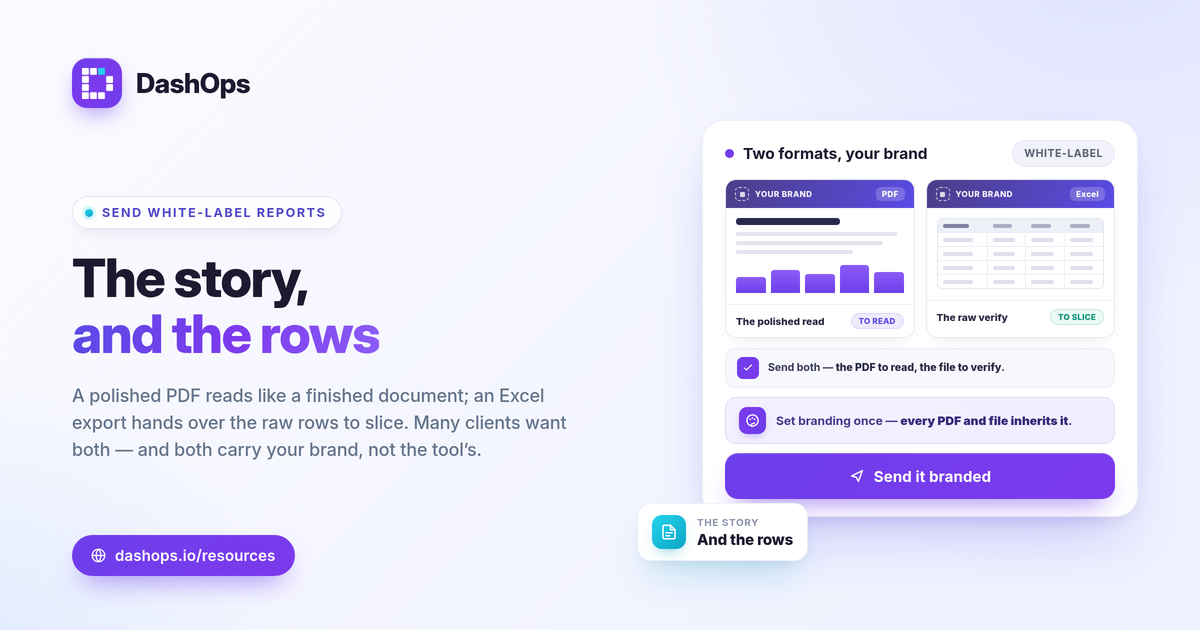
- PDF is the polished narrative; Excel is the working file. Many people send both: the PDF to read, the spreadsheet to verify.
The choice between a built document and a raw export is the same tension you weigh when deciding between Ads Manager and a dedicated dashboard. Facebook Ads Manager vs a reporting dashboard covers why a purpose-built report usually wins for client-facing work, while the export still covers anyone who wants to dig in.
Schedule the email digest so it sends itself
Manually exporting and emailing a report every week is exactly the kind of task that quietly eats your time. Scheduled Meta Ads reports remove that.
- Set the cadence. Weekly or monthly, on the day that suits the client.
- Choose the scope. Which ad account, which date range, and which KPIs.
- Pick the recipients. The branded digest lands in their inbox on schedule, no action from you.
This matters most when you report on several clients at once. If you manage multiple Meta ad accounts, scheduled digests mean a reporting day that used to take an afternoon now runs in the background. A useful pattern is to pair the scheduled PDF or Excel digest with a live, read-only share link, so the client gets the formal report on a cadence and can also glance at current numbers whenever they like.
Give clients a live view, not just a file
A static report answers the question at one moment. A live view answers it whenever the client opens it.
- Public read-only share links let a client check current numbers without a login and without edit access.
- The simplified client portal gives a cleaner, branded space for clients who want a recurring home for their data, with read-only Client user access so they can look but not change anything.
With white-label Full, both the share links and the portal can run on your custom domain, which keeps the experience fully yours from the report cover to the web address. The scheduled digest and the live link are complements, not competitors: the digest creates a record and a rhythm, the link covers the in-between moments.
A quick word on the numbers clients will ask about
Clients sometimes notice that Meta’s reported conversions do not match what they see in their own sales or CRM data. This is normal. Apple’s App Tracking Transparency changes cause Meta to undercount some conversions, so the platform figure can run lighter than reality. It is worth saying so plainly in or alongside the report rather than letting the client discover the gap and lose confidence. For lead-gen clients, also keep in mind that Meta only lets you download Instant Form leads directly from the Page for a limited window, about 90 days, after which leads must come through the API or a connected tool, so exporting on a regular cadence protects you from losing older leads.
DashOps brings these steps together: connect your Meta ad accounts, set your logo and colors once, and produce branded PDF, Excel, and scheduled email digests, plus read-only share links and a client portal that can run on your own domain. White-label Lite is on Growth and white-label Full with custom domains is on Enterprise, with pricing per ad account, so the pricing page shows what each tier includes and the help center walks through setup. Branding is configured once, then every report inherits it.
The practical takeaway: configure your branding first, build each report around the client’s actual goal, and let a schedule deliver it so the work runs without you.
Frequently asked questions
What is the difference between a white label Facebook Ads report and a normal one?
Can I send white label Facebook Ads reports automatically on a schedule?
Which plan do I need for branded client reports and a custom domain?
See it in your own dashboard
DashOps brings Meta Ads reporting, campaign management, and white-label client portals into one place. Pick the plan that fits how you run ads.