What Is the Attribution Setting in Meta Ads and Which One Should Your Reports Use?
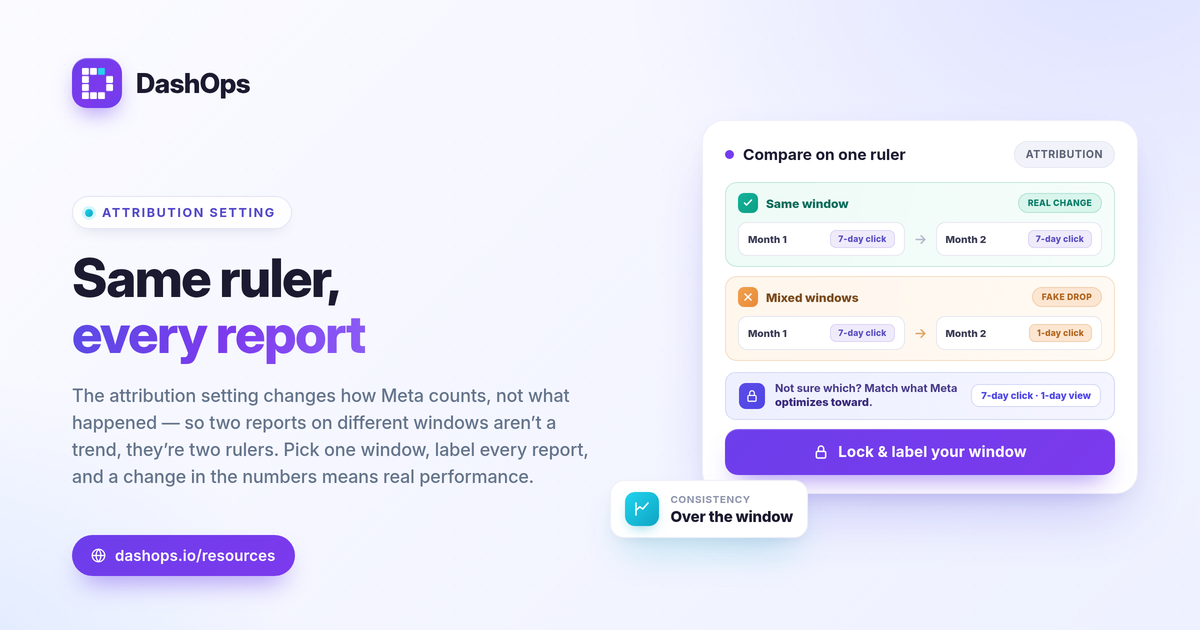
The Meta Ads attribution setting decides how Meta credits a conversion to your ads, and it quietly changes the numbers in every report you pull. It defines the window of time after a click or a view in which a purchase or lead still counts as caused by your ad. The current default is 7-day click and 1-day view. The single most important thing to know is this: the attribution setting does not change what actually happened, only how Meta counts it. Two reports of the same campaign can show different ROAS, different purchases, and different cost per lead simply because they used different windows. To keep month-to-month comparisons honest, pick one setting and apply it everywhere.
What the attribution setting actually does
When someone interacts with your ad and later converts, Meta has to decide whether to credit your ad for that conversion. The attribution setting is the rule it uses. It has two parts:
- Click-through window. How many days after a click a conversion still counts. Options are 1-day or 7-day click.
- View-through window. Whether a conversion counts after someone saw but did not click your ad. The option here is 1-day view.
So the default “7-day click, 1-day view” means: if a person clicked within the last seven days or saw the ad within the last one day before converting, the conversion is attributed to your ad. Widen the window and Meta credits more conversions. Narrow it and Meta credits fewer. The real-world purchases and leads are identical either way. Only the reported total moves.
Why the same campaign shows different numbers
This is the part that confuses most people reading reports. If your ROAS looks higher in one export than another, the attribution window is often the reason, not a performance change.
- A 28-day click view (used as the default in older Meta reporting) credits conversions that happened weeks after the click, so totals look larger.
- A 1-day click view credits only same-day conversions, so totals look smaller and tighter to the moment of the click.
- A view-through count adds conversions from people who never clicked, which inflates results relative to a click-only view.
None of these is wrong. They answer slightly different questions. But if you compare a report built on one window against a report built on another, you are comparing two different counting rules and calling it a trend. That is how a flat month can look like a drop, or a soft month can look like a win. If your reports and Ads Manager already disagree, our guide on why Ads Manager numbers do not match your reports walks through the usual causes.
Which attribution setting should your reports use?
The honest answer to “which attribution setting Meta Ads should use” is: the one you apply consistently to every report. Consistency matters more than the specific window. That said, here is how to choose:
- Default to 7-day click, 1-day view if you want to match what Meta optimizes toward. Meta’s delivery system uses this default to decide who to show ads to, so reporting on the same basis keeps your reports aligned with how the campaigns are actually run.
- Use a shorter click window (1-day) if you want a conservative count closer to immediate response, or if your sales cycle is very short.
- Avoid mixing view-through into some reports and not others. View-through conversions can be useful context, but only if every report treats them the same way.
The point of a default attribution window is to remove guesswork. Once you lock it in, every period is measured by the same ruler, so a change in the numbers reflects a real change in performance rather than a change in counting.
How to standardize the setting across reports
Standardizing the attribution setting is mostly discipline, not technology.
- Pick one window and write it down. Decide on, for example, 7-day click and 1-day view, and record that choice where your reporting process lives.
- Set the same window every time you pull data. In Ads Manager the comparison attribution control sits in the columns or the chart settings. Confirm it before exporting.
- State the window on the report itself. A one-line note such as “Attribution: 7-day click, 1-day view” tells anyone reading exactly what every number is based on. This is especially important for client reports, where the reader cannot check your settings. Our white-label client reporting guide covers what else belongs on a clean client-facing report.
- Re-pull historical periods on the new window if you change it, so your back-comparison is apples to apples rather than two different rules stitched together.
Attribution windows, iOS, and the Conversions API
Two related forces also shape what your reports show, and it helps to keep them separate from the attribution setting itself.
The first is iOS and App Tracking Transparency. When users opt out of tracking, Meta loses some of the signal it needs to connect a conversion back to an ad. This tends to cause conversions to be undercounted in your reports, particularly view-through and longer-window conversions. It is a qualitative effect: your real sales may be higher than what Meta attributes.
The second is the Conversions API (CAPI) versus the Pixel. The Pixel sends conversion events from the browser, which is exactly the signal that ad blockers and opt-outs weaken. CAPI sends events server-side, which can recover some of that lost signal and improve how completely conversions are attributed. Setting up CAPI does not change the attribution window, but it changes how many conversions actually make it into the count. For the deeper version, see Facebook ads attribution windows explained.
It is worth being precise about tooling here. A reporting dashboard like DashOps reports Meta-native numbers. It does not perform blended or server-side attribution of its own. What it does is read the figures Meta reports and present them consistently, so the window you standardized on is the window every report reflects.
Reading the numbers with the setting in mind
Once your attribution window is fixed, you can read the standard KPIs with confidence. Spend, impressions, and reach are not affected by attribution at all. Conversion-side metrics are: purchases, ROAS (conversion value / spend), leads, and cost per lead (spend / leads) all move with the window because they depend on attributed conversions. Knowing which metrics shift and which do not keeps you from blaming a campaign for what is really a settings difference. For the full set of metrics to watch, see Meta ads KPIs to track.
DashOps pulls every KPI across your Meta ad accounts into one dashboard with period-over-period comparison built in, reporting the Meta-native numbers consistently so the attribution basis stays the same from one report to the next. See what each plan includes on the pricing page, and the help center covers connecting your accounts.
The practical takeaway: choose one attribution window, label it on every report, and never compare two periods that were counted by different rules.
Frequently asked questions
What is the default attribution window in Meta Ads?
Does changing the attribution setting change my actual results?
Which attribution setting should I use for client or monthly reports?
See it in your own dashboard
DashOps brings Meta Ads reporting, campaign management, and white-label client portals into one place. Pick the plan that fits how you run ads.