How to Build a Client Portal for Meta Ads Reporting
A client portal for Meta Ads reporting is a read-only, simplified dashboard where a client logs in and sees their own results without touching your full toolset. The goal is self-serve: the client checks spend, results, and trends whenever they want, and you stop fielding “can you send the latest numbers” messages. To build one, you need three things working together: a client-scoped view of the right ad accounts, a stripped-down set of KPIs the client actually cares about, and a read-only role that locks editing out. Here is how to set each piece up so the portal is genuinely useful and safe to hand over.
Decide what the client should see, and what they should not
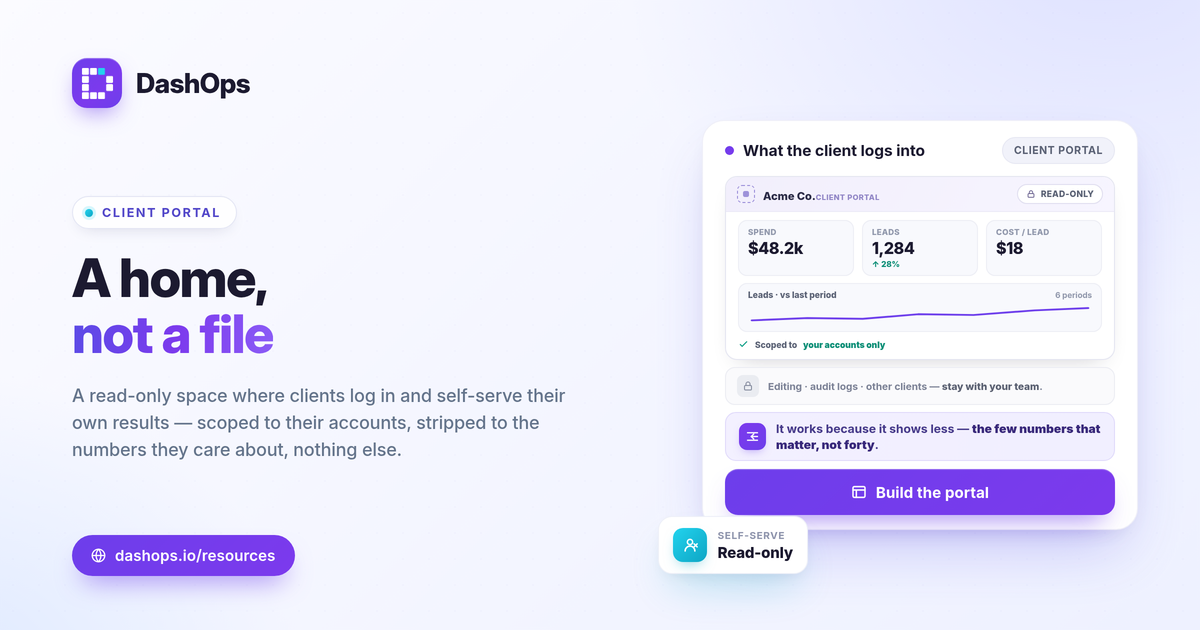
A client reporting portal works because it shows less, not more. The full performance dashboard has campaign editing, audit logs, and every breakdown you use to do the work. The client does not need that, and showing it invites questions you do not want.
Start by separating two audiences:
- What you use. Campaign creation and editing, placement deep-dives, spend pacing, the raw KPI grid across every account.
- What the client uses. Did the money work, what changed since last period, and a couple of supporting numbers tied to their goal.
A simplified client dashboard is the second list only. Keeping the portal narrow is the whole point: it answers the client’s question without exposing the controls that should stay with your team.
Pick the KPIs that belong in the portal
Choose metrics by the client’s goal, not by what Meta returns. A lead-gen client and an e-commerce client want different headline numbers, so adapt the view to each.
- For e-commerce. Spend, purchases, ROAS, and cost per purchase. ROAS is conversion value divided by spend, so the client can see return at a glance.
- For lead gen. Spend, leads, and cost per lead. Cost per lead is spend divided by leads, which is the number a lead-gen client checks first.
- For everyone. Period-over-period comparison, so the client sees whether this period beat the last one rather than a number floating with no context.
Resist the urge to add every KPI. A read-only Meta Ads dashboard with six clear numbers and a trend line gets read; one with forty does not. If a client wants to understand a specific metric, our guide on Meta Ads KPIs to track is a good companion to point them to.
Set up the read-only role
The portal is only safe if the client cannot change anything. This is a permissions decision, not a design one.
In DashOps, roles handle this directly:
- Admin is the owner, with full access including campaign create and edit.
- Team member does the hands-on work but is not the account owner.
- Client user is read-only by design. A Client user can view KPIs, breakdowns, and trends, but cannot edit campaigns, change budgets, or see the full toolset.
Assign the client a Client user role and scope it to their ad accounts only. That single step is what turns a shared dashboard into a real client portal: the client logs in, sees their own numbers, and has no path to anything they should not touch. Campaign editing stays gated to Admin and Team member roles on Growth and Enterprise plans, so the portal cannot become a liability.
Scope the portal to the right ad accounts
If you manage several clients, each one should see only their own data. A client opening the portal and finding another client’s spend is the fastest way to lose trust.
- One client, one or more accounts. Map the Client user to exactly the ad accounts that belong to them.
- Multiple accounts in one place. If a single client runs more than one ad account, the portal can show all of theirs together, which saves them logging in and out.
Managing this cleanly across many clients is its own skill. If you are running a growing book of accounts, managing multiple Meta ad accounts covers how to keep them organized without the views bleeding into each other.
Brand it so it feels like your reporting
A client portal carries your relationship, so it should look like yours, not like a generic tool. White-label settings handle this.
- Growth includes white-label Lite, which applies your branding to the client-facing views.
- Enterprise includes white-label Full, with custom domains so the portal lives on a URL you control.
White-labeling matters most for agencies and freelancers, where the portal is part of how you justify the retainer. For the fuller picture on presenting branded reports, see white-label client reporting.
Choose between a live portal and a share link
A portal is not the only way to give a client read-only access, and the two approaches serve different needs.
| Approach | Best for | Access |
|---|---|---|
| Client portal | Ongoing self-serve access | Logged-in Client user, scoped to their accounts |
| Public share link | A quick one-off view | Read-only URL, no login |
A public read-only share link is the right tool when you just want to send a snapshot fast. A portal is the right tool when the client should return any time and always see current numbers. Many setups use both: the portal for day-to-day, a share link when someone outside the account needs a one-time look. For more on how the underlying numbers differ from the native tool, Facebook Ads Manager vs a reporting dashboard is worth a read.
Onboard the client so they actually use it
A portal nobody opens is just a dashboard you built for yourself. Make the first visit easy.
- Send one link and one sentence. Where to log in and what they will see.
- Point to the headline numbers. Tell them which two or three metrics answer their question, so they are not lost in the view.
- Set the cadence. If you also send scheduled email digests, the client knows the portal is there for detail when the digest raises a question.
DashOps builds the client portal from the pieces above: a simplified, read-only client dashboard, a Client user role that locks editing out, ad-account scoping per client, and white-label branding so it carries your name. You can see what each plan includes on the pricing page, and the help center walks through setting up roles and client access step by step.
Build the portal around the one question your client has, keep everything else out of it, and the portal will get used.
Frequently asked questions
What is a client portal for Meta Ads reporting?
How is a client portal different from a shared report link?
Can clients edit campaigns inside the portal?
See it in your own dashboard
DashOps brings Meta Ads reporting, campaign management, and white-label client portals into one place. Pick the plan that fits how you run ads.