Two Factor Authentication for Ad Accounts: A Setup Guide
A teammate leaves your agency on a Friday. On Monday you discover their personal Facebook account still has admin rights on four client ad accounts, and nobody can log in as them to check whether the account itself was ever secured. That is the uncomfortable truth about Meta ad account access: the permission you granted lives on a personal profile you do not control, protected by whatever password that person happened to choose.
Two factor authentication is the one control that closes most of that gap, and Meta gives you a way to require it rather than hope for it. This post covers exactly how that works for ad accounts, what it does and does not protect, and how to roll it out without locking your own team out on a Tuesday morning.
Why ad account access is a different risk from ordinary account access
It is tempting to file a compromised social account under embarrassment. A compromised ad account is a spending problem. Whoever holds access can create campaigns, change billing, download your custom audiences, and pull the lead data sitting inside your Instant Forms. None of that needs patience on the attacker’s part, which is what makes it a different kind of incident from a defaced page.
The structural issue is that Meta ties business permissions to personal profiles. When you add Jane Doe from Acme to a client’s ad account, you are trusting Jane’s personal Facebook login. If she reuses a password, or falls for a login page that looks close enough, the attacker inherits every permission you granted her. Your own account hygiene is irrelevant at that moment.
This is why access control and authentication have to be handled together. Getting roles right is covered in our guide to Facebook Ads role based access. Two factor authentication is the layer underneath it: the roles decide what someone can do, and 2FA decides whether it is really them.
What Meta actually lets you require
Meta separates two things that get confused constantly.
Personal two factor authentication is a setting each individual turns on for their own Facebook account. You can ask your team to do it. You cannot verify it from outside, and you cannot enforce it.
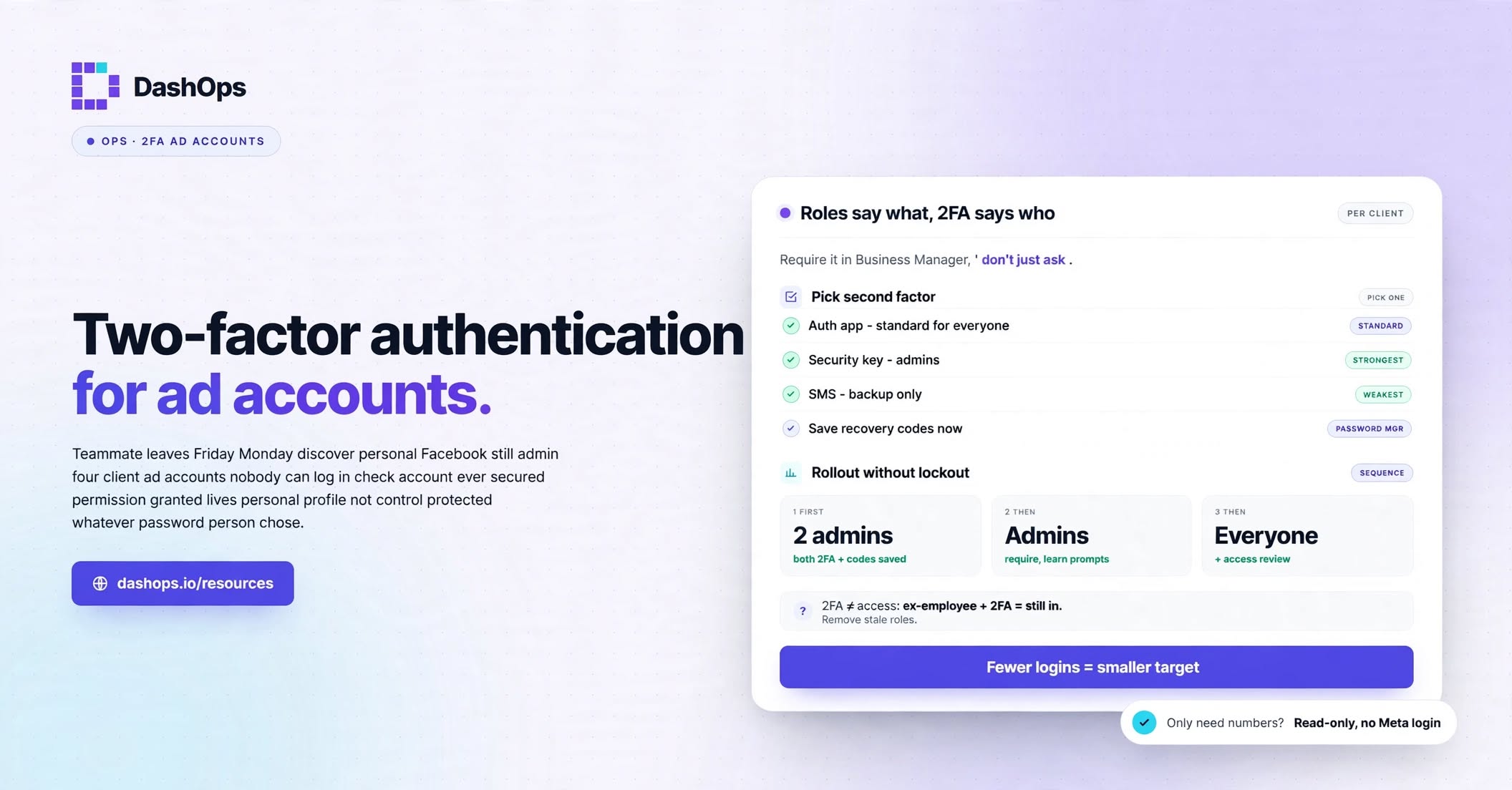
Two factor authentication requirement inside Business Manager is an admin setting on the business portfolio. Once switched on, anyone with a role in that business must have 2FA enabled on their personal account before they can access assets belonging to it. If they have not turned it on, they are prompted to do so before they can proceed. This is the setting that matters, because it converts a request into a condition.
You will find it under Business settings, in the security or security centre area, usually presented as a choice between requiring 2FA for admins only or for everyone in the business. There is also a two factor requirement that applies specifically to people who administer the business, separate from the wider setting.
The distinction to hold onto: enabling it on your own account protects your login. Enabling the business requirement protects the client’s ad account from every person who touches it.
Which of the three options to tell your team to pick
When someone turns on 2FA, Meta offers three second factors. They are not equivalent.
- Authentication app. A code generated on the device by an app such as Google Authenticator, Authy, or the code generator built into the Facebook app itself. This is the one to make your standard. It works with no signal, it cannot be intercepted in transit, and it survives a lost phone number.
- Security key. A physical key or a passkey stored on the device. The strongest option, and the one that resists a convincing fake login page, because the key checks the domain before it responds. Worth it for whoever holds admin on the business portfolio.
- Text message. A code sent to a phone number. Better than nothing and far better than a password alone, but it is the weakest of the three. A phone number can be ported away by someone impersonating the owner at a mobile carrier, which puts your second factor in somebody else’s hand without them ever touching your password.
The practical policy for an agency: authentication app as the standard for everyone, security key for anyone with admin rights on a business portfolio, and text message only as a backup method rather than the primary one.
Tell people to save their recovery codes at the moment they enable it. Meta generates a set of one time codes for the case where the phone is lost. It is an easy step to skip, and it is exactly what you want in hand the day a phone is replaced, dropped or wiped. A password manager entry is the right place, not a note on the same phone that holds the app.
Rolling it out without breaking Monday morning
The failure mode here is predictable. You flip the business requirement on a Friday afternoon, and on Monday a media buyer cannot get into an account to fix a campaign that is spending badly, because they are waiting on a call with someone who has the phone.
A sequence that avoids that:
- Confirm your own access first. Make sure at least two people hold admin on the business portfolio, and both have 2FA working, before you require it of anyone else. A single admin who loses their phone leaves you dependent on Meta’s own account recovery, on Meta’s timetable rather than yours.
- Give notice with instructions, not just a policy. Send the team the exact path to the setting and tell them which method to choose. A vague request is easy to put off. A specific one is easy to act on.
- Turn it on for admins first. Meta lets you scope the requirement. Starting with admins limits the blast radius while you learn how the prompts behave.
- Then extend it to everyone in the business. Once admins are clear, widen it.
- Check who is actually in there. A requirement applies to current people. It does nothing about the freelancer from last year who still holds a role. Pair the rollout with an access review, using our ad account access review checklist so you clear out stale roles at the same time.
If you manage access for clients rather than only for your own staff, the same requirement applies to their people too, which is a conversation worth having before you switch it rather than after. Framing it as protecting their spend rather than as an agency policy tends to land better.
What 2FA does not cover
Two factor authentication protects the front door. It does nothing about several other ways access leaks out of an agency, and it is worth being honest about that so nobody treats it as finished.
It does not help if someone still holds a role they should not. A departed contractor with 2FA enabled is still a departed contractor with access to your client’s audiences. Deciding who belongs in the account in the first place is a separate exercise, and who should have access to your ad accounts walks through that decision.
It does not fix over-broad permissions either. A junior with admin rights and 2FA is a well authenticated risk. Match the role to the job, and use partner access rather than personal roles where the relationship is agency to client.
It also does not reduce the number of people who need to be inside the account in the first place. That is the quiet one. Every login that exists is a credential that could be phished, and some of them are there for reasons that no longer require an account at all. Cutting those down is a real security improvement, not just a convenience.
Fewer logins is itself a security control
If the only reason a client stakeholder, an account manager, or a junior analyst has ad account access is to see how campaigns are performing, that access is doing more risk than work. Reporting is one of the easiest reasons for a login to disappear, because what is being asked for is a number rather than a control.
In DashOps, on Growth and Enterprise, a Client user gets read-only visibility on the ad accounts you assign to them, with the option to hide spend in that login, and never touches Meta itself. A Team member sees only their assigned accounts. Important changes made through DashOps are recorded in an audit log, so you know who did what without going account by account inside Business Manager. Scheduled email reports and public read-only share links cover the people who only ever needed a number, which means they need no credential at all.
That is a different lever from 2FA, and it compounds with it. Fewer people inside the ad account means fewer accounts an attacker can target, and the ones who remain are the ones you can reasonably ask to carry a security key.
What to do this week
Start with your own business portfolio rather than a policy document.
- Confirm there are at least two admins on the business, both with 2FA enabled through an authentication app or a security key, and both with recovery codes saved somewhere retrievable.
- Turn on the two factor requirement for admins in Business settings.
- Send your team the setting path and tell them to use an authentication app, not text message.
- Extend the requirement to everyone in the business once admins are through.
- Run an access review while you are in there and remove anyone who no longer needs a role.
None of this takes long. The part that takes discipline is step five, and it is the part that keeps paying off.
Frequently asked questions
Can I force everyone on my team to use two factor authentication for ad accounts?
Which two factor method should my team use for ad account access?
What happens if someone on my team loses the phone with their authentication app?
Does two factor authentication protect my client's ad account from a former employee?
Do people who only look at reports need ad account access at all?
See it in your own dashboard
DashOps brings Meta Ads reporting, campaign management, and white-label client portals into one place. Pick the plan that fits how you run ads.