Facebook Ads Role Based Access for Small Teams
You take on a contractor on Monday, and the fastest way to get them working is to hand over everything. Full access to the business, every ad account, every page, granted all at once. A few weeks later someone pauses a campaign in the wrong client’s account, downloads a lead list they had no reason to open, or edits a live ad while the client is looking at it. Nobody meant any harm. The setup made the mistake easy to make and hard to trace afterwards.
That is what facebook ads role based access is really for. Not distrusting your team, but making the wrong action harder to take by accident and making it obvious who did what when something goes sideways.
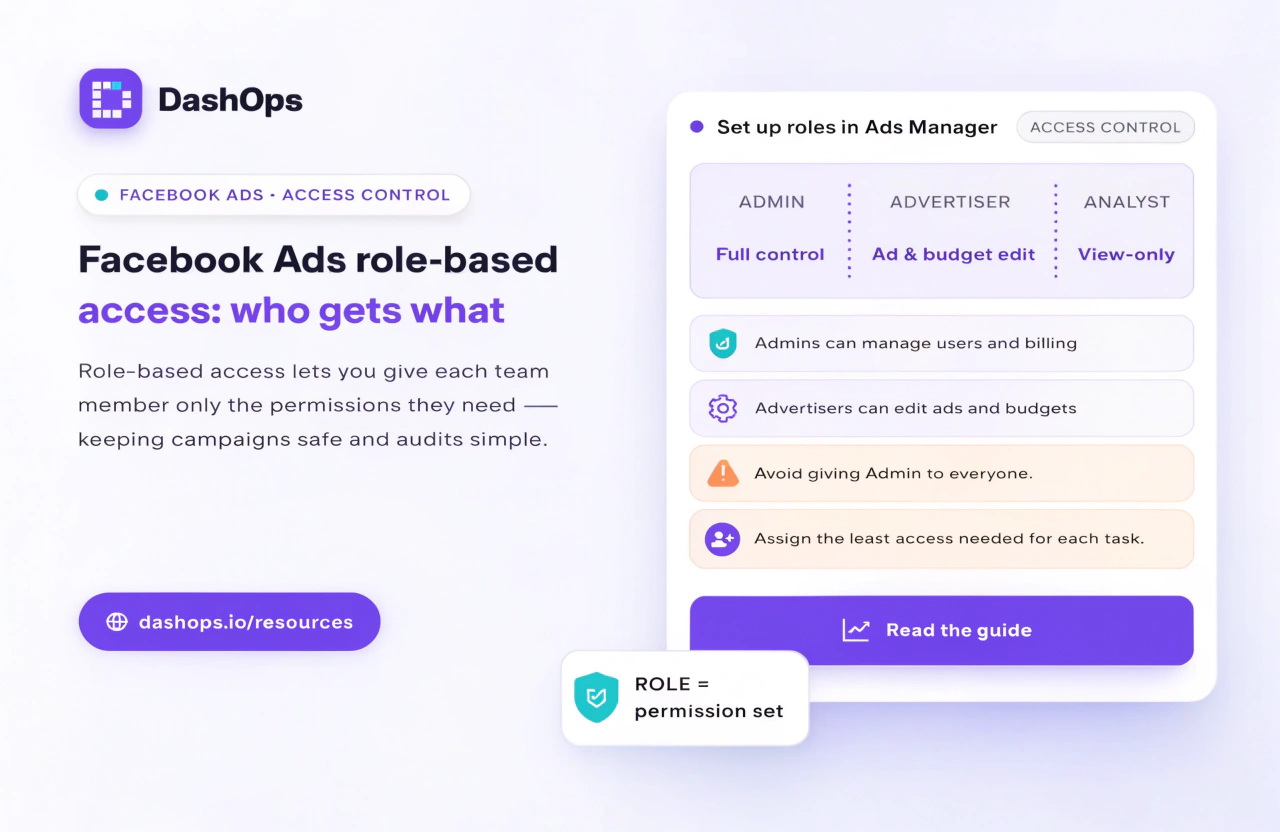
Why full access for everyone is an operational risk
The failure mode is almost never a rogue employee. It is an ordinary Tuesday.
- Wrong account, right action. When someone can see every ad account you manage, the account switcher is the only thing between a bulk pause on Contoso and a bulk pause on Northwind. People are tired and dropdowns look alike.
- Lead data is personal data. Anyone who can export from a lead form is holding names, phone numbers and email addresses belonging to your client’s customers. That is access worth granting on purpose rather than by default.
- Clients seeing each other. Give a client login access to your business rather than to their own reporting, and exposing another client’s name or spend is one misconfigured permission away.
- Nobody can answer “who changed this”. Without per-person accounts, every change traces back to the same shared login. You cannot fix a process when you cannot see where it broke.
- Access outlives the engagement. Freelancers finish projects, staff move on, clients switch agencies. Access granted broadly tends to sit there quietly for a long time.
None of this needs a dramatic incident to cost you. It shows up as a confusing hour on a Friday and an awkward email to a client.
Start with two questions, not a list of job titles
Good ads access control is less about picking role names and more about answering two questions honestly, one at a time.
Scope. Which ad accounts does this person genuinely work on? Not the ones they might pick up next quarter. The ones on their plate this month.
Depth. Do they need to change things, or only see things? A great many people on a Meta Ads team, senior ones included, only ever need to read. Reporting, QA, client comms and strategy reviews are all read-only jobs.
Most access messes come from collapsing those two questions into one. Someone needs to see one account, so they get edit rights on all of them.
The roles a small team actually needs
Four, sometimes five:
- Owner. Holds the connection to Meta, manages billing, invites and removes people, and is the only one who can change how the business is set up. Keep this to one or two people.
- Builder. The media buyer who creates and edits campaigns, ad sets, ads, audiences and lead forms on the accounts they run.
- Reader. Analysts, juniors, assistants, account managers. They pull numbers, check pacing and prepare reports. No edit rights.
- Client. Sees their own results and nothing else. Never another client, and sometimes not spend at all if you bill on a retainer or a managed budget.
- Occasional outsider. A freelance designer or contract buyer brought in for one project. Same as Builder, but scoped to one account with a removal date agreed before they start.
| Role | Ad accounts | Can change things |
|---|---|---|
| Owner | All | Yes, plus people and billing |
| Builder | Assigned only | Yes, campaigns and creative |
| Reader | Assigned only | No |
| Client | Their own only | No |
| Outsider | One, time-boxed | Yes, campaigns only |
Setting up role based access for Facebook ads
Meta separates access to your business from access to each asset inside it. That distinction is the part most teams skip. Work through this in order.
1. Write down who has access today. List the people in your business settings, then open each ad account and list who is on it. Do the same for pages and pixels. Dull, and the step that reliably finds surprises: the agency you stopped working with, the ex-employee, the profile nobody recognises.
2. Make view-only the default. New person, new request, new anything: start at read. Upgrading later takes a minute. Discovering they had edit rights they never needed takes an incident.
3. Grant business access and asset access separately. Give someone access to the business, then assign the specific ad accounts they work on, one at a time. Resist granting full control as a convenience: it lets them add other people, which is how access quietly spreads.
4. Never share a personal login. Meta’s own account rules tell people not to hand over their password, and beyond that it breaks two-factor authentication, cannot be scoped to a single account, and destroys any record of who did what. If you inherited a shared login, replacing it is the highest value cleanup available to you.
5. Use partner sharing for client-owned accounts. If the client owns the ad account, ask them to share it with your business rather than adding your staff as individuals. When the relationship ends, one action removes your whole team.
6. Separate the connection from the seat. In DashOps the agency connects Meta once at the top, then invites each teammate with their own login and assigns them only the accounts they work on. A Manager sees and acts on their assigned accounts and nothing else, so the switcher stops being a hazard, and every change lands in an audit log with a name against it.
7. Turn on two-factor authentication for anyone with edit rights. Non-negotiable for the Owner, and worth requiring of Builders.
8. Put a review in the calendar. Monthly or quarterly, open the people list and remove anyone who no longer needs to be there. If it is not scheduled, it will not happen.
Give clients a window, not a key
Clients ask for visibility, and the quickest answer is to add them to the ad account. That is also the answer that causes the most trouble, because ad account access is built for people who run ads, not for people who want to know how last month went.
A better default is a read-only route that shows their results and stops there. DashOps has a Client role that is read-only on assigned ad accounts, with an option to hide spend when your commercial arrangement calls for it, plus read-only share links for stakeholders who should see a dashboard without having a login. For the reporting itself, how to present Facebook Ads results to clients covers what to put in front of them, and an automated Meta Ads email report removes the weekly manual send.
Offboarding is the step everyone skips
Access granted in a hurry gets removed slowly, if at all. Make removal as routine as granting.
- Remove people the day the engagement ends, not at the next review.
- Check partner-level access too. Removing a person does not remove a partner business.
- If anything was ever shared, change it and stop sharing it.
- Read the audit log before you close the file, so you know what the last few weeks of changes were.
One thing worth saying plainly: a reporting dashboard sits on top of Meta’s permissions, it does not replace them. Scoping someone inside DashOps controls what they see and do in the dashboard. Their access to the underlying ad account in Meta is a separate list you still need to keep tidy. All of it belongs in your wider Meta Ads agency workflow, where who does what is already written down.
What to do next
In this order:
- Audit. Open your business settings and each ad account and write down every person and partner with access. Do not fix anything yet, just look.
- Downgrade. Anyone who has not edited a campaign in living memory becomes a reader. Anyone with full control who is not an owner comes down a level.
- Rebuild the client route. Move clients off ad account access and onto read-only reporting, so the next request is a link rather than a permission change.
The point is not to lock your team out of their own work. It is to make sure that on the day somebody clicks the wrong thing, the damage stops at one account and you can see exactly what happened.
Frequently asked questions
What is role based access for Facebook Ads?
Should I give my client access to my Facebook ad account?
What is the difference between business access and ad account access in Meta?
How do I give a freelancer access without giving them everything?
Does a reporting dashboard replace Meta's permissions?
See it in your own dashboard
DashOps brings Meta Ads reporting, campaign management, and white-label client portals into one place. Pick the plan that fits how you run ads.