Ad Account Access Review Checklist for Meta Ads
You inherited an ad account from a client last year. The freelancer who built their first campaigns still has partner access. A former employee is still listed as an admin on the Business Manager. Someone on the client’s side added a family member as an advertiser so they could learn the platform. Nobody remembers approving any of it, and nobody has looked since.
This is a familiar state for a Meta ad account that has been running for more than a few months. Access accumulates. Removing it is nobody’s job and nothing breaks when you skip it, so it stays. The fix is a recurring review with a written checklist, so the work is mechanical rather than a judgement call you have to talk yourself into.
This post is that checklist. It assumes you already know how Meta’s roles work and who should have which one. If you do not, start with the full guide to role-based access on Facebook Ads and come back here for the recurring audit.
Run the review on a fixed schedule, plus four triggers
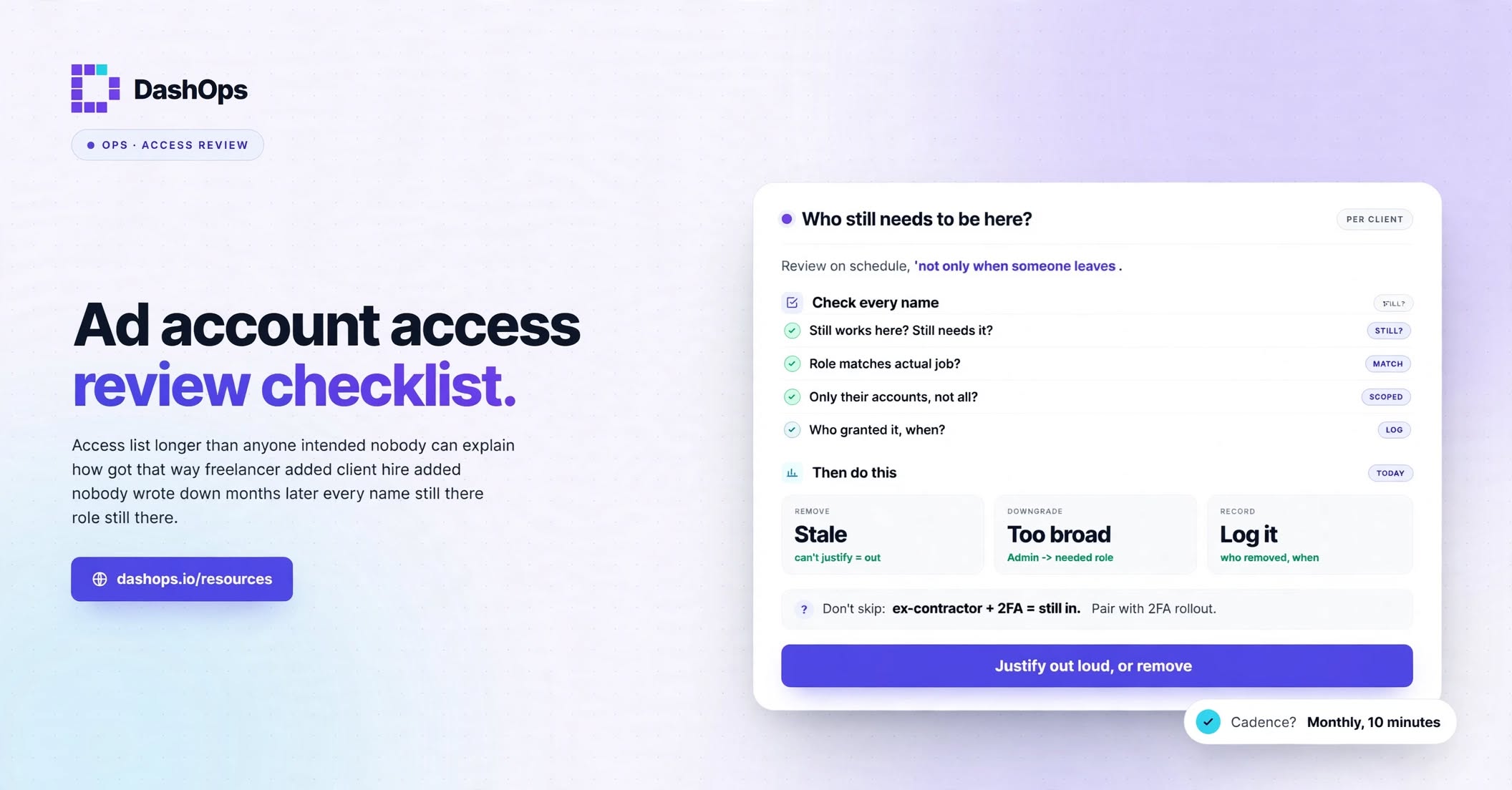
Put a recurring date in the calendar. Quarterly is a workable default. Monthly is better if you have staff turnover or if you onboard clients frequently.
On top of the calendar date, run an immediate review whenever one of these happens:
- Someone leaves your agency, whether they resign or you let them go
- A client relationship ends, or a client moves to a different agency
- You take over an account from another agency or freelancer
- A contractor finishes a fixed-term project
The last one is the easiest to let slide. Contractor access is granted with genuine intent to remove it later, and later tends not to arrive on its own.
What to check, in order
Work down the list without skipping. The point of a checklist is that it does not depend on you remembering the risky bits.
1. List every person with access to the Business Manager. Business settings, then People. This is the master list. Anyone here can potentially reach assets even if they are not directly on the ad account today.
2. Check the admin count. Business Manager admins can add and remove anyone, including you, and can claim or reassign assets. Every admin should be a name you can say out loud along with why they need that power. Everyone else moves to employee access with assets assigned individually.
3. List every partner. Business settings, then Partners. Partners are other businesses that have been granted access to your assets, or whose assets have been granted to you. Old agencies, old freelancers and old tool vendors sit here quietly. A partner entry is not a person, so it survives every staff change on both sides.
4. Go asset by asset, not person by person. For each ad account, each Page, each pixel and each catalog, open the assigned people and partners list. Person-by-person review misses assets that were shared directly rather than through a role.
5. Check pixel and dataset access separately. A pixel gets shared wider than its ad account with very little friction, because someone needed to debug an event once and the access was never pulled back. A pixel carries customer behaviour data. Treat it with the same care as the ad account.
6. Check who can create and edit lead forms, and who can download leads. Lead access is personal data. If your account collects leads through Meta Instant Forms, the list of people who can export them should be shorter than the list of people who can see campaign performance.
7. Check payment method access. Anyone who can add or change a payment method on an ad account can move spend onto a card that is not the client’s. This is the check that is easiest to walk straight past.
8. Check two-factor authentication status on every remaining person. An account with weak authentication is an access hole no matter how carefully you set the role. Meta lets a business require two-factor for everyone with access, which is stronger than asking people nicely. There is more on this in the post on two-factor authentication for ad accounts.
9. Check the client’s own list. If the client owns the Business Manager and you have partner access, you can only see so much. Ask them to run steps 1 through 3 on their side and send you the result. Frame it as protecting their account, because that is what it is.
10. Write down what you changed. Date, account, person or partner, what changed, who approved it. This is the record you will want if a dispute ever arises about who touched a campaign.
The four questions to ask about every name on the list
For each person or partner you find, answer these before moving on:
- Do I recognise this name? If you do not, that alone is the finding. Do not assume a colleague added them for a good reason.
- Do they still do the job that needed this access? Someone who moved from media buying to new business development does not need advertiser access to live accounts.
- Is the level right, or is it just what was convenient at the time? Access gets granted at the highest level available because that is faster than thinking about it. Reviewing is when you think.
- If they disappeared tomorrow, would anything break? If the answer is no, the access is not load bearing and can go.
If any answer is uncomfortable, reduce or remove. Access is easy to grant back. It is much harder to undo the consequences of leaving it in place.
Removing access without breaking a live campaign
Two things genuinely break when you remove the wrong access, so handle them deliberately.
The first is a person who is the only admin on an asset. Remove them and nobody can administer it. Always confirm there is another admin before removing one.
The second is an account where campaigns were built under a personal profile rather than a business. If that profile loses access, the campaigns keep running but nobody can edit them without regaining access. Check the asset ownership before removing anyone who has been around since the account was created.
Removal itself is quick. In Business settings, select the person or partner, then remove them from the specific asset, or remove them from the business entirely if they should have nothing at all. Partner removal is done from the Partners screen rather than the People screen, which is why partners get missed.
Reducing the access you need to review in the first place
The shortest review is the one with the fewest names on it. Two habits shrink the list permanently.
First, stop granting access for reporting. Ad account access is often granted purely so somebody can look at numbers. A client wants to see how last month went. A junior needs figures for a deck. An account manager wants to check pacing before a call. Each of those requests gets answered with an invite to the ad account, and that invite never expires.
If those people can get the numbers another way, they never need the account at all. Scheduled reports and email digests cover those requests. DashOps handles this side directly: on Growth and Enterprise a client can be given read-only access to just the ad accounts assigned to them, with the option to hide spend in that login, and on every plan reports can go out on a schedule so nobody has to ask. There is more detail in the post on automated Meta Ads email reports.
Second, keep client-facing people out of Meta’s interface completely where you can. Meta Business Manager is built for people who run ads. A client trying to find last month’s cost per lead in it will either give up or click something they should not. A branded dashboard scoped to their ad accounts gives them what they wanted without adding a name to your review list. DashOps also keeps an audit log of who changed what inside it, which means your review has a record to check against rather than only a current-state list.
For deciding what level each remaining person actually needs, the post on agency staff access levels for ads goes deeper than this checklist does.
What to do next
Block time in your calendar this week and run the ten steps above on your largest client account first. Largest by spend, not by relationship length, because that is where a mistake costs the most.
Write the findings into a document as you go rather than fixing as you find. Fixing as you go leads to a half-finished review when something urgent comes in, and a half-finished review is worse than none because it feels done.
When the first one is complete, duplicate the document as a template, set a recurring calendar entry, and work through the rest of your accounts one per week. Then decide which of the names you found were only there to look at numbers, and move those people onto reports instead.
Frequently asked questions
How often should I run an ad account access review?
What is the difference between removing a person and removing a partner?
Which access check is easiest to overlook?
Can I remove someone without breaking a live campaign?
How do I reduce the number of people I have to review each time?
See it in your own dashboard
DashOps brings Meta Ads reporting, campaign management, and white-label client portals into one place. Pick the plan that fits how you run ads.