How to Reconcile Meta-Reported Conversions With Real Sales in Your Reports
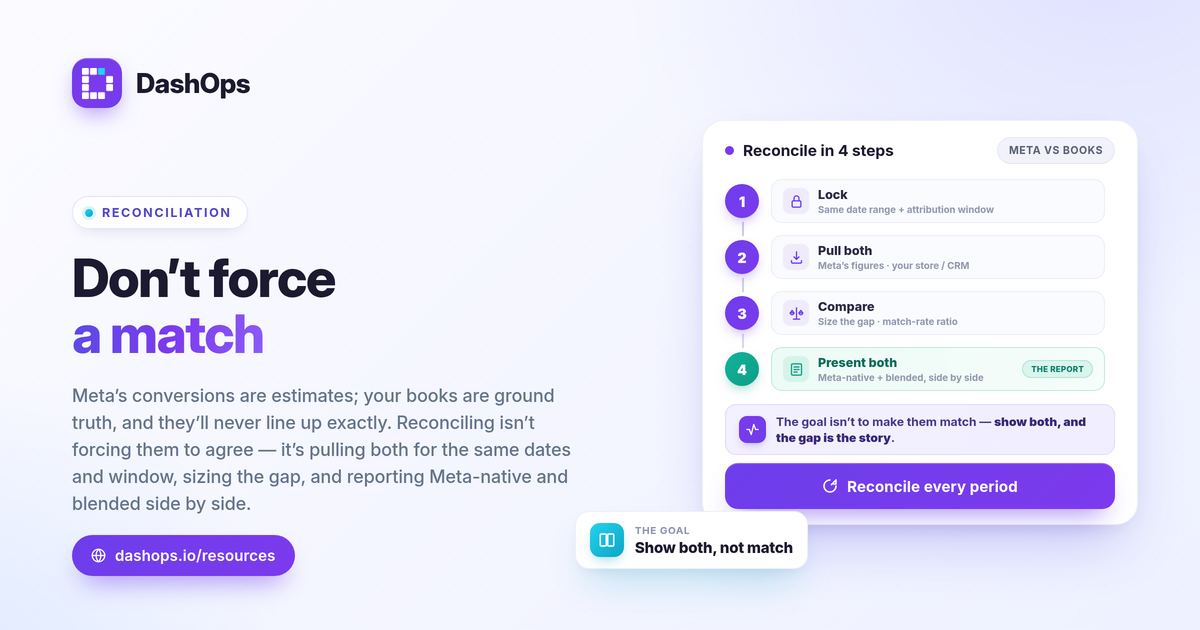
Reconciling Meta-reported conversions with real sales means lining up the purchases and leads Meta claims against the numbers in your own store, CRM or bank, then reporting the gap honestly instead of hiding it. The fastest way to reconcile Meta conversions with real sales is to pull Meta’s results and your backend results for the exact same date range, on the same attribution setting, and compare them line by line. Meta’s figures are estimates shaped by attribution windows and tracking limits, so they rarely match your books exactly. The goal is not to force them to agree. It is to know how far apart they are, explain why, and present a blended view a client can trust.
Why Meta’s numbers and your sales never quite match
Before you reconcile anything, understand that a mismatch is normal and expected. Meta and your backend count different things in different ways.
- Attribution windows. Meta credits a conversion if a user clicked or viewed your ad within a set window, often 7-day click and 1-day view. A sale that closes today might be credited to an ad seen days ago, or to no ad at all in your store’s view.
- iOS and ATT undercounting. When users opt out of tracking, Meta cannot always tie a real sale back to the ad that drove it. This pushes Meta’s reported conversions below your true sales for those users. The effect is real and causes undercounting, even though no single fixed percentage applies to every account.
- Modeled and estimated conversions. Some of Meta’s reported numbers are statistically modeled rather than directly observed, which adds a layer of estimation.
- Refunds, cancellations and duplicate orders. Your backend knows about a refund. Meta usually does not. Your real net revenue can be lower than what either system first shows.
Knowing these causes lets you explain the gap instead of apologizing for it.
Step 1: Lock the date range and attribution setting
Most reconciliation errors come from comparing two numbers that cover different periods or different rules. Fix that first.
- Use one date range everywhere. Pull Meta and your backend for the identical start and end dates, in the same time zone where possible.
- Note the attribution setting. Record which window Meta is using for the report, for example 7-day click. If you change it later, your numbers will move, so document it.
- Decide the metric you are reconciling. Pick one at a time: purchases for e-commerce, or leads for lead gen. Do not mix them in the same comparison.
If you have ever seen Ads Manager and your dashboard disagree, the cause is almost always a setting drift like this. Our guide on why Facebook Ads Manager numbers do not match your reports walks through the usual culprits.
Step 2: Pull both sets of numbers
Now gather the two columns you will compare.
- From Meta: spend, reported purchases or leads, reported conversion value, and reported ROAS for the locked period.
- From your backend: total orders and net revenue from your store or payment processor, or total qualified leads and closed deals from your CRM.
For lead gen, your CRM is the source of truth for true cost per lead tracking. Meta tells you how many form submissions it recorded. Your CRM tells you how many of those became real, contactable, qualified leads after you remove duplicates and junk entries.
Step 3: Compare, size the gap, and explain it
Put the two columns side by side and calculate the difference. The formulas you need are simple.
- ROAS (Meta-native): conversion value divided by spend.
- Blended ROAS: total verified revenue from all sources divided by total Meta spend. This is your honest top-line number for blended ROAS reporting.
- True cost per lead: spend divided by your CRM’s count of qualified leads, not Meta’s raw form count.
- Match rate: your backend count divided by Meta’s reported count, expressed as a ratio so you can see how closely they track.
The ad conversion reconciliation work is in this comparison. If Meta reports more purchases than your store recorded, attribution overlap or modeled conversions are likely inflating the count. If your store recorded more sales than Meta credited, iOS undercounting or untracked traffic is the likely cause. Either way, you now have a number to put in the report.
Step 4: Present an honest blended view
A client does not want spin. They want to know what the money did. Show both perspectives clearly.
- Show Meta-native first. Report exactly what Meta says, labeled as Meta-reported, with the attribution window noted.
- Show the blended view next. Divide total verified revenue by total spend to match Meta ROAS to revenue at the account level. Label it as blended so no one confuses it with platform figures.
- State the gap in plain language. One line is enough: for Acme Apparel, Meta reported more purchases than the store recorded net of refunds over the period, a difference consistent with attribution overlap, so both figures appear side by side.
- Keep the method identical every period. The same date logic and the same attribution setting each month make your trend honest. A period-over-period comparison only means something when both periods were measured the same way.
This is where a fictional account like Acme Apparel benefits: instead of one disputed ROAS number, the client sees Meta’s view, the verified view, and a stable trend across months.
Where DashOps fits
DashOps reads your Meta-native KPIs accurately across every connected ad account in one dashboard, including spend, purchases, leads, cost per result and ROAS, with period-over-period comparison built in. It reports Meta’s numbers consistently from report to report rather than performing its own server-side or blended attribution, so the platform figures you reconcile against stay stable. You supply the backend revenue and produce the blended line; DashOps keeps the Meta side clean, exportable to PDF, Excel or CSV, and ready for white-label client reports. See what each plan includes on the pricing page, and the help center covers connecting accounts and exports. For the metrics that belong in this comparison, see our Meta Ads KPIs to track, and for packaging the result, the white-label client reporting guide.
Reconcile against your own books every reporting period, show both the Meta-native and blended numbers, and the gap stops being a problem and becomes part of the story you tell.
Frequently asked questions
Why are Meta's reported conversions higher than my actual sales?
Can Meta's reported conversions be lower than my real sales instead?
Does DashOps calculate blended ROAS for me?
See it in your own dashboard
DashOps brings Meta Ads reporting, campaign management, and white-label client portals into one place. Pick the plan that fits how you run ads.