Logo and Colour Setup for Client Reports: A Practical Guide
You have your agency logo saved somewhere on your desktop. You have a brand colour you use on your website. And you have a Meta Ads report going out to a client tomorrow morning that still looks like it came out of a tool you rent rather than a service you provide. The gap between those two states is usually not a design problem. It is a file problem, a colour-format problem, and a short setup you keep postponing because you are not sure exactly what the fields want.
This post covers only that setup: getting the right logo file and the right colour values into your reporting, and making them look correct across a PDF, an emailed report, and a dashboard a client logs into. For the wider question of what a branded report should contain and how to run the whole process, start with the complete guide to branded ads reports for clients. This one is the hands-on piece underneath it.
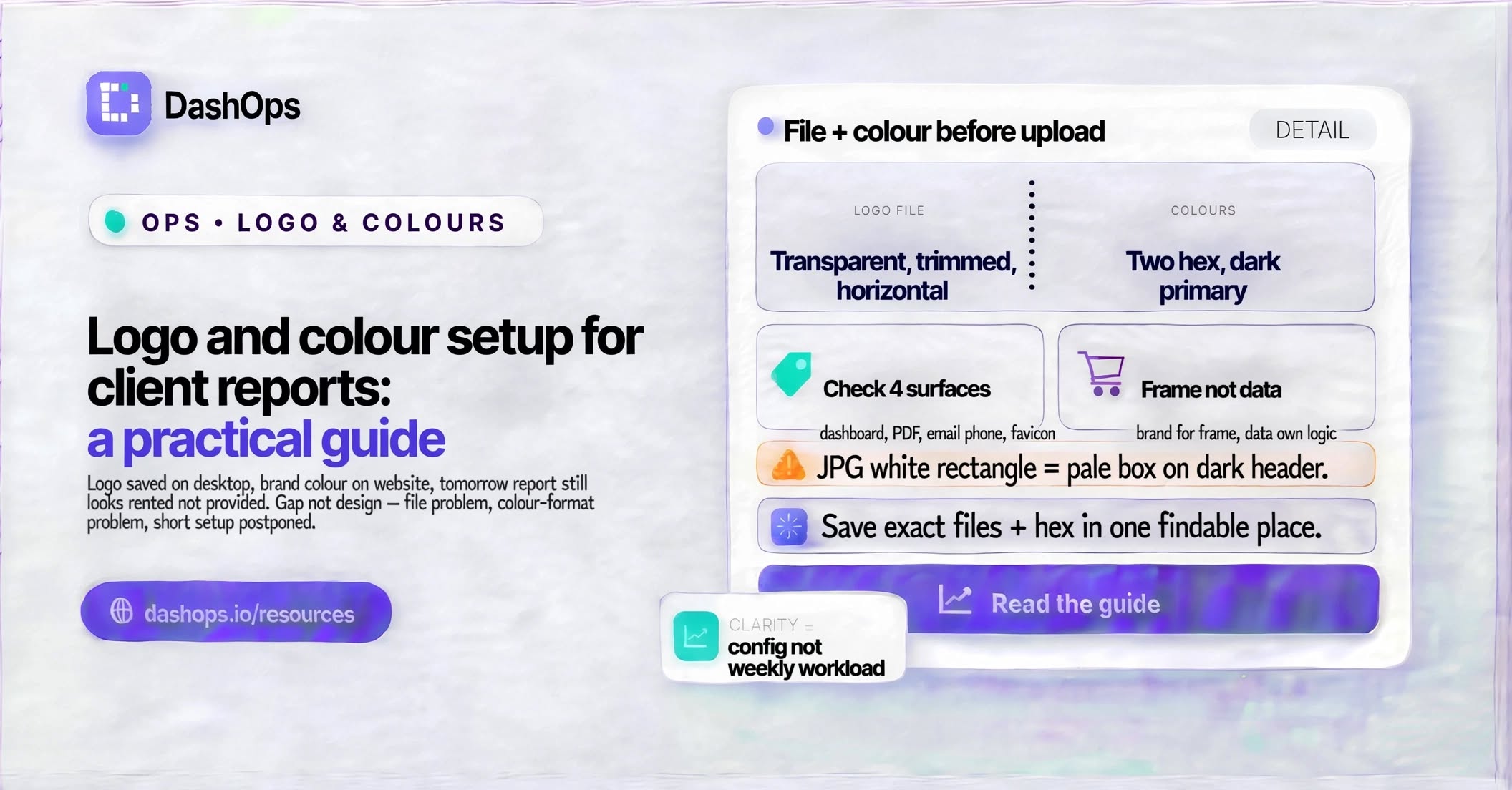
Get the logo file right before you upload anything
Branding that looks slightly wrong is often wrong because of the file, not the design. Before you touch any settings screen, get a version of your logo that meets these conditions:
- Transparent background. PNG or SVG. A JPG logo carries a white rectangle with it, which shows as a pale box the moment it lands on a coloured header or a dark surface.
- Trimmed edges. Export with no padding baked into the file. Padding inside the image makes the logo render smaller than everything around it, and no settings field can undo that.
- Horizontal, not stacked. Report headers, email headers, and dashboard sidebars are all wider than they are tall. A tall stacked logo with the wordmark under the mark gets scaled down to fit the height and becomes unreadable.
- A second version for dark surfaces. If your logo is dark navy or black, it disappears on a dark header. Keep a white or light version alongside it.
- Exported larger than it displays. Modern screens render at a higher pixel density than the layout size suggests, so an image saved at exactly the size you see will soften on a client’s laptop. Export generously and let the layout scale it down.
If you only have a logo embedded in a slide deck or a website favicon, get a proper export before you go further. Uploading a screenshot of a logo is a common cause of a report that looks slightly amateur without anyone being able to say why.
Pick two colours, and know their hex values
You need fewer colours than you think. Reporting surfaces use a primary colour for headers, links, chart accents, and buttons, and a secondary colour for highlights and the occasional second data series. That is it. A third and fourth colour tends to make a report look busy rather than branded.
Write both down as six-digit hex codes with the hash, like #1F3A8A. That is the format reporting settings fields typically expect. If your brand guidelines give you RGB or CMYK values, convert them before you start rather than pasting them into a field that will reject them.
Two rules worth respecting when you choose:
- Your primary should be dark enough to carry white text. Header bands and buttons put white text on your primary colour. A bright yellow or pale mint fails that test and forces a workaround on every surface.
- Your secondary should be distinguishable from your primary in greyscale. Some clients print reports. Some read email on a phone in bright sun. Two colours of similar tone become one colour in both cases.
Also decide what colours you are not going to override. Performance reporting has conventions readers rely on: a spend line, a results line, and a comparison against the previous period. If you recolour every chart series to your brand palette, you make the report prettier and harder to read at the same time. Keep brand colour for the frame, and let the data keep its own visual logic.
Set it up once, then check it on every surface
In DashOps this lives in the white label settings: you upload a logo, set a favicon, and enter your primary and secondary colours. The dashboard, the PDF reports, and the emailed reports all pick those up, so a client who logs in and a client who only ever opens the email see the same identity. On the top plan you can also send from your own domain and serve the dashboard on your own address, which is covered separately in the guide to branded email reports for clients.
Whatever tool you use, the setup is not finished when the fields are filled in. Check it in four places before you show a client:
- The dashboard itself, on a laptop. Look at the sidebar and the header band. Is the logo vertically centred? Does white text sit comfortably on your primary colour?
- A generated PDF. Open it, then scroll past the cover page. Cover pages usually look fine. It is the running header on later pages that reveals a logo with baked-in padding or a colour that goes muddy when the PDF renders it.
- An email report, on a phone. Email clients handle images and background colours inconsistently. Send one to yourself and open it on your phone before you send one to anyone else.
- The browser tab. The favicon is the one people forget. A client who keeps your dashboard open in a tab all week sees that tiny square more often than they see your logo.
If your tool offers read-only share links or read-only client logins, as DashOps does, add those to the list as well. A snapshot link you paste into an email is a surface the client sees, and it should carry the same mark as everything else.
The mistakes that cost the most time
Using the client’s logo instead of yours, or both at once. Decide which name the report carries. If you are a white label supplier to another agency, their logo goes on it and yours does not appear at all. If you are the agency of record, your logo goes on it. Putting both on creates a visual question the client then asks you about. There is a fuller treatment of that decision in what to brand in client reporting.
Uploading a logo with a coloured background that happens to match your old website. Backgrounds change. A transparent file survives a rebrand; a baked-in background does not.
Setting a colour and never checking the dark surface. If your reporting has a dark mode, or your email renders on a dark background on a phone, a dark logo becomes an invisible logo. This is why the light version of your mark matters.
Treating the favicon as optional. It is the smallest asset and the easiest one to leave as a generic default long after everything else has been branded.
Rebranding mid-engagement without telling anyone. If you change your primary colour and the next report looks different, say so in a sentence at the top. Clients notice inconsistency and read it as carelessness even when it was an improvement.
Keep the assets somewhere you can find them
Once this works, save the exact files and values in one place: the trimmed PNG, the light version, the favicon, and both hex codes in a plain text note. You will need them again the next time you set up a new tool, brief a designer, or bring on a team member who builds a report without you.
That small habit is a large part of what makes a small operation read as a real firm rather than a freelancer with a template, which is the subject of the piece on looking established as a small agency.
What to do next
Set aside one focused sitting and do it in this order. Export a trimmed, transparent, horizontal logo and a light version of it. Write down your primary and secondary hex codes. Fill in the white label settings, including the favicon. Then generate one PDF, send yourself one email report, and open the dashboard on a phone. Fix whatever looks wrong in those three, and you are finished.
The setup happens once. Every report after it carries your name automatically, which is exactly where branding should sit: in the configuration, not in your weekly workload.
Frequently asked questions
What logo file format should I use for client reports?
How many brand colours do I actually need for a report?
What colour format do the settings fields expect?
Should I recolour the charts to match my brand palette?
Where do I need to check the branding before showing a client?
See it in your own dashboard
DashOps brings Meta Ads reporting, campaign management, and white-label client portals into one place. Pick the plan that fits how you run ads.