Custom Domain Meta Ads Reporting: Putting Reports on Your Own URL
A custom domain means your clients open their Meta Ads reports at a web address you own, like app.yourcompany.com, instead of a generic tool URL. The dashboard, the login page, and any shared links all carry your brand from the address bar inward. In DashOps this lives in white-label Full on the Enterprise plan, which adds a verified custom domain on top of the logo and colour branding you already get on lower tiers. The setup is a few DNS records, not a developer project. Here is how it works and what to put where.
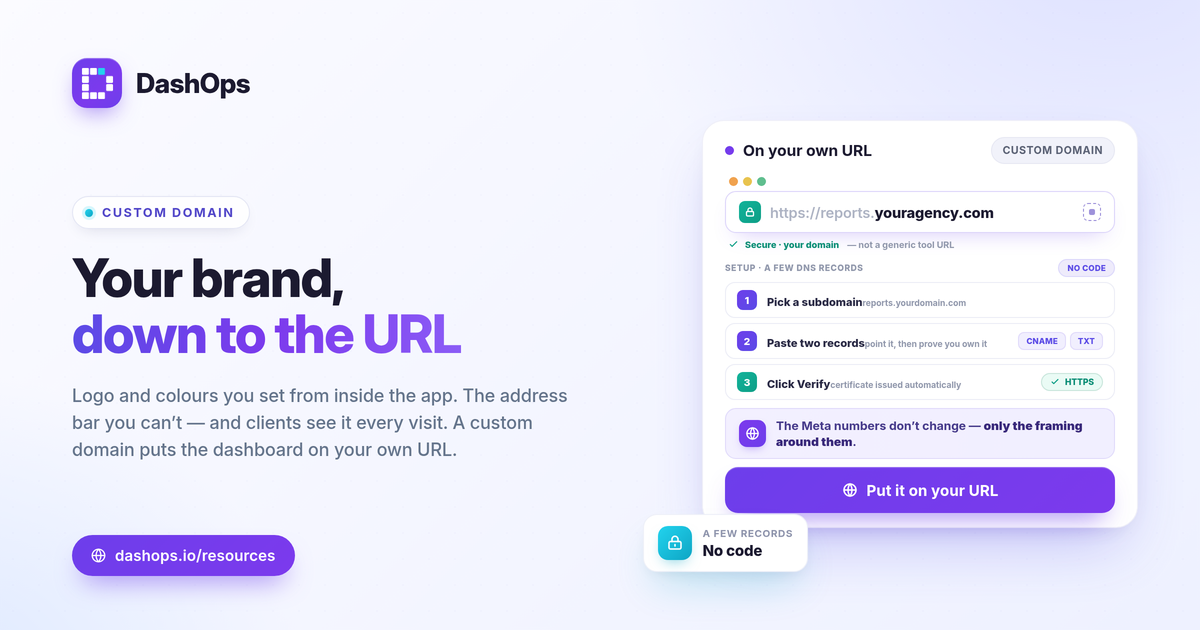
What “on your own URL” actually changes
White-label has layers. Knowing which layer a custom domain sits in keeps expectations clear.
- Logo and colours (white-label Lite, Growth). Your mark and brand colours replace the default look inside the dashboard, in PDF report covers, and in scheduled email digests.
- Custom email sender (Enterprise). Digests and client reports send from your own verified address rather than a shared one.
- Custom domain (white-label Full, Enterprise). The dashboard itself loads at your URL. This is the layer that removes the vendor name from the browser bar, the bookmark, and every public share link.
The difference matters most at the moment a client looks up. A branded report inside a tool still named after someone else reads as a resold dashboard. The same report at app.yourcompany.com reads as your own platform. Nothing about the Meta numbers changes; the framing around them does.
Why the URL is worth the setup
The address bar is the one piece of branding you cannot recolour from inside the app. Clients see it on every visit, copy it into emails, and forward it to their own teams. A few reasons it earns the DNS work:
- Trust on first click. A public read-only share link or a client portal login on your own domain looks like a tool you built and run, not one you rent.
- Consistency across touchpoints. When the dashboard URL, the report sender address, and your website all sit on the same domain, the experience holds together.
- Control of the bookmark. Once a client saves app.yourcompany.com, that is the name they associate with their reporting, which is the name you want front of mind at renewal.
This is the same logic behind white-label client reporting in general: the goal is for the work to look like yours end to end.
How the custom domain setup works
The flow is short and you do not touch any code. You add records at whatever registrar hosts your domain, then verify.
- Pick the subdomain. A subdomain like app, dashboard, or reports under a domain you already own is the usual choice. You enter it in your branding settings and the dashboard generates the exact records you need.
- Add the pointing record. This tells browsers where app.yourcompany.com should load from. For an apex domain it is an A record; for a subdomain it is a CNAME. The dashboard shows the precise host and value to paste, so you are copying, not guessing.
- Add the verification record. A short text (TXT) record proves you actually control the domain, so no one can point a domain they do not own at your account. The dashboard gives you a unique token to paste.
- Click Verify. Once the records propagate, which can take a few minutes, the system confirms the text record, attaches the domain, and provisions a secure certificate automatically. After that, app.yourcompany.com serves the dashboard over HTTPS.
If a record looks wrong, the most common causes are a multi-part domain ending such as .co.uk being treated like a normal .com, or the verification text record placed under the wrong host. Re-checking the exact host and value shown in the dashboard against what your registrar saved usually resolves it.
What clients see, and what they do not
The point of a branded reporting URL is that the platform underneath becomes invisible. A few specifics worth knowing:
- The login and dashboard render under your domain with your logo and colours. A simplified client portal gives client users a read-only, jargon-light view of their own ad accounts.
- Public share links generated for a single report inherit the same domain, so a client can forward a read-only link to their internal team without it pointing anywhere off-brand.
- Roles still apply. Admin, Team member, and Client user permissions work the same on a custom domain as on the default one; the URL changes the dressing, not the access rules.
The Meta data itself is reported exactly as Meta returns it. Custom domains brand the surface; they do not change spend, ROAS, leads, or any of the Meta Ads KPIs you track. A branded URL on a reporting dashboard also stays distinct from the raw export view in Ads Manager, the same distinction covered in Ads Manager vs a reporting dashboard.
Keeping the domain healthy over time
A custom domain is a small piece of standing infrastructure. Two things keep it working without surprises.
- The plan keeps the domain live. Serving the dashboard at your URL is an Enterprise white-label Full entitlement. If the plan changes so that entitlement is lost, the custom URL stops serving and visitors see a clean unavailable page rather than a broken screen. Your domain settings and verification are retained, so upgrading again restores the URL without redoing DNS.
- Leave the records in place. Once verified, the pointing and verification records should stay at your registrar. Deleting them, or changing your DNS provider without re-adding them, will take the domain offline until they are restored.
There is no separate certificate to renew by hand and no server to maintain on your side. The records and the active plan are the whole story.
Custom domain reporting is the layer of white-label that clients notice without being told, because it is the one part of the experience they see in the address bar every single visit. DashOps includes a verified custom domain in white-label Full on the Enterprise plan, alongside custom email sending and the full Meta module. You can compare what each tier includes on the pricing page, and the help center has the step-by-step DNS walkthrough.
If a branded login, branded reports, and branded share links matter to how clients see your work, put the dashboard on your own URL and let the platform underneath disappear.
Frequently asked questions
What is custom domain Meta Ads reporting?
Do I need to be a developer to set up a custom domain?
What happens to my custom domain if I downgrade from Enterprise?
See it in your own dashboard
DashOps brings Meta Ads reporting, campaign management, and white-label client portals into one place. Pick the plan that fits how you run ads.