How to Connect Your Facebook Ad Account to a Reporting Dashboard in Minutes
Connecting a Facebook ad account to a dashboard takes a few minutes and one authorization step. You log in to the reporting tool, click connect, sign in through Meta’s official login, pick the ad accounts you want to grant, and confirm. Within minutes, your spend, impressions, clicks, results, and the rest of your KPIs start flowing into a single view with period-over-period comparison. There is no spreadsheet export, no manual upload, and no password sharing. Below is the full walkthrough of how to connect your Facebook ad account to a dashboard, what each step does, and exactly what data starts populating once the link is live.
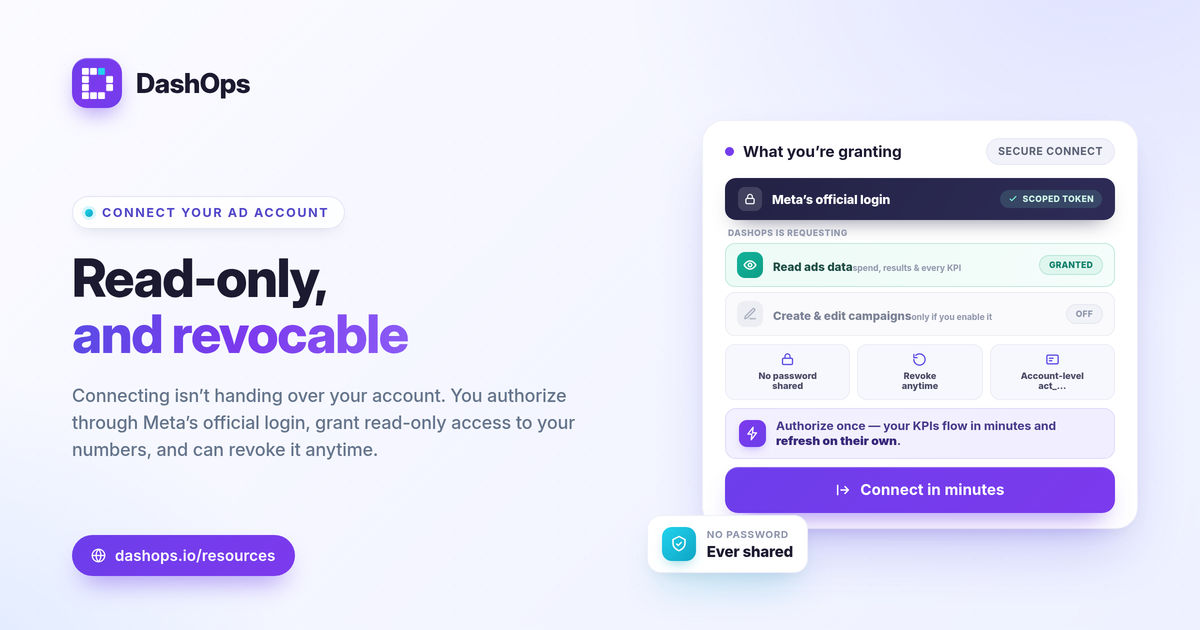
What “connecting” actually means
When you connect a Meta ad account, you are not handing over your password. You authorize the reporting tool through Meta’s own login screen, which issues a scoped access token. That token lets the dashboard read your performance data on your behalf, and you can revoke it at any time from your Meta settings.
Two things are worth understanding before you start:
- Read access vs write access. Reporting only needs permission to read your numbers. Campaign create and edit, available on Growth and Enterprise plans, needs additional write permission, which you grant separately.
- Account-level, not page-level. You are linking an ad account (the thing with an id like act_DEMO_001), not your personal profile. One person can have access to several ad accounts, and you choose which ones to grant.
Before you start: the access check
The most common reason an ad account does not appear during connection is a permissions gap, so it helps to confirm a few things first.
- You have a role on the ad account. In Meta Business Manager, you should be listed on the account with at least analyst or advertiser access. Pure viewing works for reporting.
- The account is active. Disabled or unsettled-billing accounts can still authorize, but data may be limited until the account is in good standing.
- You know which accounts you manage. If you run several, list the ad account ids you want to link so you can select them quickly.
If you are missing access, the account owner can add you in Business Manager in under a minute, after which you reconnect.
Step by step: connect a Facebook ad account to a dashboard
The flow to link Facebook Ads to a reporting tool is short and the same whether you manage one account or many.
- Open the integrations or connect screen. In the dashboard, find the option to add a data source or connect a Meta ad account.
- Click connect with Meta. This opens Meta’s official login in a secure window. You are signing in to Facebook, not typing your password into the dashboard.
- Authorize the permissions. Meta shows what access the tool is requesting. For reporting this is read access to ads data. Approve it to continue.
- Select your ad accounts. Meta lists every ad account you can grant. Tick the ones you want in the dashboard. You can add more later without starting over.
- Confirm and return. Meta sends you back to the dashboard, the connection is saved, and the ad account integration begins pulling data.
That is the whole authorization. You do not repeat it to see fresh numbers; the connection stays live and refreshes on its own.
What data starts flowing once it is connected
This is the part most people care about. Once you authorize a Meta Ads dashboard, it begins reading your Meta-native numbers and arranging them so they are actually usable.
- Core KPIs. Spend, impressions, reach, frequency, clicks, CPC, CPM, CTR, and results populate first. These are the headline numbers tied to whether the money worked.
- Outcome metrics. Depending on your objective, you get purchases and ROAS for e-commerce, or leads and cost per lead for lead gen. The dashboard adapts the KPIs to what you actually run.
- Trends and comparison. Every metric arrives with period-over-period comparison, so you see this week or month against the last, not just a single total.
- Breakdowns. Demographic splits by age and gender, plus placement performance, let you see where spend is working and where it is wasted.
- Campaign view. Top campaigns and spend pacing show what is driving results and whether budget is on track.
If you connect more than one ad account, all of this lands in one place rather than separate Ads Manager tabs. For a deeper look at which numbers deserve attention first, the guide on Meta Ads KPIs to track is a useful companion.
A note on the numbers you will see
The figures in your dashboard are the same Meta-native numbers reported in Ads Manager, pulled through the official connection. A couple of points keep expectations realistic:
- Conversions can undercount. Since the iOS App Tracking Transparency changes, some conversions are modeled or delayed, which can cause Meta to report fewer results than your own sales records show. This is a platform reality, not a dashboard error, and it is worth knowing when you reconcile numbers.
- Leads have a retention window. Meta only lets you download Instant Form leads directly from the Page for a limited window, about 90 days, after which leads must be retrieved through the API or a connected tool. A live connection captures them before that window closes.
For more on how a dashboard differs from the native interface, Facebook Ads Manager vs a reporting dashboard covers the practical trade-offs.
After you connect: a few quick wins
Once the ad account integration is live, a couple of small steps make it pay off faster.
- Add your other accounts. If you manage several, link them now so everything reports together.
- Set up sharing. You can create read-only share links or a simplified client portal so stakeholders see results without logging into Meta.
- Turn on white-label reporting. If you report to clients, white-label removes the dashboard branding so reports look like yours. See white-label client reporting for how that works.
DashOps connects your Meta ad accounts through Meta’s official login and starts reading every KPI into a single dashboard with period-over-period comparison, breakdowns, and exports. You can see what each plan includes on the pricing page, and the help center walks through connecting your first account and adding more.
The practical takeaway: authorize once through Meta’s official login, pick your ad accounts, and your full set of Meta KPIs starts flowing into one view within minutes.
Frequently asked questions
Do I need admin access to connect my Facebook ad account?
How long does it take for data to appear after I connect?
Is it safe to authorize a Meta Ads dashboard with my ad account?
See it in your own dashboard
DashOps brings Meta Ads reporting, campaign management, and white-label client portals into one place. Pick the plan that fits how you run ads.