The Best Facebook Ads Dashboard in 2026: A Checklist
You manage Meta Ads for other people. So you open a dashboard not out of curiosity about your own numbers, but because a client emailed asking why leads dropped last Thursday, or because a retainer review is about to start and you have several accounts to check first. The dashboard that suits an in-house marketer with one ad account is often the wrong shape for you. You are not exploring, you are answering.
Most tool comparisons for 2026 rank features. That is the wrong test. A dashboard with every feature and no point of view will still leave you exporting to a spreadsheet before a client call. The better test is whether the screen answers the question you arrived with, in the time you have, without you assembling it.
Here is a checklist you can hold up against any tool, including the one you already pay for.
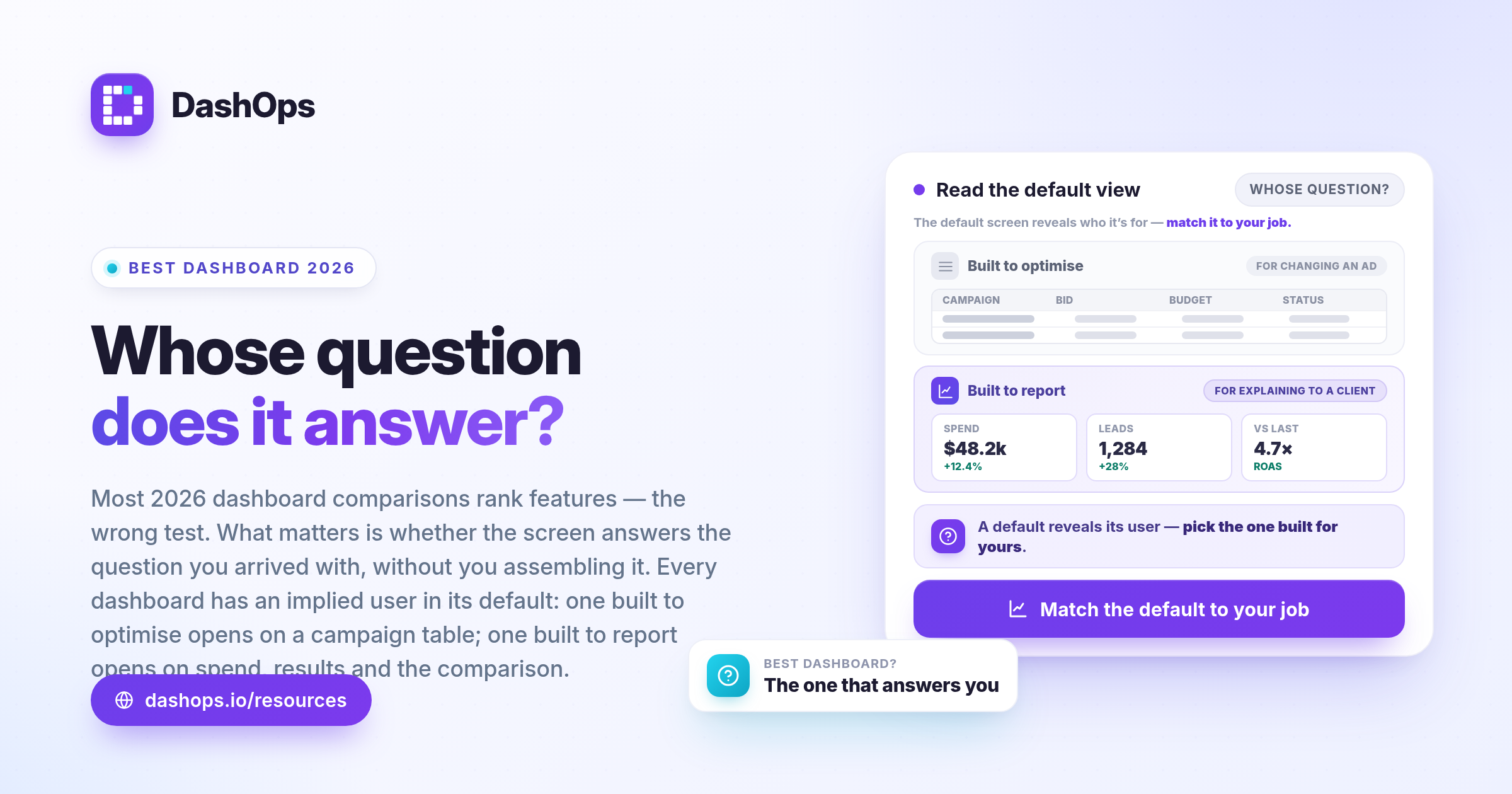
Ask whose question the default screen answers
Every dashboard has an implied user baked into its default view. Open a tool and look at what it puts first, before you touch a filter.
Meta Ads Manager assumes you are optimising. It opens on a table of campaigns with columns for delivery, bid strategy and budget, because it expects your next action to be a change. That is right for the person about to pause an ad set. It is wrong for the person about to explain last month to a client who does not know what an ad set is.
A dashboard built for agency work assumes you are accounting for someone else’s money. Its default screen should answer: what did we spend, what did it produce, how does that compare to the period before, and which campaigns drove the difference. If you have to build that view yourself every time, the tool has handed you a job rather than doing one.
Test it by opening the tool cold, as if a client just called, and timing how long it takes to reach a sentence you could read aloud on the phone. If you are still choosing columns, that is your answer.
Ask how fast it is when the account is real
Demos are fast because demo accounts are small. Your accounts are not.
The questions that matter here are specific:
- How long does it take to load a client’s dashboard cold, not on a second visit with everything cached?
- How long does switching from one client to another take? You will do this constantly, so a delay that is tolerable once is not tolerable at that frequency.
- What happens when you widen the date range on an account with a long history? Some tools recompute everything and stall.
- Does drilling from a campaign into its ad sets and ads load in place, or does it reload the whole screen?
- How stale is the data, and does the tool tell you? A dashboard showing yesterday’s numbers without saying so will make you contradict yourself in front of a client.
That last point matters. Ad platforms restate recent data, so every dashboard shows a snapshot. Syncing on a schedule is fine; implying the result is live is not. Look for a visible indication of when the data was last pulled, and a way to force a refresh mid-call.
Ask what it hides, and whether you control it
This separates tools built for agencies from tools built for advertisers, and it is almost never on a comparison table.
You need at least three views of the same data. Yours, with everything. Your team’s, restricted to the accounts a given person works on. Your client’s, read-only, and sometimes with cost stripped out entirely, because plenty of agencies bill a flat retainer and do not itemise media spend.
Ask the tool:
- Can a team member be scoped to specific ad accounts, so a freelancer on one client cannot see another’s spend?
- Can a client log in and see only their own account, without seeing your other clients exist?
- Can you hide spend and cost metrics from a client login while still showing impressions, clicks and leads?
- Is there a record of who changed what, so when a campaign is paused you can find out who did it?
DashOps handles these as roles rather than settings buried in a permissions matrix: Owner sees everything, Manager is restricted to assigned ad accounts, Client is read-only on the accounts assigned to them, with an option to hide spend. Check this early: a tool without real scoping pushes you into a workaround, usually a shared login or a manual export, and both are worse than the problem.
Ask whether it produces the artefact, not just the view
A dashboard that only exists on a screen creates work rather than removing it. Clients want something they can forward, file, or read on a phone at the weekend.
So check what comes out of it:
- Can you produce a PDF or spreadsheet without rebuilding the report each time?
- Can a report go out on a schedule, to the client, without you being awake?
- Can you share a read-only link when a client’s team wants to look without a login?
If the answer is no, you keep doing the assembly by hand, and the dashboard is a viewer rather than a workflow. We have written separately about automating the report itself and what a scheduled email report should contain, because that is the part that otherwise gets rebuilt by hand every month.
Ask what the screen looks like with many accounts open
Single-account tools break in a particular way: they scale linearly. Ten clients means ten logins, or ten switches, or ten separate exports. Nothing about that gets faster with practice.
What you want instead is one screen showing every account you are responsible for, so triage happens before you open anything. Which account moved most this week. Which one has a campaign that stopped delivering. Which one can wait until Friday.
Judge a tool by imagining a Monday. Suppose you have twelve accounts and only three need attention. How many clicks does it take to find out which three? If the answer scales with the number of accounts rather than the number of problems, you will feel it every week. That is a large part of the grind we described in reducing Meta Ads management burnout.
Ask whether it will still make sense later
Two durability checks that people skip.
First, customisation that survives. If you rearrange the metrics to suit how you work, does that stick next week, and does it stick per person rather than agency-wide? Your media buyer and your account manager care about different numbers.
Second, saved views. When you find a filter and sort combination you use every Monday, can you name it and return to it in one click? It is the difference between a tool you shape around your process and one you re-enter your process into daily.
Both exist in DashOps. You can see how they fit a wider routine in our Meta Ads agency workflow piece.
The honest scope question
Meta is not the only place your clients spend. Ask any tool plainly which channels it supports today, and treat a roadmap as a roadmap rather than a feature. DashOps covers Meta, meaning Facebook and Instagram, and other channels are on the roadmap rather than shipped. That is a real constraint, and worth knowing before you commit.
The failure mode is buying a tool that lists many channels and does none well enough to replace the native interface. Covering one channel completely beats half-covering several, because half-coverage means you are back in the ad platform anyway, and now paying for two things.
What to do this week
Pick your worst client report, the one you dread. Then run this checklist against whatever you currently use, in this order.
- Open your tool cold and time how long it takes to reach a sentence you could say to that client on the phone.
- Switch to a second client and time that.
- Produce the artefact the client actually receives, with no manual assembly, and note where you had to intervene.
- Check what your client would see if they logged in, and whether you would be comfortable sending it.
- Count the clicks it takes to find which of your accounts needs attention today.
Whatever score your tool gets, you now know which of the five is costing you most, which is a far better basis for choosing than a feature grid. To see how DashOps answers those five, the features page is the fastest way in, and how to present results to clients covers what happens after the dashboard closes.
Frequently asked questions
What makes the best Facebook Ads dashboard for an agency rather than a single advertiser?
Is a Facebook ads dashboard tool worth paying for when Meta Ads Manager is free?
How should I evaluate the best Meta Ads dashboard before committing?
What should I check about data freshness in an ads dashboard in 2026?
Does a good ads dashboard need to cover every advertising channel?
See it in your own dashboard
DashOps brings Meta Ads reporting, campaign management, and white-label client portals into one place. Pick the plan that fits how you run ads.