What to Include in an Automated Ads Report
You have the automation working. The report builds itself, it goes out on Monday, and the client receives it without you touching anything. Then a client replies asking a question the report should already have answered, or worse, replies with nothing at all for months and you realise nobody has been opening it. The scheduling was never the hard part. What goes inside the report is.
This post is about that decision specifically: which sections earn their place in a recurring Meta Ads report, which ones look thorough but get skimmed past, and how to order them so the person receiving it actually reads to the end. If you are still setting up the delivery side, start with the guide to automating Facebook Ads reports and come back here once the pipe is working.
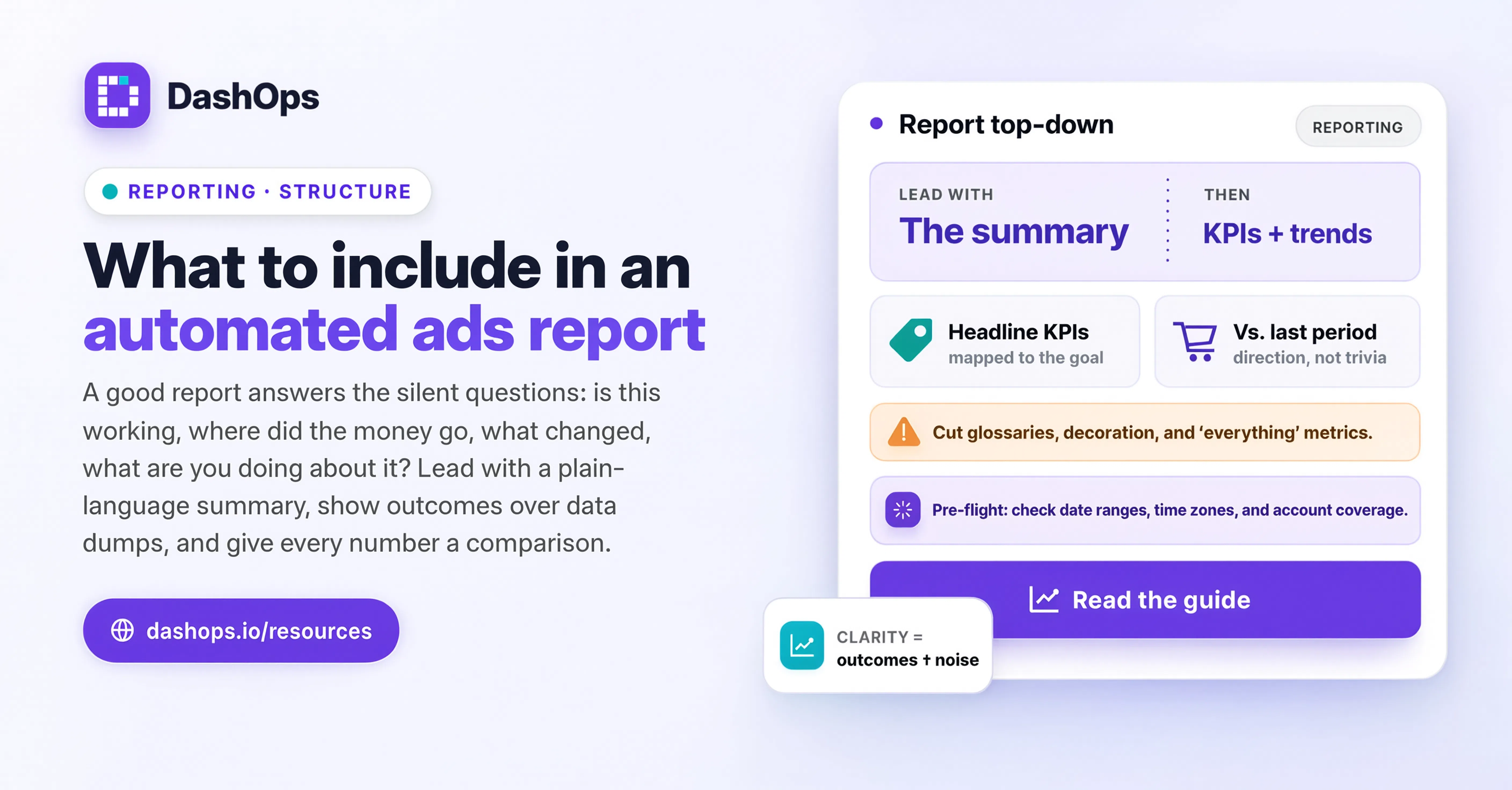
Start from the question the client is actually asking
Every recurring report is answering one silent question, and it is almost never “show me all the data”. Depending on who is receiving it, the question is usually one of these:
- Is this working, and how do you know?
- Where did the money go?
- What changed since last time?
- What are you doing about it?
A report that answers those four things in order will beat a longer report that answers none of them clearly. Everything below is organised around that. If a section you are considering does not serve one of those four questions, it belongs in the dashboard for the curious, not in the standing report for everyone.
The sections that earn their place
A plain-language summary at the top
Two or three sentences, written by a human, sitting above every chart. What happened, why, and what you are doing next. This is the single highest-value part of an automated report and the one most often left out, because it is the one part automation cannot generate for you.
The reason it matters: a client who reads only the first paragraph should still come away with an accurate picture. If they scroll no further, the report has still done its job. If the top of the report is a wall of numbers with no interpretation, you are asking the client to do your analysis for them, and most will not.
The headline metrics, with the previous period beside them
Pick a small set that maps to the account’s objective, not a grid of everything available. For a lead generation account that is usually leads, cost per lead, spend and click-through rate. For an ecommerce account it is usually purchases, return on ad spend, spend and cost per purchase. Mixing the two on one report muddies both.
Each metric needs the comparison period next to it. A cost per lead figure on its own is a number. The same figure next to last month’s is a direction, and a direction is what the client is looking for.
One trend chart, not five
A daily line for spend and the primary result metric over the period covers most of what a client needs to see visually. It shows pacing, it shows the effect of anything you turned on or off mid-period, and it makes weekend dips obvious so nobody panics about them.
Resist adding a chart for every metric you have. Charts that nobody reads are visual noise, and they make the report longer without making it clearer.
A campaign-level table, sorted by spend
This is where “where did the money go” gets answered. One row per campaign that was live in the period, with the same metrics as the headline section, sorted so the biggest spenders sit at the top.
Two rules keep this table useful. First, leave out campaigns with no spend in the period. A paused campaign from last quarter adds a row and no information. Second, stop at campaign level in the standing report. Ad set and ad detail belong in a drill-down, not in the document that lands in the client’s inbox every Monday.
What changed, and what you did
A short list of actions taken during the period. Launched a new creative set. Paused an ad set that had drifted past the target cost per result. Shifted budget between campaigns. Nothing elaborate, just the record.
This section quietly does more for retention than any chart. It is the evidence that someone was working on the account, which is the thing a client is really paying for and the thing a numbers-only report never demonstrates.
Next period’s plan
Two or three lines on what you intend to test or change next. It sets expectations, it gives the next report something to reference back to, and it saves you a separate email.
The sections that usually should not be there
Some of these are genuinely useful data. The argument is not that they are worthless, it is that putting them in every report by default costs you attention you need for the sections above.
- Every ad and every ad set, expanded. In a live dashboard, drill-down is excellent because the reader chooses to go there. In a static document sent to everyone, it is row after row pushing the summary off the first screen.
- Placement and demographic breakdowns as standing sections. These are diagnostic tools. Pull them when you have a question, present them when they support a specific recommendation, and leave them out the rest of the time.
- Metric definitions repeated every month. Explain the metric once when you introduce it, then trust the client to remember. A glossary that reappears monthly reads as filler.
- Screenshots of creatives with no comment attached. A creative image next to its own performance numbers is useful. A gallery of everything currently running is decoration.
- Every available metric because the tool offers it. Frequency, reach, impressions and cost per thousand impressions all have their moments. They are not all relevant every month to every client, and a report that includes them regardless teaches the reader that most of the report is skippable.
Lay it out so the first screen carries the message
Order matters as much as content. The client reads top down and their attention drops as they go, so the sequence should be summary, headline metrics with comparison, trend chart, campaign table, actions taken, next steps. Diagnostic detail, if you include any, goes at the very bottom where it is available without being in the way.
Keep the structure identical every period. A client who has read a few of your reports should know exactly where to look for the number they care about, and a stable layout also means anomalies stand out. If the shape of the report changes month to month, every read starts from scratch.
There is a practical benefit too: a fixed structure is what makes the report automatable in the first place. DashOps generates PDF and Excel reports on demand and can send scheduled client reports by email, so the layout you settle on is the layout that keeps arriving without further work from you.
Decide what is in the report and what is in the dashboard
The most common reason an automated report bloats is that it is trying to be the only surface the client ever sees. It does not have to be.
Split the job. The report is a fixed snapshot, read once, filed, and referenced later. The live dashboard is where anyone who wants more can change the date range and follow a number from campaign down to ad set and ad. In DashOps that means giving them a read-only Client login scoped to the ad accounts you assign, or a public share link to a snapshot. Either way it takes the pressure off the report to contain everything, which is exactly what lets you keep it short.
If you are weighing up how much of your reporting should be automated at all, the comparison between automated and manual reporting covers where each approach still wins.
What to do next
Open the last report you sent and read it as the client. Note the moment your own attention drops, and cut everything below that line into the dashboard instead. Then check the top of the report has a written summary that stands on its own, because that is the section most likely to be missing and the one that changes how the whole report is received.
Once the contents are settled, put a review step in front of the send so a broken sync or an empty period never goes out unchecked. Reviewing an automated report before it sends walks through what to look at and how long it should realistically take.
Frequently asked questions
How long should an automated ads report be?
Should the report show spend to the client?
Do I need to include every campaign in the report?
What is the difference between the report and the dashboard?
How much commentary should I write in each report?
See it in your own dashboard
DashOps brings Meta Ads reporting, campaign management, and white-label client portals into one place. Pick the plan that fits how you run ads.