How to Review an Automated Report Before It Sends
You set up a scheduled report so you would stop rebuilding the same spreadsheet every Monday. It works. It sends. And then a client replies asking why their spend dropped to nothing last week, and you open the report and see it: the account disconnected on Wednesday, the sync stopped, and the report went out anyway showing part of a week as though it were the whole week. Nobody caught it because nobody looked.
Automation removes the assembly work. It does not remove your responsibility for what lands in the client’s inbox. The gap between those two things is where reputations get dented, and closing it takes a short, repeatable review rather than a full rebuild of the report you just automated away.
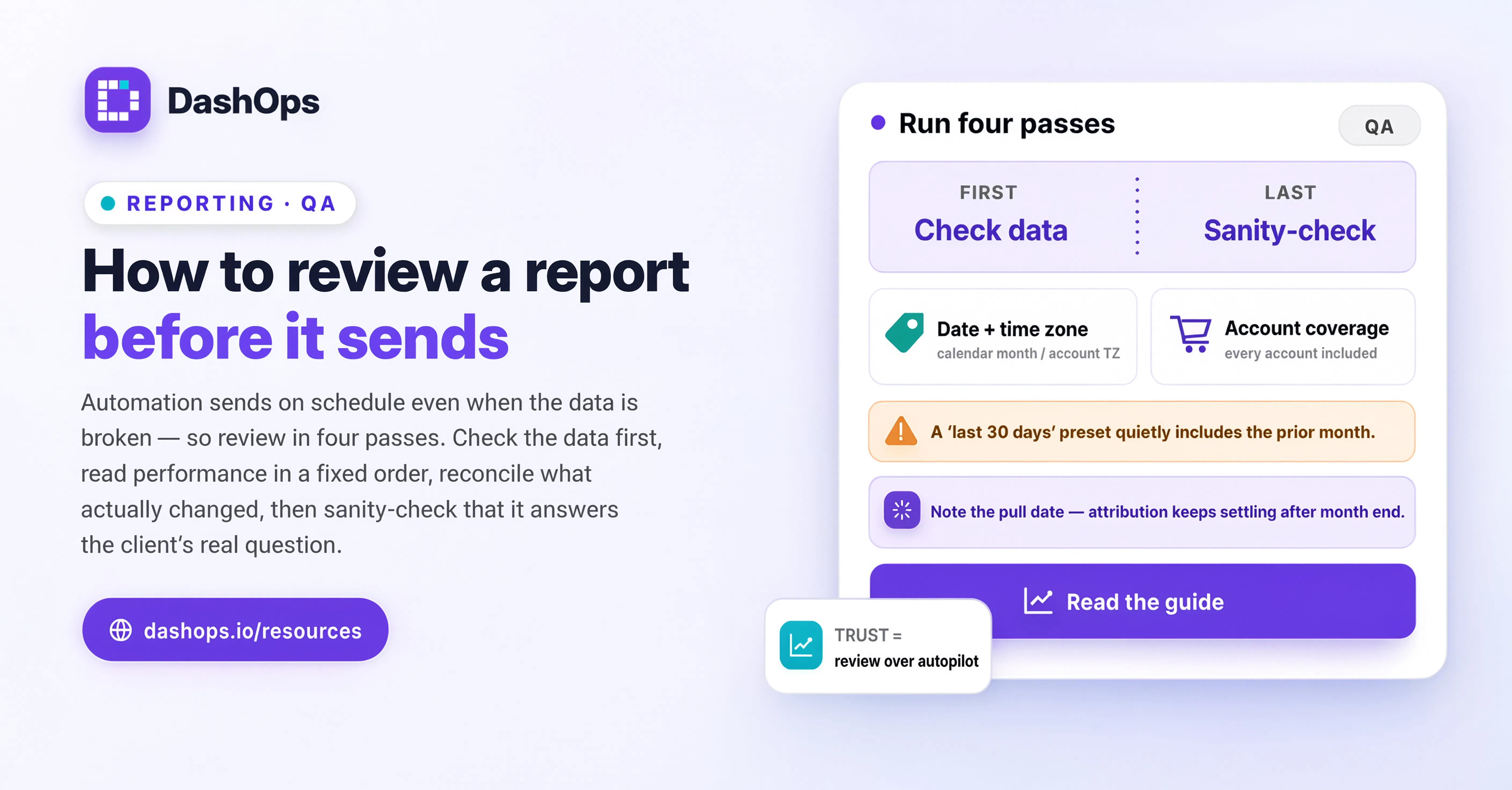
Why a scheduled report needs a human read at all
A manual report has a review built into it. You cannot compile numbers by hand without noticing that one campaign has no spend, or that the date range covers an odd stretch, or that a figure moved in a way that surprises you. The act of building it is the act of checking it.
An automated report has no such step. It pulls whatever the data says and formats it faithfully, including when the data is wrong, incomplete, or missing entirely. It cannot tell the difference between a genuine drop in performance and a broken connection. Both look identical to a report generator: fewer numbers than last time.
That is not an argument against automating. It is an argument for putting the review back where the build used to be. If you are still deciding how much of your reporting to automate, the full guide to automating Facebook Ads reports covers that decision. This post assumes you have already automated and now need a way to trust what goes out.
Build a buffer between generation and delivery
The single most useful change is structural: generate the report before the send date, not on it.
If the report is scheduled to reach the client on Monday morning, have it ready to you on Friday, or Sunday evening, or whenever you have a window. A report that generates and sends in the same instant gives you no chance to intervene. One that exists a day early gives you a window in which problems are still fixable and nobody outside your team has seen anything.
In DashOps you can run an on-demand PDF or Excel report at any time, so a practical pattern is to generate the version you review manually, check it, then let the scheduled client report follow on the agreed day. You get a preview and the client gets predictability.
Two things make the buffer work:
- It has to fall on a day you are genuinely available. A Sunday-night buffer only helps if you check on Sundays.
- The client has to receive the report on a fixed, predictable day, regardless of what you find. If a problem means you need to delay, tell them. Silence reads as a broken relationship, not a careful one.
The pre-send checklist
Work through this in order. The early items catch the failures that make a report meaningless, so there is no point checking your commentary before you know the numbers are real.
Check the date range first. Read it. Out loud if that helps. A report covering the wrong window is the most dangerous failure of all because everything inside it is technically correct. There is nothing to spot except the dates at the top, the easiest thing in the document to skim past.
Confirm every ad account you expect is present. If a client has several ad accounts and only some appear, that is either a scoping change or a connection failure, and both need investigating before the report leaves. A missing account is silent: the report does not announce the absence, it simply covers fewer accounts than it should.
Sanity-check spend against your own memory. You do not need a benchmark for this. You know roughly what the account spends. If the figure in front of you feels wrong, it is worth ruling out the mechanical explanations before you treat it as a performance story: a campaign paused, a budget change you forgot, a card declined on the client’s Meta account, a connection that quietly expired.
Look for empty cells and zeros in places that should never be empty. A campaign with impressions and no spend, a lead figure of zero on an account that generates leads every week, a conversion column that has gone blank. These are data problems dressed as performance problems, and sending one uncorrected means the client asks a question you cannot answer.
Read the first table as a stranger would. Not as the person who built the account and knows what every campaign name means, but as the client who sees “TOF_COLD_LAL_BROAD” and has no idea what it refers to. If the report goes to a non-marketer, naming conventions are noise. Rename what you can, or explain them in your note.
Check the branding and the client name. Wrong logo, wrong company name in the header, or a report that still carries a previous client’s colours is a small error with a disproportionate effect. It tells the reader the report was not looked at. If you send white-labelled reports, the logo and colours come from your branding settings in DashOps rather than from anything set per report, so repeat it after a branding change rather than every week.
Decide whether anything in the report needs context before the client reads it. This is the item that matters most and the one that has no technical fix.
The part automation cannot do: explaining the number
A report shows what happened. It does not explain why, and it never anticipates the question the client is about to ask.
If cost per lead rose this week and you know it is because you deliberately expanded targeting to test a broader audience, the report cannot say that. It will show a worse number with no explanation, and the client will read it as a decline. That is an avoidable conversation, and avoiding it takes a sentence or two from you.
The same applies in reverse. A good week that came from a seasonal spike is worth flagging as seasonal, so nobody builds a forecast on it. A flat week during a creative production gap is worth naming, so it does not look like drift.
Practically, this means every automated report should carry a short human note. Not an essay. A few lines covering:
- What changed in the account since the last report, in plain language
- Anything in the numbers that looks worse than it is, and why
- Anything that looks better than it is, and why
- What you are doing next
The first of those is the one people struggle with, usually because they cannot remember what they did. If your dashboard keeps an audit log of who changed what and when, as DashOps does, reading it back before you write the note turns a guess into a list.
This is the difference between reporting and account management, and it is the reason automated and manual reporting are not really competing approaches. Automation handles the compilation. You handle the meaning.
When the check fails
Sometimes the review turns up a real problem. Decide in advance what you will do, so you are not improvising under pressure.
If the data is incomplete because of a broken connection, fix the connection and regenerate rather than sending a partial report with a caveat. A caveated report is still a report the client has to reconcile against the next one.
If the data is complete but the performance is bad, send it on time. Delaying a report because the numbers are poor is the fastest way to teach a client that a late report means bad news, and it makes every future delay look like something you are hiding.
If the report is fine but a figure needs heavy explanation, consider whether email is the right vehicle at all. Some conversations belong on a call, with the report as the supporting document rather than the message itself.
If you find yourself failing the same check repeatedly on the same account, the problem is not the report. It is the setup underneath it, and it is worth reading what belongs in an automated ads report to see whether the wrong things are being included in the first place.
What to do next
Pick one client report you currently send on a schedule and move its generation earlier by a day. Run through the checklist above once, in order, and note which items caught something. If nothing turns up, that is a useful result rather than a wasted pass: the setup is sound.
Then repeat it for the account you trust least, the one with the most moving parts or the most recent changes. That is where a pre-send review earns its time back, and where the habit is worth keeping permanently.
Once the checklist becomes routine it takes a few minutes and mostly confirms things are fine. That is not wasted effort. It is the reason you can let reports send automatically at all.
Frequently asked questions
How long should a pre-send review actually take?
What if I am on holiday and cannot review a report before it sends?
Should the client ever see the raw report before I add commentary?
Which check is most worth guarding if I only have time for one?
Do I need to review a report going to my own team as carefully?
See it in your own dashboard
DashOps brings Meta Ads reporting, campaign management, and white-label client portals into one place. Pick the plan that fits how you run ads.