Meta Ads Team Permissions: Onboarding and Offboarding Safely
A freelancer you hired for a three month sprint still has admin access to four client ad accounts. You noticed because their name appeared in an activity log next to a campaign edit nobody asked for. Now you are trying to work out what they can still reach, and you realise you do not have a clean answer, because access was granted in at least two different places by at least two different people over several months.
This is the ordinary shape of the problem. Meta Ads work is rarely done by one person on one account. It is done by a small team across many ad accounts, several Pages, a pixel or two, and a reporting layer on top. Every one of those is a separate permission surface, and none of them talk to each other. Getting Meta Ads team permissions right is less about picking the correct dropdown once and more about knowing which layer you are standing on when you click it.
The two layers you are actually managing
Almost every access mistake I have seen comes from confusing these two things.
Layer one is Meta Business Manager. This is where the assets live: the ad accounts, the Pages, the pixels, the catalogs, the Instagram accounts. Permission here is what genuinely controls whether a person can spend money, change a live campaign, or see a client’s customer data. Meta owns this layer. Nothing you do in a third party tool changes it.
Layer two is the tool sitting on top. For DashOps that means who can log in, which ad accounts they see once they are in, whether they can create and edit or only read, and whether they see spend at all. This layer controls the view and the workflow. It does not, on its own, revoke anything Meta granted.
The distinction matters most at offboarding. Removing someone from your reporting dashboard feels like you have cut their access. If they were also assigned the ad account directly in Business Manager, or if they connected it under their own personal Facebook login, they can still open Ads Manager tomorrow and change a budget. The dashboard went dark. The money did not.
Get Business Manager right first
A few habits at the Meta layer that save a lot of pain later.
- Everything belongs to the business, not to a person. Ad accounts, Pages and pixels should be owned by a Business Manager, not created under an individual’s personal profile. An asset owned by a person leaves with that person, and Meta’s recovery process for that is slow and unpleasant.
- Client assets stay in the client’s Business Manager. Ask for partner access to Acme’s ad account rather than taking ownership of it. When the relationship ends, the client removes your partner access in one action and keeps everything. This is also a much easier conversation to have during onboarding than during a breakup.
- Assign per asset, not blanket. A media buyer working on two of Contoso’s five ad accounts should be assigned those two. Business Manager lets you scope this. Use it.
- Reserve full admin for the smallest possible group. An admin on the business can add people, remove people, and change ownership. That is not a permission a contractor needs to run campaigns.
- Separate the finance permission from the campaign permission. Whoever manages payment methods and billing does not need to be the same person editing ad sets.
- Turn on two factor for everyone with access, and require it at the business level. A compromised personal Facebook account is one of the more common routes into an ad account, and it does not care how carefully you set your roles.
None of this is exotic. It is just tedious, which is why it gets skipped in the first week of a new client and then never revisited.
What the tool layer should add
The reason to have a second layer at all is that Business Manager is built around assets, not around your business. It does not know that Jane runs three retainer clients and should never see the fourth. It does not know that your client contact at Globex should see performance but not what you pay per lead. It has no concept of an agency at all.
In DashOps that gap is filled with three roles:
- Owner. Full control of the account: billing, connections, branding, inviting people, everything.
- Manager. Your staff. They log in, but they only see the ad accounts you assign them. Everything else in the account is invisible to them, including ad accounts belonging to your other clients.
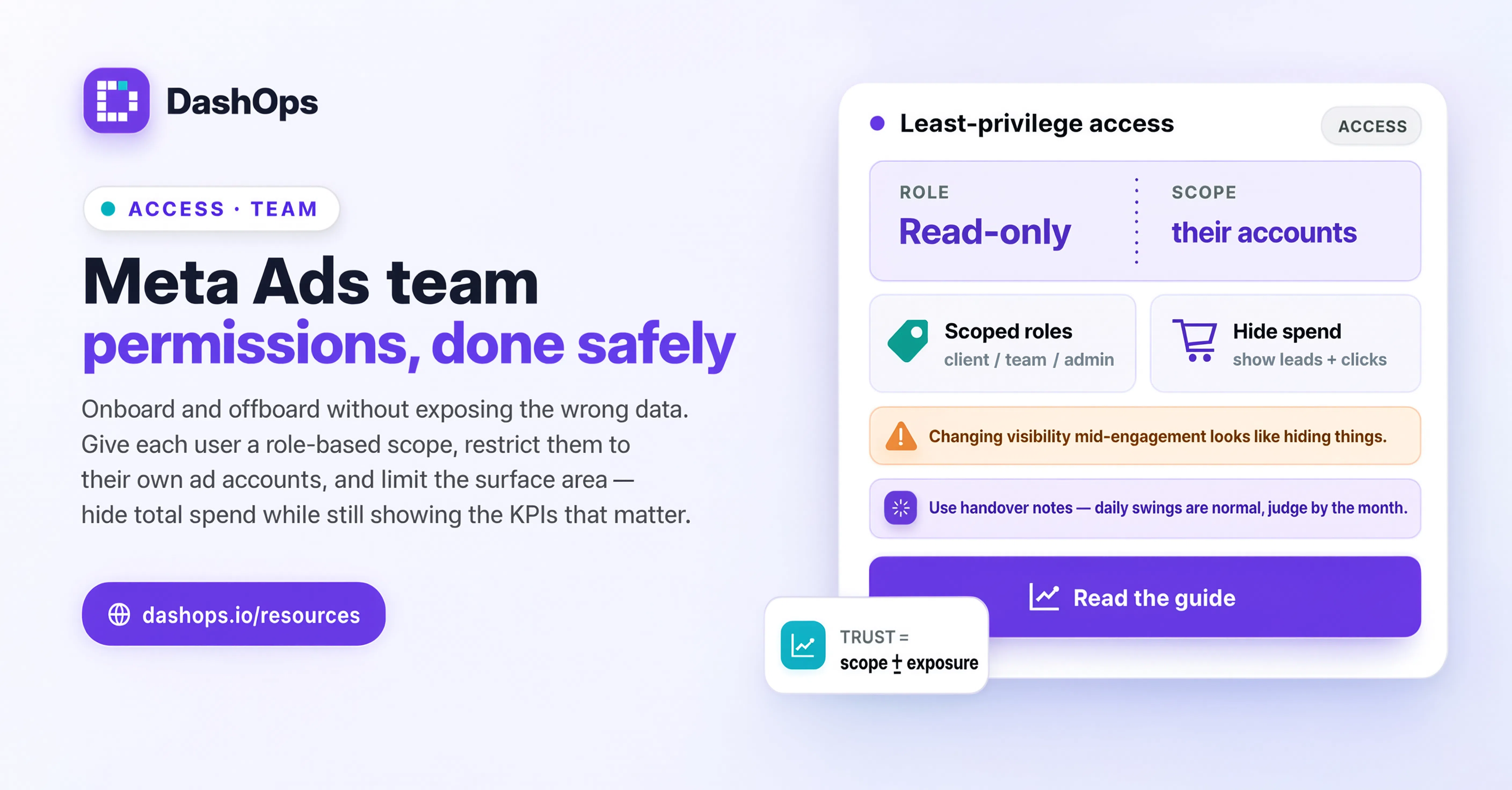
- Client. Read only, on the ad accounts you assign, with the option to hide spend entirely. This is how a client contact gets a dashboard without getting the ability to touch a campaign, and without seeing your margin if you would rather they did not.
That last one solves a specific and common problem. A client who wants visibility does not need a Business Manager seat, and giving them one to satisfy a reporting request is how people end up with a client admin quietly editing budgets. A read only view with spend hidden is almost always what they actually wanted. If you want to go further and remove logins from the equation entirely, a scheduled report or a weekly email digest covers a lot of stakeholders who only ever wanted the numbers.
There is also a share link for a read only snapshot of a dashboard, which is useful for the person at the client who needs to forward something to their board and does not want an account for it.
An onboarding sequence that does not create debt
Do these in order and the offboarding case looks after itself.
- Decide the scope before you grant anything. Which client, which ad accounts, which Pages. Write it down somewhere that is not your memory.
- Grant at the Meta layer, scoped. Assign the specific ad accounts in Business Manager with the narrowest role that lets them do the job. If they only need to read performance, do not give them the ability to manage.
- Invite them to the tool, scoped to match. In DashOps, invite as Manager and assign the same ad accounts you assigned in Business Manager. Keeping the two lists identical is what makes an audit possible later.
- Do not share a login. Ever, for any reason. A shared login destroys every audit trail you have and cannot be revoked for one person.
- Confirm what they see. Have them log in and tell you which ad accounts appear. If the list is longer than you expected, fix it now rather than discovering it in three months.
- Note the date and the scope. Two lines in your client file. This is the record you will want when someone asks what a departed contractor could reach.
If your onboarding is already documented as part of a broader process, this slots into it directly. There is more on the surrounding workflow in the Meta Ads agency workflow piece.
Offboarding is the part everyone gets wrong
Offboarding is not one action. It is a list, and the list has to be worked in full, because a partial revoke is worse than none: it produces the feeling of safety without the fact of it.
- Remove them from Business Manager first. This is the one that stops money moving. Do it before anything else, and do it on the day, not at the end of the week.
- Check every client’s Business Manager, not just your own. If you have partner access into Northwind’s business and your contractor was assigned an asset there, removing them from your business does not touch it.
- Remove or deactivate them in the reporting tool. Do this in the same pass, and clear their per member ad account assignments while you are there, so nothing is left pointing at a client they no longer work on.
- Check who connected the ad account. If a departing team member authorised the Meta connection under their own login, that connection is tied to them. Reconnect it under an owner, or your data can quietly stop refreshing the moment their access is revoked.
- Rotate anything shared. Shared passwords for anything adjacent, shared inboxes, anything a former team member could use to reset something.
- Read the audit log. DashOps records who changed what, so you can see the last actions taken before departure. This is not about suspicion. It is about knowing whether a campaign change from last Tuesday was theirs or yours.
- Tell the client, if the person was client facing. A short note that Jane Doe has left the account and no longer has access is a professional courtesy and closes the loop.
Set a reminder to re-run the Business Manager people list once a quarter. Every agency accumulates access it forgot about. A quarterly pass is quick, and it catches the contractor from last spring, the agency you subcontracted to once, and the client employee who changed jobs and never told you.
Permissions and reporting are the same problem
The reason people over grant access is almost always reporting pressure. Someone needs a number, the fastest way to get them the number is to give them a seat, and the seat is never taken away. Every time you can answer a reporting request without granting access, you have avoided creating a future offboarding task.
That is the practical case for scheduled reports and read only client views. If the person asking for visibility gets a report in their inbox on Monday morning, they stop asking for an account. There is a walkthrough of setting that up in automating Facebook Ads reports.
What to do next
Open Business Manager today and read the people list for every business you touch, yours and your clients’. Write down anyone you do not immediately recognise, and anyone who has more scope than their current job needs. That single list is usually enough to tell you whether your access hygiene is fine or whether you have a quiet problem.
Then fix the two most exposed cases: anyone who has left, and anyone with admin who does not need it. Once that is clean, put the quarterly review in your calendar and stop thinking about it until next quarter.
Frequently asked questions
What is the difference between Meta Business Manager permissions and permissions in a reporting tool?
How do I safely offboard a team member from Meta Ads access?
Should I give my client a Business Manager seat so they can see results?
Can DashOps restrict which ad accounts a team member sees?
How often should agencies review Meta Ads access?
See it in your own dashboard
DashOps brings Meta Ads reporting, campaign management, and white-label client portals into one place. Pick the plan that fits how you run ads.