How to Create a Meta Ads Report Step by Step
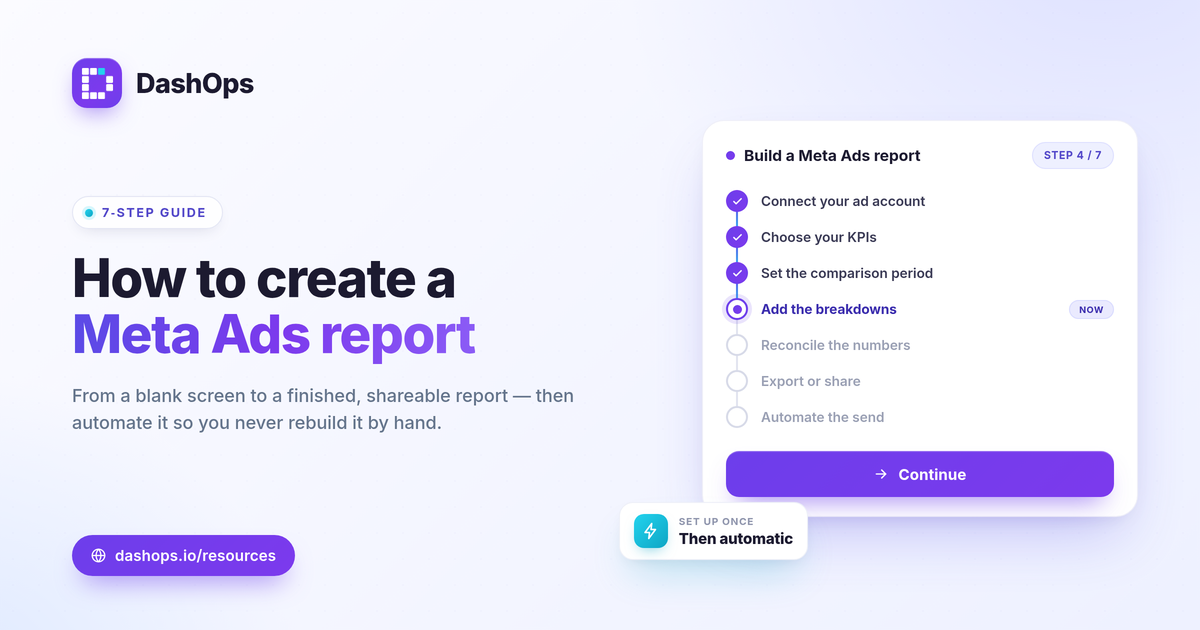
A Meta Ads report has one job: show whoever reads it whether the money worked and what changed. To create a Meta Ads report step by step, you connect your ad account, pick the KPIs tied to your goal, set a comparison period, add the breakdowns that explain the numbers, then export or share it. This guide walks through each step from a blank screen to a finished, shareable report, and ends with how to automate the whole thing so you never rebuild it by hand again. It works the same whether you sell products, capture leads, or report for clients.
Step 1: Connect your Meta ad account
Everything starts with data access. Before you can build a Meta Ads report, the tool you are reporting in needs permission to read your account.
- In native Ads Manager, you are already connected, but you can only see one account at a time and you build each view manually.
- In a reporting dashboard, you authorize Meta once and the account stays linked, so numbers refresh on their own.
If you run more than one account, connect them all now. Managing several accounts in one place is the difference between one report and five separate exports stitched together by hand.
Step 2: Choose the metrics that match your goal
Do not report every number Meta returns. Pick the KPIs that answer the question the reader actually has, which depends on what you are running ads for.
- Spend and results. What you spent and what you got, side by side. Results means purchases for e-commerce or leads for lead gen.
- Efficiency. Cost per result: cost per purchase, or cost per lead (cost per lead = spend / leads).
- Return. ROAS for sales (ROAS = conversion value / spend), or pipeline value for lead gen.
- Reach and delivery. Impressions, reach, frequency, CPM (CPM = spend / impressions times 1000).
- Engagement. Clicks, CTR (CTR = clicks / impressions), and CPC (CPC = spend / clicks).
A lead-gen report and an e-commerce report are not the same shape, so let the goal decide the lineup. For a fuller breakdown of which numbers matter, see the Meta Ads KPIs worth tracking.
Step 3: Set a comparison period
A single number hides the story. Spending a certain amount means nothing until you know whether that is up or down from before.
Set a date range, then compare it to the prior period of equal length. Last month versus the month before. This week versus last week. Period-over-period comparison turns a flat snapshot into a trend, which is the question every reader has whether they say it out loud or not. If a result moved, the comparison is what surfaces it.
When you are judging whether a number is good, resist the urge to chase a universal benchmark. A strong ROAS is one that clears your break-even point (break-even ROAS = 1 / profit margin), and a good cost per lead is one your margins can absorb. Judge against your own goals and your prior-period trend, not someone else’s figure.
Step 4: Add the breakdowns that explain the numbers
Headline KPIs tell you what happened. Breakdowns tell you why. This is where a Meta Ads report earns its keep.
- Top campaigns. Which campaigns carried the spend and the results, so you can see where the budget actually went.
- Demographics. Age and gender breakdowns show which audiences responded and which drained budget quietly.
- Placements. Where ads ran across Facebook and Instagram, and which placements pulled their weight.
- Spend pacing. Whether you are on track to hit or overshoot the budget for the period.
These breakdowns also help you read fatigue. If frequency keeps climbing while CTR slides over the comparison period, the audience has seen the ad too many times. That pattern is visible in the trend, no creative-level guesswork required.
Step 5: Reconcile the numbers before you share
Before a Meta Ads report leaves your hands, sanity-check the figures against Ads Manager. Small gaps are normal and expected.
- Attribution windows and time zones can shift totals between two views of the same account.
- iOS and the App Tracking Transparency prompt cause conversions to be undercounted, so reported purchases and leads can read lower than reality. This is a known platform effect, not an error in your report.
Knowing why two screens disagree means you can answer the question before a client asks it. If the gap is large or unexplained, dig in before you send. There is a deeper walkthrough in our guide on why Ads Manager and dashboard numbers differ.
Step 6: Export or share the finished report
Now deliver it in the format the reader expects.
- PDF for a clean, fixed document a client can file or forward.
- Excel or CSV when the reader wants to slice the raw numbers themselves.
- A live link when they would rather see current data than a static file.
A read-only share link or a simplified client portal lets stakeholders check results whenever they want, without a login to your account and without you exporting anything. If you report for clients under your own brand, white-label reporting removes the dashboard’s branding so the report looks like yours. See how white-label client reporting works.
Step 7: Automate it so you build it once
The real win is not building one good report. It is never building it manually again.
- Schedule it. Set an email digest to send on a cadence, weekly or monthly, to whoever needs it.
- Keep it live. A shared dashboard or portal updates on its own, so there is nothing to resend.
- Set alerts. Slack or Discord notifications flag a spend spike or a drop without you watching the dashboard.
Once the report builds and delivers itself, your time goes to acting on the numbers instead of assembling them.
This is the core of what DashOps does. You connect your Meta ad accounts, and the full set of KPIs, period-over-period comparisons, demographic and placement breakdowns, and trend charts populate in one dashboard, ready to export as PDF, Excel, or CSV, or send as a scheduled white-label report. See what each plan includes on the pricing page, and the help center covers connecting your first account.
The takeaway: build the report around the goal and the comparison first, then automate the delivery so the only thing left to do is read it.
Frequently asked questions
What should a Meta Ads report include?
How long does it take to build a Meta Ads report?
Can I send a Meta Ads report automatically?
See it in your own dashboard
DashOps brings Meta Ads reporting, campaign management, and white-label client portals into one place. Pick the plan that fits how you run ads.