How to Build a PDF Facebook Ads Report Your Clients Actually Read
A PDF Facebook Ads report works when the reader can answer one question on the first page: did the money work, and what changed. Everything after that is supporting evidence. The hard part is not the data, it is the discipline to lead with the result, cut the noise, and keep the layout the same every cycle so the reader knows where to look. This guide walks through how to structure a Meta Ads PDF report, what to put in each section, and how to export it cleanly instead of rebuilding it by hand each month.
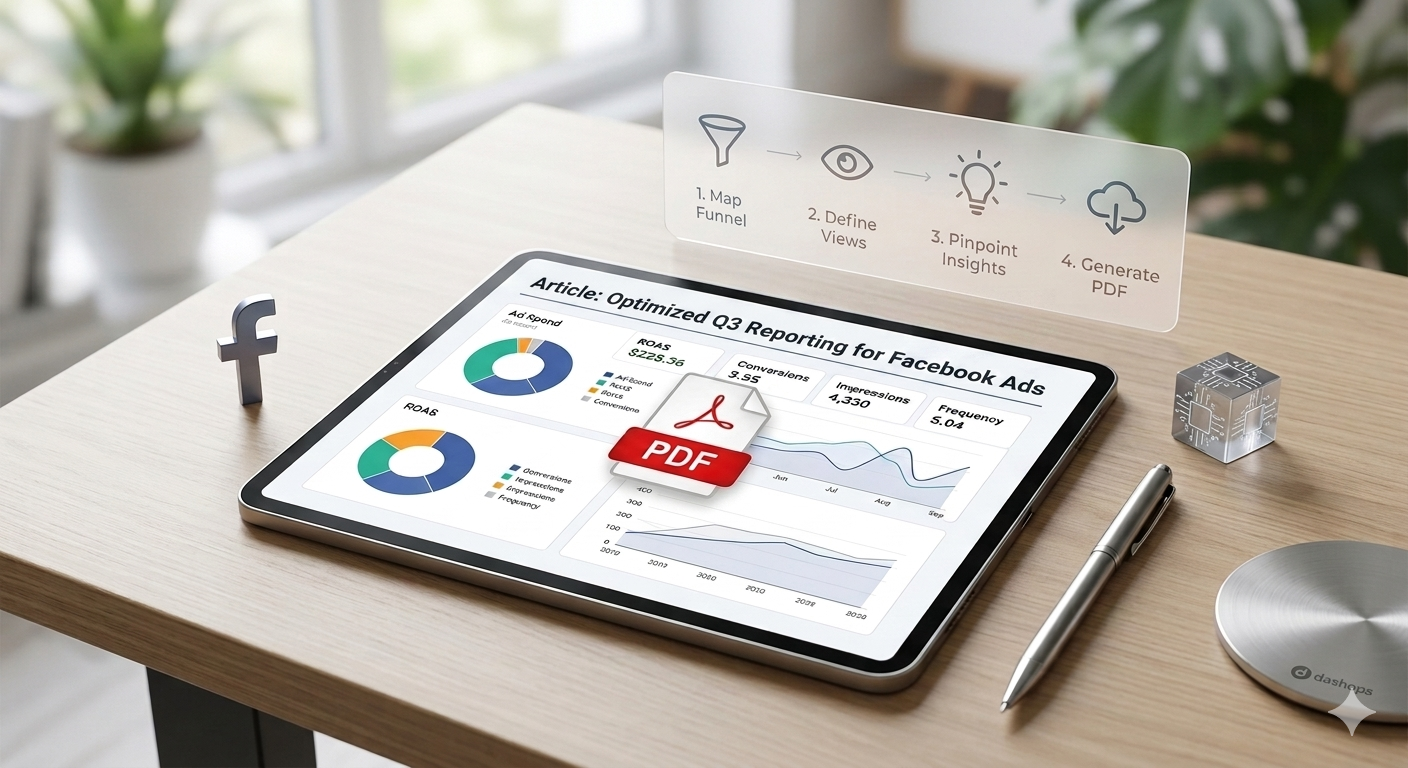
Decide who reads it before you build it
A PDF Facebook Ads report has one job: tell a specific reader what they need to make a decision. Build for that reader first.
- A business owner or client wants the headline result and the trend, not a tour of every metric.
- A marketing lead wants efficiency and pacing so they can adjust budget.
- A stakeholder who does not run ads wants plain language and a clear before-and-after.
Once you know who reads it, you can decide which metrics earn a place. Everything that does not help that reader decide something is clutter.
Open with the headline numbers
The first page should answer the money question before the reader scrolls. Put the metrics tied to the goal at the top, side by side with the prior period.
- Spend and results. What you spent and what you got, next to each other.
- Efficiency. Cost per result, whether that is cost per lead or cost per purchase. Cost per lead is spend divided by leads; cost per purchase follows the same logic.
- Return. ROAS for sales, calculated as conversion value divided by spend, or pipeline value for lead gen.
Resist the urge to paste the full Ads Manager column set. A Facebook Ads PDF report that opens with every available column tells the reader nothing, because it makes them hunt for the handful that actually matter.
Show the trend, not just the total
A single number hides the story. A period-over-period comparison shows whether this month beat last month, which is the question the reader actually has. Pair each headline metric with the prior period and the direction of change.
A short trend chart does this better than a sentence. One line for spend and one for results over the reporting window lets the reader see pacing at a glance. If you want a deeper read on which numbers to chart, the KPIs worth tracking in Meta is a useful reference for choosing what belongs on the page.
Add the breakdowns that explain why
After the headline and the trend, give the reader one or two breakdowns that explain the result instead of just stating it.
- Top campaigns. Where the spend went and which campaigns carried the result.
- Demographics. Age and gender splits show who responded, which guides targeting.
- Placement. Feed, Stories, Reels, and other placements show where delivery and cost landed.
These sections turn a report from a scoreboard into an explanation. If efficiency slipped, a rising frequency alongside a softer CTR across a placement is the kind of pattern these breakdowns surface. Keep each breakdown to the few rows that matter rather than the full export.
Write the summary in plain language
Numbers do not interpret themselves. Add a short written summary, three or four sentences, that says what changed, why, and what you are doing about it next period. Write it for the reader who does not live in Ads Manager.
Keep it honest about direction. If results cost more this period, say so and name the action: testing new creative, shifting budget, or narrowing a placement. A report that only shows wins loses trust the first time the reader checks the underlying account.
Keep the layout identical every time
The fastest way to make a report readable is to make it predictable. Use the same section order, the same metrics, and the same comparison window every cycle. Readers learn the shape of the document and stop hunting.
This is also where manual reporting breaks down. Rebuilding a Meta Ads PDF report in a slide tool each month invites copy-paste errors, mismatched date ranges, and drift in which metrics appear. If your numbers ever look off, the reasons Ads Manager figures may not match a report are worth understanding, since iOS and App Tracking Transparency can undercount conversions and a manual rebuild adds its own mistakes on top.
Export to PDF without rebuilding it
You have two ways to produce the file.
- Manual. Pull the numbers from Ads Manager, drop them into a document or slide deck, format it, and save as PDF. It works, but it is slow and easy to break, especially across several ad accounts.
- Automated. Use a dashboard that already holds your Meta KPIs and export the report directly. This removes the copy step entirely, which is where most errors come from.
A clean export should carry the headline numbers, the comparison, the trend, and your breakdowns in a fixed layout, so every period looks the same to the reader.
If you manage reports for more than one account or client, pulling this together in one place saves real time. DashOps reads every Meta KPI across your ad accounts with period-over-period comparison built in, and exports a finished report to PDF, Excel, or CSV in one click, with white-label options for client-facing work. See what each plan includes on the pricing page, and the help center covers connecting accounts and setting up exports. For client work specifically, white-label client reporting covers how to put your own brand on the file.
The takeaway: a PDF Facebook Ads report earns a read when it leads with the result, shows the trend, and looks the same every time, so build that structure once and export it rather than rebuilding it by hand.
Frequently asked questions
What should a PDF Facebook Ads report include?
How do I export a Facebook Ads report as a PDF?
How often should I send a PDF Facebook Ads report to clients?
See it in your own dashboard
DashOps brings Meta Ads reporting, campaign management, and white-label client portals into one place. Pick the plan that fits how you run ads.