Facebook Ads Audit Checklist: Free PDF Download
Here is the free Facebook Ads audit checklist as a PDF: download it here, work down it with Ads Manager open, and mark each line OK, Fix or N/A. It holds 32 lines in eight groups, each line says where to look and what a problem looks like, and the last page is a one page summary to hand over.
Fill in the boxes on screen and save a copy, or print it and tick by hand. There is no signup, and the file sets no score to reach and names no target for any number, because a target from us would mean nothing for your account.
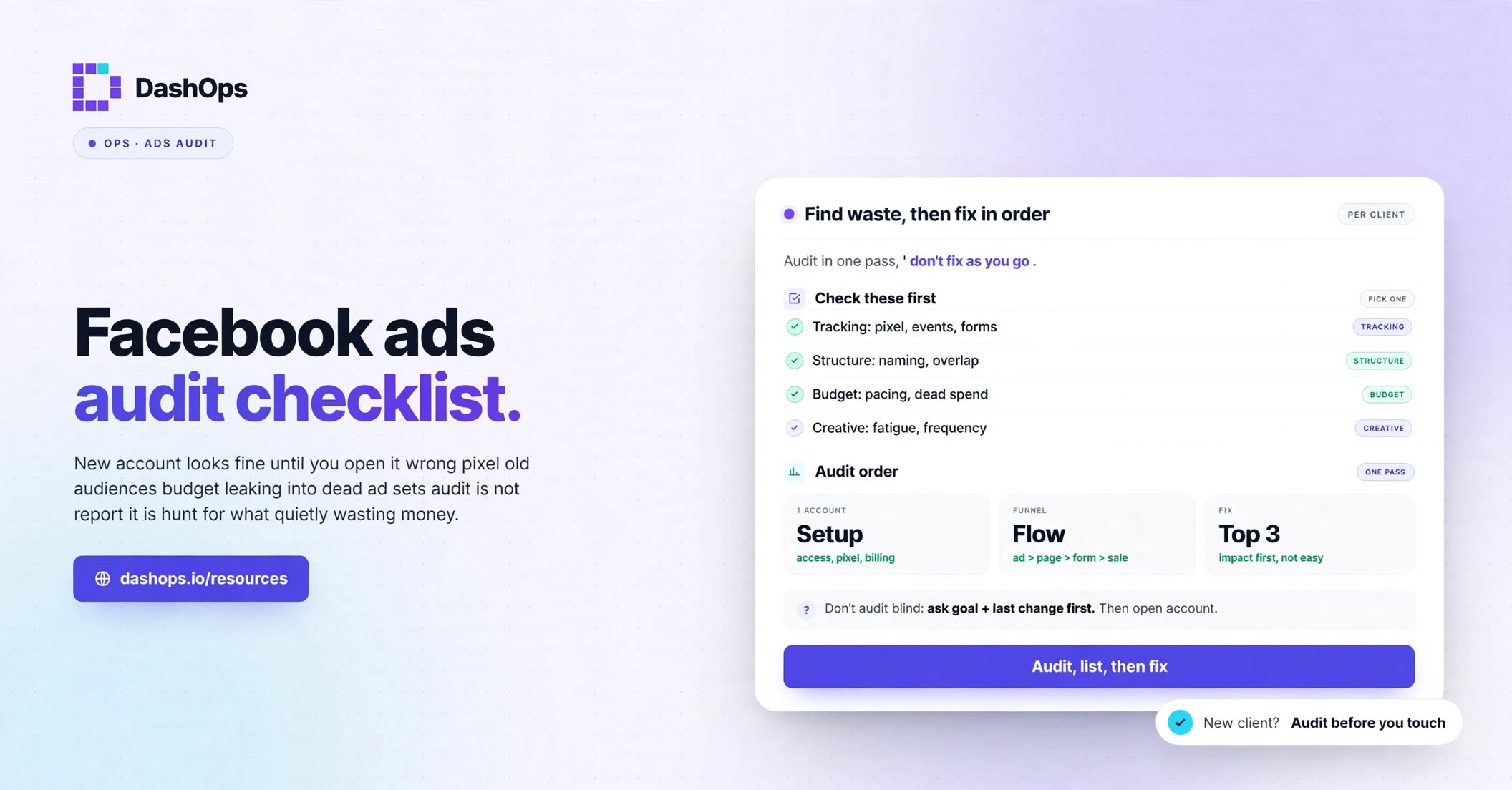
What the PDF holds
Every line has the same parts. Here is line 14:
| Check | Where to look | A problem looks like | You mark |
|---|---|---|---|
| 14. Delivery status | Delivery column | A status such as Learning limited that nobody has looked at | OK, Fix or N/A, plus a note |
The eight groups run in this order:
| Group | Lines | What it covers |
|---|---|---|
| Access and ownership | 1 to 4 | Who has access, who owns the ad account, Page and pixel, the payment method, the account spending limit |
| Tracking | 5 to 10 | Whether the pixel records, the event each campaign aims for, server events, purchase values, your own records, URL parameters |
| Campaign structure | 11 to 15 | One clear goal per campaign, names, overlapping ad sets, delivery status, old items |
| Budget and spending | 16 to 19 | Where each budget is set, daily or lifetime, spend against the plan, bid strategy and caps |
| Audience | 20 to 23 | Location, age and language, exclusions, custom audiences, frequency over time |
| Creative | 24 to 28 | More than one ad per ad set, rejected or limited ads, results over time, landing pages, comments |
| Placements | 29 to 30 | Spend by placement, creative that fits each placement |
| Reporting | 31 to 32 | Whether totals are right, who gets a report and how often |
How to work through it
Go from the top, because later lines lean on earlier ones. If you cannot get into the account’s settings, you cannot finish the rest. If tracking is wrong, every result you read under Budget, Audience and Creative is wrong with it.
Three habits keep the finished copy useful to the next person:
- Never leave a box empty. An empty line could mean not applicable or not looked at. N/A says which.
- Treat missing access as a finding. If you cannot open a place the line names, mark Fix and write that in the note.
- Write the evidence in the note. A date, a campaign name or the size of a gap lets someone check your work later.
Several lines read a column, such as Delivery, Amount spent or Frequency. If one is missing from your view, click Columns and add it, the step Meta gives on its learning phase page for a column you cannot see. Which Ads Manager columns are worth keeping on screen saves you setting that view up from nothing.
Menu names in Meta’s tools can change, so if a line names a place you cannot find, Meta’s own Help Center is the final word. Line 1 is a case in point: the sheet says Users, as Meta’s page on Settings in Meta Business Suite does, while Meta’s page on adding people says to go to Settings in Meta Business Suite and click People in the left menu.
Taking over an account you have never seen? Our walkthrough of auditing a new ad account goes through it in prose, and this PDF is the sheet to fill in as you read.
Seven lines that need more care
The rest you can read as written.
Line 4, account spending limit. Meta says that when spending reaches the limit, ads pause and the account stops spending. The same page says you get a notification about the pause, while the ads stay listed as active in Ads Manager. So an account that has stopped can look healthy in the campaign list. Check the amount spent towards the limit in Payment settings, which is where Meta says you can track it.
Line 6, the event each campaign aims for. An empty Test events page does not mean the event is broken. Meta says website activity is only recorded while that page is open, and its steps are to enter your website URL, click Open website and act in that window. Do that before you tick Fix.
Line 9, numbers against your own records. Meta’s own tools can disagree with each other: its Events Manager overview warns that event counts may differ from those in Ads Manager. So a gap against your own records is not a fault on its own. Tick Fix when the gap is one nobody can explain, and write its size in the note.
Line 14, delivery status. Meta says the Delivery column reads Learning limited when an ad set isn’t getting enough results to exit the learning phase. The line does not ask you to clear every such status today. It asks whether anyone has looked at it and decided what to do.
Line 23, frequency over time. Meta calculates frequency as impressions divided by reach. One reading tells you little, so change the date range and read it week by week. The problem to tick is frequency that keeps rising while results fall.
Line 29, spend by placement. Meta’s steps are to select the campaign, ad set or ad, click the Breakdown icon, choose By time, By delivery or By action, and pick a breakdown. Placement is listed under By delivery on that page. The words on your screen may differ. For more on what these views show, see the checklist of audience breakdown reports.
Line 31, totals. Meta defines reach as the number of people who saw your ads at least once, and one person can sit in two rows, so adding reach across rows can count them twice. A rate has the same trap in another form: work it out from the totals. For example, one campaign with 100 clicks on 1,000 impressions has CTR = 100 / 1,000 x 100 = 10%, and a second with 10 clicks on 10,000 impressions has CTR = 10 / 10,000 x 100 = 0.1%. Averaging those two rows gives 5.05%, while the totals give 110 / 11,000 x 100 = 1%.
Filling in the one page summary
The last page is the part you hand over, and you fill in all of it:
- Account, Reviewed by and Date.
- How many lines you marked OK, Fix and Not applicable. The boxes do not add themselves, so count your ticks and type the three numbers.
- The three things to fix first.
- What is working.
- Who does what: a table of What, Who and By when.
The page ends by saying the counts are for your own use and are not compared with any other account. Read the Fix count as a measure of the work ahead, and nothing more. An old account with many campaigns will simply have more to look at.
To pick the three things to fix first, start with anything that can stop ads running or hide results: payment, the spending limit and tracking. After that, choose by how much money the problem touches. Always fill in What is working, so the person reading the summary knows what to leave alone.
If you look after several accounts
Keep one saved copy per account, named after the account, so the next audit can be read against this one line by line.
Not sure which account to audit first? DashOps shows every Meta ad account you switch on in one overview, with the key numbers for the dates you pick and the change from the period before. The checks themselves are still done in Ads Manager, Events Manager and the settings in Meta Business Suite, because that is where those settings live.
This audit is also a section of a larger pack. The full checklist PDF adds launch, weekly and monthly optimization, Black Friday and compliance, if you would rather keep them together.
Frequently asked questions
Is there a score to reach in this audit checklist?
Can I fill in the PDF on screen?
What do I need to open to run a Facebook Ads audit?
Is a Meta Ads audit different from a Facebook Ads audit?
When should I audit a Facebook ad account?
See it in your own dashboard
DashOps brings Meta Ads reporting, campaign management, and white-label client portals into one place. Pick the plan that fits how you run ads.
