Meta Ads Active But Not Spending? Checks to Run
If your Meta ads say active but are not spending, open the Delivery column in Ads Manager and read it at the campaign, ad set and ad level, because each level has its own status. Meta’s delivery status page names the trap directly: “For example, your campaign may appear active, but your ad set or ad may show a status of In review if you made recent changes.”
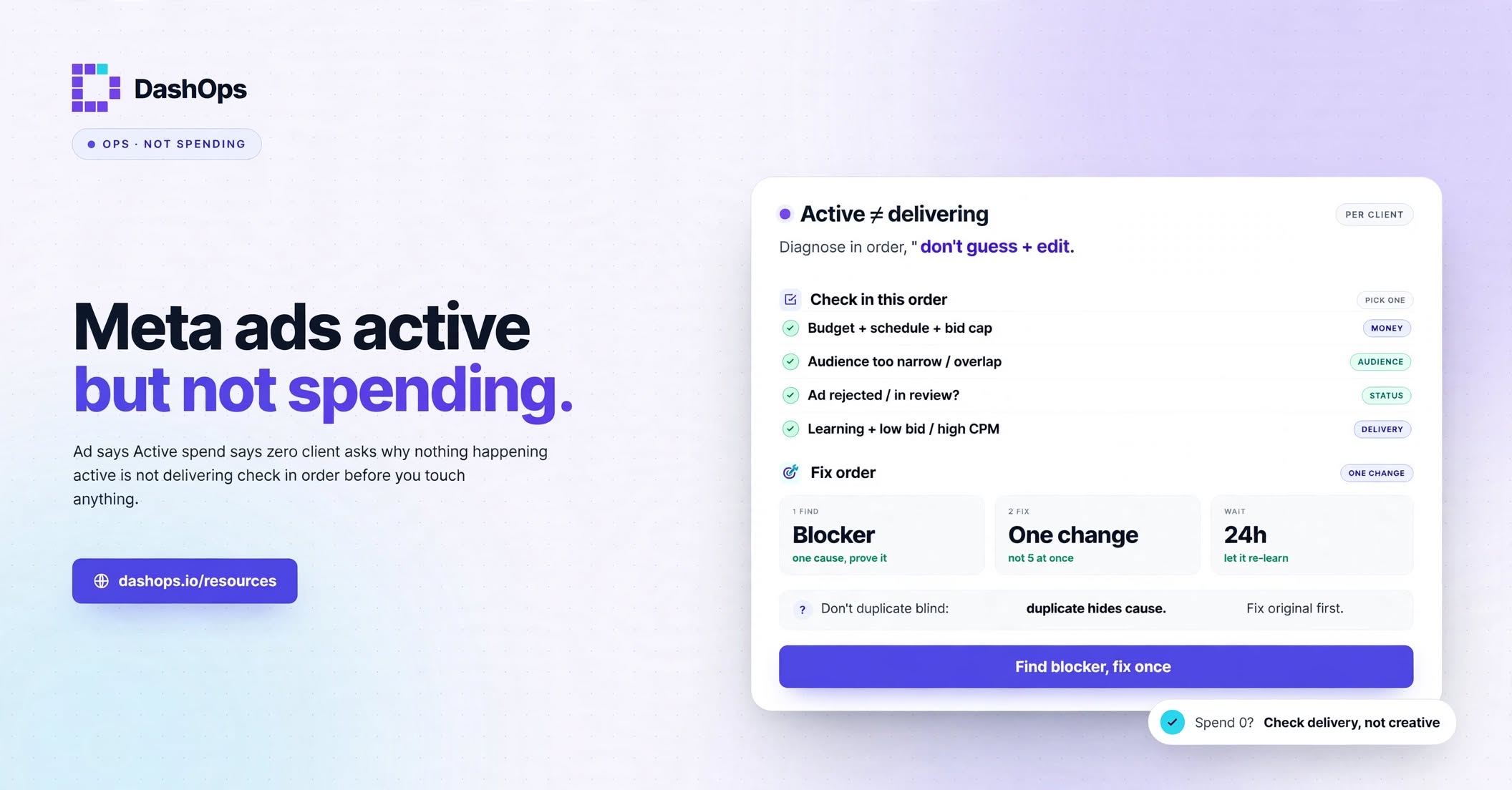
That column is one of six checks, and they run in this order: whether spend is really zero, the status at every level, a block on the whole account, a spending limit, the ad set’s budget, bid and audience, and what changed if the ad used to spend. The first ones only ask you to read a screen. The later ones change settings and can take longer to show an effect, and none of them is a guaranteed fix. Every quote comes from Meta’s help pages as we read them on 5 November 2026. Meta can change its wording and menus, so trust your own screen if the two differ.
Check 1: Is spend really zero?
Rule out a reporting gap before you change anything. Meta’s page on ads with no data lists two causes that look exactly like an ad that is not spending:
- “Your ad has just started running and metrics aren’t yet available due to a short delay.”
- “The date range that you’re viewing is set to a time period when your ad wasn’t running.”
Set the date range to include today and check you are in the right ad account. If you are not sure which figure you are reading, spend, budget and amount spent explains how the numbers differ.
Check 2: Read the Delivery column at every level
This is the column to read when Facebook ads are not delivering. Check the campaign, then the ad set, then the ad, and hover over each status: Meta says you can hover over some statuses, such as errors and warnings, to see more information and any actions to take.
| Status | What Meta says it means | Your next step |
|---|---|---|
| Ad set off or Ads off | The campaign appears on, “but the ad set or ad is off.” | Switch the lower level on |
| No ads | ”The campaign or ad set does not have a published ad.” | Publish an ad in that ad set |
| Scheduled | ”The ad set is scheduled to run at a future date.” | Edit the schedule if that date is wrong |
| In review | ”The ad is in review to make sure that it complies with Meta Advertising Standards.” | Wait for the review to finish |
| Processing | ”The ad is being updated with the changes you made.” | Wait for it to finish |
| Preparing | The ad passed review and the delivery system “is now matching it to the right bid and audience” | Wait for the first impressions |
| Rejected | ”The ad can’t run because it doesn’t comply with Meta Advertising Standards.” | Read the reason in Business Support Home |
| Completed | ”The campaign, ad set or ad is no longer running because the scheduled end date has passed.” | Change the end date or build a new ad set |
| Learning limited | ”The ad set didn’t generate enough results to exit the learning phase.” | Go to check 5 |
Two of those come with timing. On review, Meta says: “Most ads are reviewed within 24 hours, although in some cases, it may take longer.” On Processing, Meta says: “This usually takes a few minutes, but some updates may take up to 8 hours.”
The icons beside each status help too. An error means the item “can’t run at all because there’s a problem that needs attention”, while a warning means it is “experiencing limited delivery”. An error comes first, because nothing further down this list can work until it clears.
Check 3: Look for a block on the whole account
If every campaign in the account went quiet at once, stop looking at campaigns. The block is likely to be higher up.
A failed payment. Meta’s failed payment page says: “When the payment method that you’re using to run ads on Facebook, Messenger, Instagram or Meta Audience Network fails, your ads are paused and your ad account will be disabled until you’ve paid the amount due.” To pay, go to Billing and payments, select the ad account, click Payment methods, then click Pay now.
Prepaid accounts have their own version of this: “If your ad account is set up for available funds only (and not automatic billing), ads delivery will be disrupted if the available funds are insufficient for the ad campaign.” The steps are the same, with Add funds as the last click. Once the money is in place, Meta says: “Once you’ve paid your due balance or added sufficient funds, we will resume any active or scheduled ads.”
A restriction. On a computer, go to Meta Business Support Home, click the restricted account in Account overview and look for the What you can do section. Meta’s restricted account page says it may ask you to confirm your identity, complete verification, secure your account or request a review, and that you must be an admin on the account to request a review.
Check 4: Find the spending limit
An ad with a healthy budget can still hit a spending limit, and Meta sets the first one below itself.
| Limit | Who sets it | What it does | Where to look |
|---|---|---|---|
| Daily spending limit | Meta | ”The maximum amount Meta allows your ad account to spend per day.” | Current balance, in Payment settings |
| Ad account spending limit | You or an admin | A lifetime limit on spend across all campaigns | Payment settings |
| Campaign spending limit | You or your team | Stops the campaign’s ad sets and ads once reached | The campaign in Ads Manager |
Meta’s daily spending limit page says: “When you reach your limit, your ads will be paused and will resume the next day when the limit resets.” That is also the next place to look if ads stay paused after a payment, because Meta’s failed payment page opens with exactly that warning.
An ad account limit is easy to forget, because it counts a running total and someone may have set it long ago. Meta says you can reset it manually in Payment settings. A campaign spending limit can be updated or removed in Ads Manager.
Check 5: Check budget, bid and audience on the ad set
Now open the ad set itself.
Budget. Meta’s budget too low page says “your ad set needs to meet a minimum budget”, and that minimum budgets “are calculated as a daily amount, but apply whether an ad set is using a daily or lifetime budget.” So a lifetime budget spread over a long run can fall short even when the total looks generous. Raise it to the minimum the warning names.
Bid. Meta says: “A low bid can limit or prevent delivery.” If the Delivery column reads Bid limited, the same page gives the fix: “If you have a low bid control, increase or remove the bid control to resume delivery.”
Audience. Meta’s learning limited page names small audience size, low budget, low bid or cost control, high auction overlap and an infrequent optimisation event among the things that hold an ad set back. If your targeting is very narrow, widen it and see whether spend starts.
Change one thing at a time, and try the changes that avoid a new review first. Meta says: “Changes to your ad’s bid amount, budget or ad set schedule will not trigger review.” Changes to targeting, creative, optimisation or the billing event do start a new review, which puts the ad back in the queue.
Check 6: If it was spending and then stopped
Why did your Facebook ads stop spending? Find the day it happened, then ask what changed. Meta wrote its slowdown page for campaigns on Advantage+ campaign budget, and its questions are worth asking of any campaign:
- Use breakdowns in Ads Manager to see the day results changed.
- Open the activity history for changes just before that day, such as repeated pauses or a budget change late in the day.
- Look at any bid cap or cost per result goal. Meta’s reason: “If other advertisers are bidding more aggressively in auctions, your cost per result goal or bid cap may not be high enough to be competitive.”
- Look for Creative limited or Creative fatigue in the Delivery column.
- Consider whether the audience has seen the ad too often without acting, which Meta calls audience saturation.
Also read the status again. An ad that ran for weeks can still be rejected, because Meta says ads may be reviewed again, including after they are live.
What a new ad account adds
If your Meta ads are not spending on a new account, every check above still applies, and four more things are worth a look. The Meta pages we read give no fixed waiting time for a new account, so be careful with any number you hear elsewhere.
- A working payment method. Meta says: “An initial payment method and at least one valid payment option is essential to run ads.” A new account with no valid payment method is the first place to look when Facebook ads are not spending money.
- A starting limit. Meta describes an initial daily spending limit that it sets itself, except on accounts that use monthly invoicing. It says it may readjust that limit if you have a new business portfolio, ad account, Page or app, and that the limit typically increases automatically as you build history, follow its policies and spend up to or near your limits. Read the figure in Payment settings before you assume the ad is broken.
- Review, then Preparing, then learning. Meta says that once an ad has at least one impression, “it will enter the learning phase or become active.” It also says of new ads: “Ad delivery/results may not happen straight away.”
- A missing piece of the build. A first campaign is the easiest place to leave an ad set off, set a future start date or skip publishing an ad. Compare yours against how to create a Facebook Ads campaign.
If nothing above explains it
Write down the status at each level, the limits you read and the last change you made, with its date. Then use Contact support in Business Support Home, and give them that list.
If you look after several ad accounts, it helps to see them side by side. DashOps shows every Meta ad account you switch on in one overview, with the key numbers for the dates you pick and the change from the period before. You still have to open it and look, and payment, limit and restriction problems are fixed on Meta’s side.
Frequently asked questions
Why do my Meta ads say active but show no spend?
Why did my Facebook ads stop spending?
How long before a new Meta ad account starts spending?
What is the daily spending limit on a Meta ad account?
Will paying a failed balance restart my ads?
See it in your own dashboard
DashOps brings Meta Ads reporting, campaign management, and white-label client portals into one place. Pick the plan that fits how you run ads.
