The Facebook Ads Multi Client Dashboard, Done Properly
You open the laptop, and there are eleven clients waiting. One of them emailed overnight asking why their leads dried up. One is on a campaign that launched yesterday and nobody has checked whether it actually spent. Two are quiet, which either means everything is fine or means nobody has looked in a while. Your first job of the day is not analysis, it is triage: which account needs you right now?
Meta Ads Manager is a capable tool for working inside one ad account. It is not built for the question you actually have first thing in the morning, which spans all of them at once. Switching accounts through the dropdown gives you one client at a time, in isolation, with no memory of what you just saw. That is the gap a facebook ads multi client dashboard fills, and it is worth being precise about what “multi client” has to mean before you trust one screen with eleven relationships.
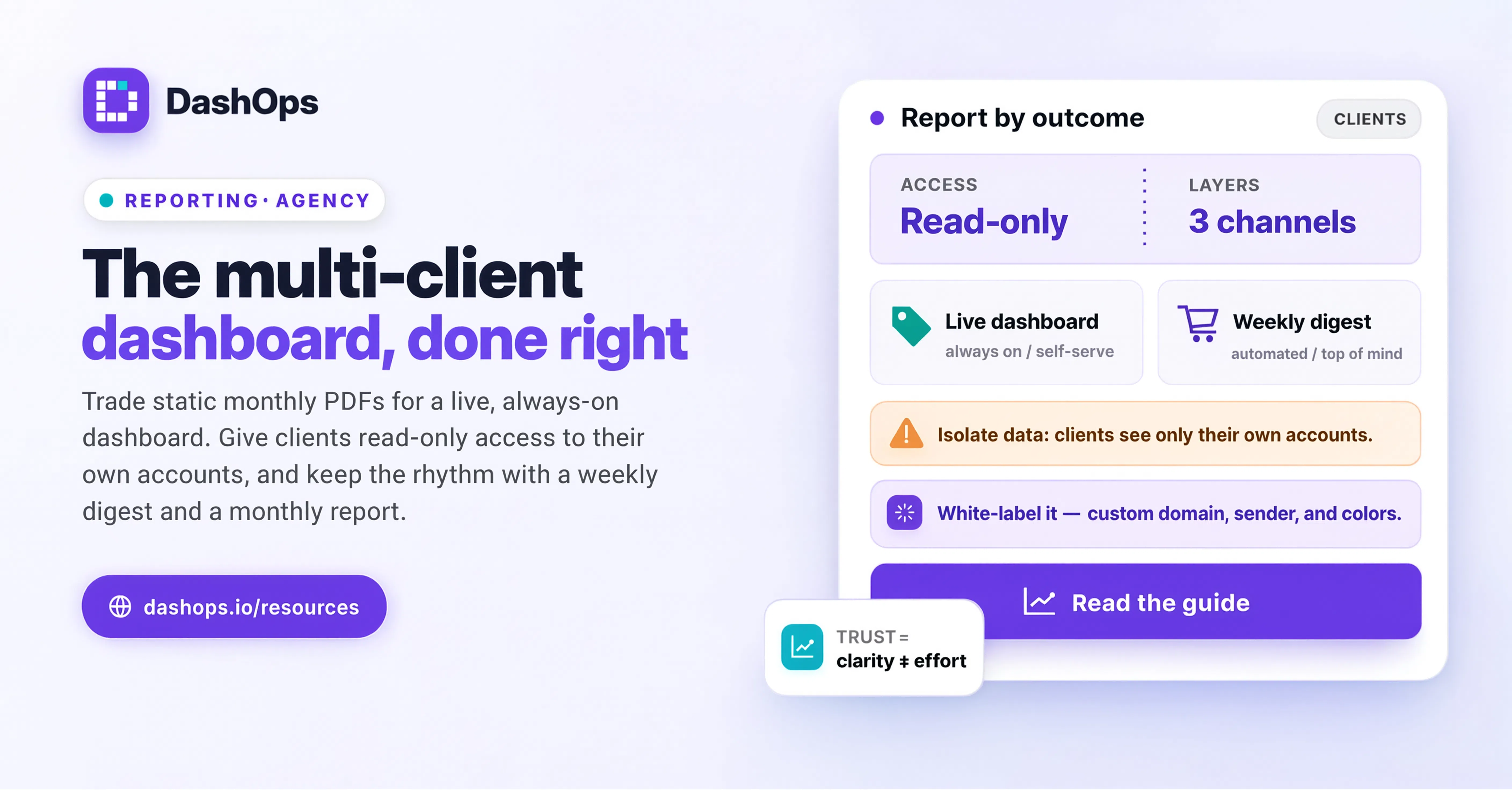
One screen, many clients, and the four things that must hold
A multi client ads dashboard is not just a place where several accounts happen to be visible. There are four properties that have to hold at once, and if any one of them fails, the screen stops being useful and starts being risky.
- Separation of data. Numbers from one client must never leak into another client’s totals, report, or export. This sounds obvious, but it fails in subtle ways: a shared spreadsheet tab, a report filename that does not match its contents, a chart that quietly sums two accounts because the filter reset.
- Separation of identity. Each client should see your agency, or their own brand, not a generic tool. Branding is not decoration here, it is what makes a shared link feel like part of the engagement.
- Separation of access. The person on your team who runs Acme’s account should not have to look at Globex’s spend to do their job, and Acme’s marketing manager should see Acme and nothing else.
- A single view that spans all of it. After all that separation, you still need one place that shows every account side by side, or you have just rebuilt the account switcher with extra steps.
The tension is real. The first three are about keeping things apart. The fourth is about bringing them together. A tool that only does one half is either a spreadsheet or a login screen.
Separation of data is a workspace problem, not a filter problem
The weak version of multi account meta ads reporting is a filter. You look at everything, then narrow it down. The problem is that a filter is a state you can forget you are in. If the default view is “all clients” and you have to remember to narrow it, then every export, every screenshot, and every shared link is one forgotten click away from containing somebody else’s data.
The stronger pattern is a workspace: you pick the client, and from that point on every screen, every report, and every export is scoped to that client until you deliberately switch. The dashboard, the campaign list, the drill-down into ad sets and ads, the PDF you generate, all of it inherits the same boundary. In DashOps this is how the client switcher works, and it applies to the ad account picker underneath it too, because one client may have more than one ad account and those should not blur together either.
A practical test: generate a report while a client workspace is selected, then look at the filename and the cover page. If either one is generic, or worse, names a different client than the numbers inside, you have a filter and not a workspace.
Per-client branding is about who the report belongs to
When a report leaves your dashboard and lands in a client’s inbox or a Slack channel you are not in, it stops being your internal tool and becomes an artefact of the relationship. Whose name is on it matters.
There are three levels of this, and they are worth choosing deliberately rather than by default:
- Your agency’s brand on everything. Your logo, your colours, your favicon in the browser tab. The client sees a tool that is clearly yours. Most agencies want this.
- Your own domain and sender. The dashboard lives at a URL you control and reports arrive from an email address on your domain. This is the version where the tool disappears entirely and the work looks like it comes from you.
- Nothing, deliberately. Some in-house teams and freelancers genuinely do not care, and adding branding is just one more thing to maintain.
Branding also does quiet work on the internal side. When every client’s screen looks identical, it is easier to lose track of which account you are actually in. That is a small thing until the moment you pause the wrong campaign. If you are building a repeatable rhythm around client-facing output, how to present Facebook Ads results to clients covers the presentation half of this, and there is a client report template worth adapting rather than starting from a blank page each month.
Access: give each person the narrowest useful view
Once more than one person touches the dashboard, permissions stop being a security checkbox and become a usability feature. The right access model makes everyone’s screen simpler.
Three roles cover almost every real agency situation:
- Owner. Full control. Connects ad accounts, invites people, manages billing and branding, sees everything. Usually the person or people who own the commercial relationship.
- Manager. Your staff. Assigned to specific ad accounts and sees only those. A freelancer contracted for two clients logs in and sees two clients, not your whole book of business. This is not distrust, it is that their screen is now about their work.
- Client. Read-only, restricted to the ad accounts assigned to them, with the option to hide spend entirely. A client who is billed on a retainer that includes media may not need the raw spend figure, and a client who buys their own media absolutely does.
Two details are easy to underestimate. First, an audit log matters more with a team than it does alone, because “who paused this and when” is a question you will eventually need answered without accusing anybody. Second, invitations by email with per-member ad account assignment means onboarding a new team member happens inside the tool rather than through a credential-sharing conversation you will later regret.
For a read-only snapshot that does not need a login at all, a public share link is often the better answer than creating an account for somebody who will look once. Give the link, let it expire, move on.
Spotting the account that needs you today
Here is where an agency ads dashboard for multiple clients earns its keep. Separation is table stakes. The thing that saves your morning is comparison.
The pattern that works is a two-layer look. Layer one is a scan across every account, comparing the current period against the previous one. You are not reading numbers, you are reading direction: which accounts moved, and by how much relative to themselves. An account that always sits in a narrow range and suddenly does not is interesting. An account that has always been volatile moving again is not.
Layer two is the drill. Once one account has your attention, you go campaign, then ad set, then ad, until the change has a location. Most of the time it resolves quickly: a campaign came off a budget cap, an ad set exited learning, a creative that had been carrying the account started to fatigue and frequency climbed.
What to look at during the scan, in rough order of how often it is the answer:
- Spend against expectation. An account spending far less than usual is often a delivery problem, and a rejected ad or an exhausted budget looks identical to “quiet” if you only glance at results.
- Direction of your cost metric. CPL for lead accounts, CPA or ROAS for ecommerce. Compared against that account’s own recent history, never against a number you read somewhere.
- Frequency and CTR together. Rising frequency alongside falling CTR is the classic creative fatigue shape, and it shows up before the cost metric moves.
- Anything that stopped. A campaign that was running and is not, whether you paused it or Meta did.
Two habits make this genuinely fast. Pin the KPI cards you actually use to the top of the dashboard and reorder them so your scanning eye lands in the same place every day. Then save the view, so the date range, filters and sort you use for triage are one click away rather than something you rebuild each morning. DashOps keeps both per user, so your triage layout stays yours rather than the whole team’s. If you would rather have the scan come to you, a scheduled digest per ad account does the same job from your inbox, which the weekly digest piece goes into properly.
What the tool cannot decide for you
A dashboard shows you where to look. It does not know that Contoso is running a two-week promotion, that Tailspin Toys had a product recall, or that Northwind’s landing page changed on Tuesday. Context lives with you, and the accounts that look worst on a comparison screen are sometimes the ones behaving exactly as planned.
The useful framing is that the dashboard removes the searching, not the thinking. You should spend your morning deciding what to do about three accounts, not spending it finding out which three accounts they are. If the reporting side of that is still eating your week, reducing time spent on Facebook Ads reporting is the companion problem.
What to do next
Pick your single worst morning ritual and fix that one thing first. If it is switching between accounts to see who moved, get every client onto one screen with period-over-period comparison and set up your KPI order and a saved view for triage. If it is sending reports, set up scheduled client reports so they leave without you. If it is your team asking you for numbers, give each person their own scoped login so they stop asking.
Then leave the rest alone for a fortnight. Multi client setups get abandoned when people try to configure everything on day one and end up maintaining a system instead of using it. One habit, running reliably, beats a complete setup you rebuilt twice and then stopped opening. You can see how the pieces fit together on the features page when you are ready to add the next one.
Frequently asked questions
What is a Facebook Ads multi client dashboard?
How do I stop one client's data appearing in another client's report?
Can my clients log in and see only their own ad accounts?
Which metrics should I scan first across all my accounts?
Can I put my own agency branding on the dashboard?
See it in your own dashboard
DashOps brings Meta Ads reporting, campaign management, and white-label client portals into one place. Pick the plan that fits how you run ads.