Exporting Data From Meta Ads Manager: A Practical Guide
Your client asks for last month’s numbers in a spreadsheet, or your finance lead wants ad spend lined up against invoices, or you simply want to keep a copy of performance before an account gets handed to someone else. So you open Meta Ads Manager, hunt for the export button, and get a file that either has far more columns than you wanted or is missing the one breakdown you actually needed. Then the numbers in the file do not quite match what you remember seeing on screen.
Exporting data from Meta Ads Manager is not hard, but it is fiddly in ways that cost you far more time than they should if you do not know where the traps are. This post walks through how the export actually works, the settings that decide what ends up in your file, and the reasons an export can disagree with the dashboard you exported it from.
Where the export button lives, and what it exports
In Ads Manager, the export control sits above the results table, near the Columns and Breakdown selectors. It is usually an icon with a downward arrow, or a menu item labelled “Export table data”.
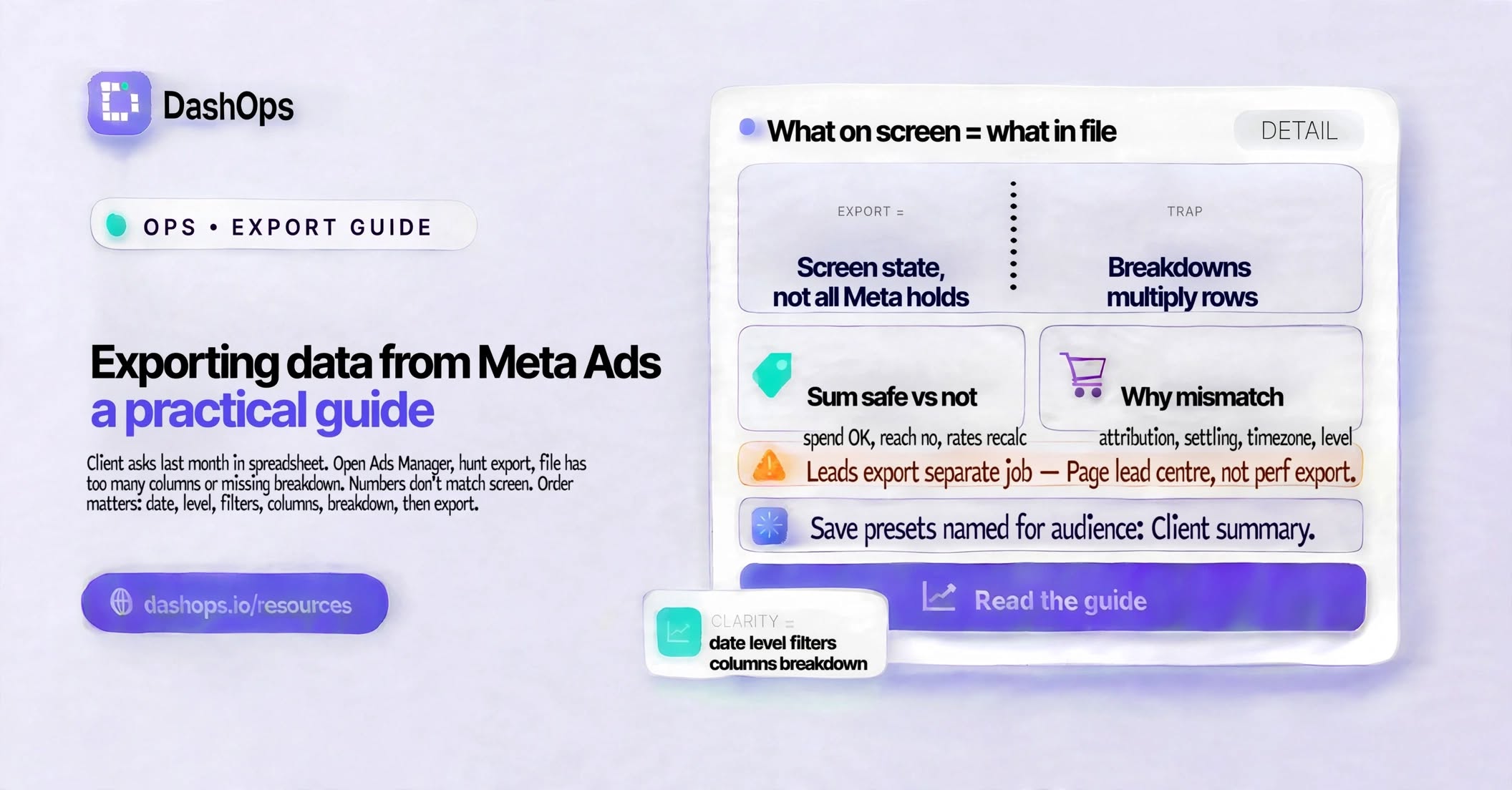
The single most important thing to understand: the export gives you exactly what is on screen, not everything Meta holds. Whatever is currently selected as your date range, your level (campaign, ad set or ad), your active columns, your breakdowns and your filters, that is what lands in the file. Change nothing before exporting and you get the default column preset, which is rarely the set you want.
So the order of operations matters:
- Set the date range first, before anything else.
- Switch to the level you actually want to report on. Campaign, ad set and ad each produce a different file.
- Apply your filters, for example active campaigns only, or a naming convention filter.
- Choose your columns using the Columns menu, then Customise columns if the presets do not fit.
- Apply a breakdown if you need one, for example by day, by placement, or by age and gender.
- Only then export.
If you build a column set you will use again, save it as a custom preset. That saves the click-heavy part next month, though you will still have to re-select the date range and the level every time.
The file formats and which to choose
Meta offers a spreadsheet-shaped export. You will typically be able to choose between an Excel workbook and a comma separated file. The practical differences:
- Excel keeps formatting and is friendlier if you are going to open it, glance at it and send it on.
- CSV is the right choice if the file is going into another tool, a pivot table, or a script. It is plain text, so nothing gets silently reformatted.
There is a third option people forget about: rather than downloading, you can share a link to the report. That is useful internally but it still requires the recipient to have access to the ad account, which is exactly the thing you usually cannot give a client.
The breakdown trap
Breakdowns are where most confusing exports come from. When you add a breakdown, Ads Manager splits every row into one row per breakdown value. Add a placement breakdown to an account with a handful of campaigns and your file multiplies in length. Add two breakdowns and it multiplies again.
That is fine, and often exactly what you want. The problem is what happens to certain metrics when a breakdown is applied. Reach and frequency, for example, do not simply add up across rows the way spend and impressions do, because the same person can be reached in more than one placement. If you sum a reach column down a broken-down export, you will overstate it.
Two rules that will save you:
- Sum spend, impressions, clicks and conversion counts freely across rows.
- Do not sum reach, frequency, or any rate like CTR or CPC. Rates must be recalculated from the underlying totals, not averaged.
Some breakdowns are also incompatible with each other, or unavailable for certain conversion metrics. When Ads Manager greys out a breakdown option, it is not a bug, it is telling you that combination cannot be reported.
Why your export does not match what you saw yesterday
This is the question that generates the most support tickets in agencies, and it usually has one of a few causes.
Attribution setting. Your export carries the attribution setting that was active when you ran it. If a colleague changed it, or if you exported one report under one setting and another report under a different one, the conversion numbers will not line up. This is worth understanding properly, and attribution windows explained covers how the setting changes what gets counted.
Data still settling. Meta continues to attribute conversions after the fact, so a report you export today for yesterday can differ from the same report exported next week. Exports taken close to the event are always the least stable.
Time zone. The ad account has its own time zone, and it is what defines a day boundary in the export. If your spreadsheet or your client’s reporting runs on a different zone, the daily rows will not align with theirs.
Different level, different totals. Ad-level rows do not always sum to the campaign row, particularly where deduplication is involved.
If your exported file and your dashboard disagree and you cannot work out why, this walkthrough of mismatched numbers goes through the causes one at a time.
Exporting leads from Instant Forms is a separate job
If your campaigns use Meta’s lead forms, the performance export will tell you how many leads you got. It will not give you the leads themselves. Those live with the Facebook Page, under the publishing or lead centre tools, and they are downloaded separately, per form.
That is genuinely two different exports for one report, from two different parts of Meta’s tooling, and it catches people out constantly. Plan for it when you promise a client everything by Friday.
It is also one of the clearest places a reporting layer earns its keep. DashOps lists the Instant Forms on your connected ad accounts and exports their leads as CSV or Excel, so the lead pull and the performance pull happen in the same place instead of in two separate corners of Meta’s tooling.
Where manual exporting stops being worth it
One export is a short run of clicks. The trouble is that reporting is rarely one export. For an agency running several clients, a month-end pass means repeating the same sequence per ad account, then reconciling the files, then formatting them into something a client will actually read, then doing it again next month.
That is the point at which the export button stops being the right tool. It was built for an ad buyer pulling an ad hoc file, not for a reporting workflow that runs on a schedule.
This is where the rest of DashOps fits. It connects to your Meta ad accounts, keeps the data in one place across every client, and produces PDF and Excel reports on demand, with your own branding rather than Meta’s. You can also set reports to send themselves to a client on a schedule, so nobody has to remember to export anything. If you want to see what that looks like end to end, automating your Meta Ads reports covers the setup.
The wider question of what a reporting layer on top of Ads Manager gives you, and where Ads Manager remains the better tool, is covered in the full guide to replacing Ads Manager for reporting.
Getting cleaner exports from tomorrow
If you are staying with manual exports for now, three habits make them far less painful:
- Build and save your column presets once. Name them for the audience, for example “Client summary” and “Internal deep dive”, so you are not rebuilding the set under time pressure.
- Note the attribution setting and the export date inside the file. Add them as a header row. When someone queries a number weeks later, you will know exactly what you exported and under what conditions.
- Export at the level you will report at. Do not pull ad-level data and roll it up by hand unless you genuinely need the detail, because that is where summing mistakes creep in.
And if you find yourself doing this same sequence across several accounts every month, that is your signal to move the reporting itself somewhere else rather than getting faster at clicking. Cutting the time you spend on reporting has the practical version of that argument.
Frequently asked questions
Where is the export button in Meta Ads Manager?
Can I export leads from Meta lead forms in the same file as my performance data?
Why does my export show different numbers than the dashboard did earlier?
Should I export as CSV or Excel?
Can I add up the columns in a broken-down export?
See it in your own dashboard
DashOps brings Meta Ads reporting, campaign management, and white-label client portals into one place. Pick the plan that fits how you run ads.