How to Manage Multiple Facebook Ad Accounts: A Setup Guide
You open Meta Ads Manager, glance at the account picker, and see eleven ad accounts with names like “Ad Account”, “New account 2”, and “Acme (old)”. Two of them belong to a client you offboarded last spring. One of them is your own agency’s account. You click into the wrong one, edit a budget, and only notice when the client asks why their daily spend jumped. Or you do notice, immediately, and the jolt of adrenaline is its own kind of tax on the day.
This is not a discipline problem. It is a structure problem, and a structure problem can be fixed once and stay fixed. What follows is the concrete setup: how to organise Business Manager, how to name things so the right account is obvious at a glance, and how to switch context without ever putting a change in the wrong place.
Step 1: Get the Business Manager hierarchy right first
Before naming anything, be clear about what sits inside what. Meta’s structure goes: a Business Manager (also called a Business Portfolio) holds ad accounts, Pages, pixels, catalogs and people. Each ad account holds campaigns. Each campaign holds ad sets. Each ad set holds ads.
The decision that matters most for an agency is where the client’s ad account actually lives. There are two workable arrangements:
- The client owns the ad account in their own Business Manager, and grants your Business Manager partner access. This is the arrangement to default to. When the relationship ends, the client keeps their account, their pixel data, their audiences and their ad history. You remove your access and walk away cleanly. No handover argument, no export scramble.
- You own the ad account in your Business Manager. Sometimes unavoidable, usually when a client has no Business Manager at all and no appetite to create one. It is faster on day one and messier on the last day. If you go this route, agree in writing at the start what happens to the account when the engagement ends.
Whichever you pick, be consistent. A portfolio where four accounts are partner-shared and three are agency-owned is a portfolio where nobody remembers which is which.
Step 2: Assign people to accounts, not to everything
The second structural decision is access. Meta lets you assign a person to specific ad accounts rather than the whole portfolio, and most agencies never bother. They should.
A media buyer who works on three accounts should be able to see three accounts. Not because you distrust them, but because a picker with three entries is one they cannot misread, and a picker with eleven is one they eventually will. Restricting access is a usability decision as much as a security one.
The same logic applies one layer up. If you run reporting through a dashboard rather than sending clients into Ads Manager, scope each teammate to the accounts they actually own. In DashOps that is what the Manager role does: a Manager sees and works on only the ad accounts assigned to them, and the Client role is read-only on the accounts you assign, with the option to hide spend entirely if you bill on a retainer and would rather not itemise media cost. There is more on structuring the wider agency process in our Meta Ads agency workflow guide.
Step 3: Name everything so the wrong click is impossible
Naming is the cheapest safety mechanism you will ever implement. The goal is that any string you see in a picker, a report, or a notification tells you unambiguously which client it belongs to.
Ad accounts. Use the client’s legal or trading name, first, with nothing before it. Acme Corp sorts next to Acme Corp (Retail) and both are instantly readable. Avoid prefixing with your own agency name, because every account then starts with the same word and the picker becomes a wall of identical text. If you manage several accounts for one client, put the distinguishing part in brackets: Globex (US), Globex (EU), Globex (Retail).
Campaigns. A campaign name should survive being read out of context, in a spreadsheet, six months later. A workable pattern:
- Client or brand, if your account structure does not already make it obvious
- Objective in plain words: Leads, Sales, Traffic, Awareness
- Offer or product: Spring Range, Free Consultation, Demo Request
- Start month and year: 2026-03
- Optional variant marker for tests: A or B
So: Leads | Free Consultation | 2026-03. Pick separators and stick to them. Pipes and hyphens both work; mixing them does not.
Ad sets. These carry the targeting decision, so name them after it: audience, placement, or geography. Lookalike 1% Purchasers, Retargeting 30d Site Visitors, Broad UK 25-54. Never Ad Set 1.
Ads. Name after the creative, because that is what you will want to compare later: Video Testimonial 15s, Static Carousel Product Grid, UGC Reel v2.
Pixels, Pages, catalogs. These get shared across accounts and are the easiest things to misattach. Name them with the client name in them, always, and check the name before you attach one to a campaign. A pixel called Pixel in a portfolio of eleven clients is a future incident waiting for a date.
Two practical notes. Meta’s picker and most reporting tools sort alphabetically, so put the field you sort by most often at the front. And date first in ISO format, 2026-03, not March 2026, if you want chronological and alphabetical order to agree.
Step 4: Build a switching ritual you actually follow
Naming reduces the chance of a wrong edit. A ritual closes most of what is left.
- Read the account name out of the header before you touch anything. Not the campaign name, the account name. It costs you nothing and it is the single highest-return habit in this whole guide.
- Use one browser profile per client if you manage a lot of accounts. Separate Chrome or Firefox profiles keep separate sessions, so the account you had open yesterday is still the account that loads today. It also stops a stale tab from a different client sitting three tabs to the left.
- Never edit from a link someone sent you without checking where you landed. A Slack link into Ads Manager drops you into an account you were not thinking about. That is precisely the state in which wrong edits happen.
- Do bulk work in one account at a time, and close it before opening the next. Batching by task across accounts feels efficient and is where duplication errors come from.
- Pause before you publish anything that spends money. Budget changes, new campaign launches, and audience swaps deserve a second look at the header. Turning an ad off is recoverable. Ten times the intended daily budget, running overnight, is not.
Step 5: Move reporting out of the account picker entirely
Here is the thing worth saying plainly. Most of the time you open a client’s ad account, you are not there to change anything. You are there to look at numbers, or to pull them into an update.
Every one of those read-only visits is another opportunity to be in the wrong place with edit permissions. Ads Manager is a management surface first, and it makes you switch context to see a single client at a time. That is correct for building campaigns and wrong for the weekly question of how everyone is doing.
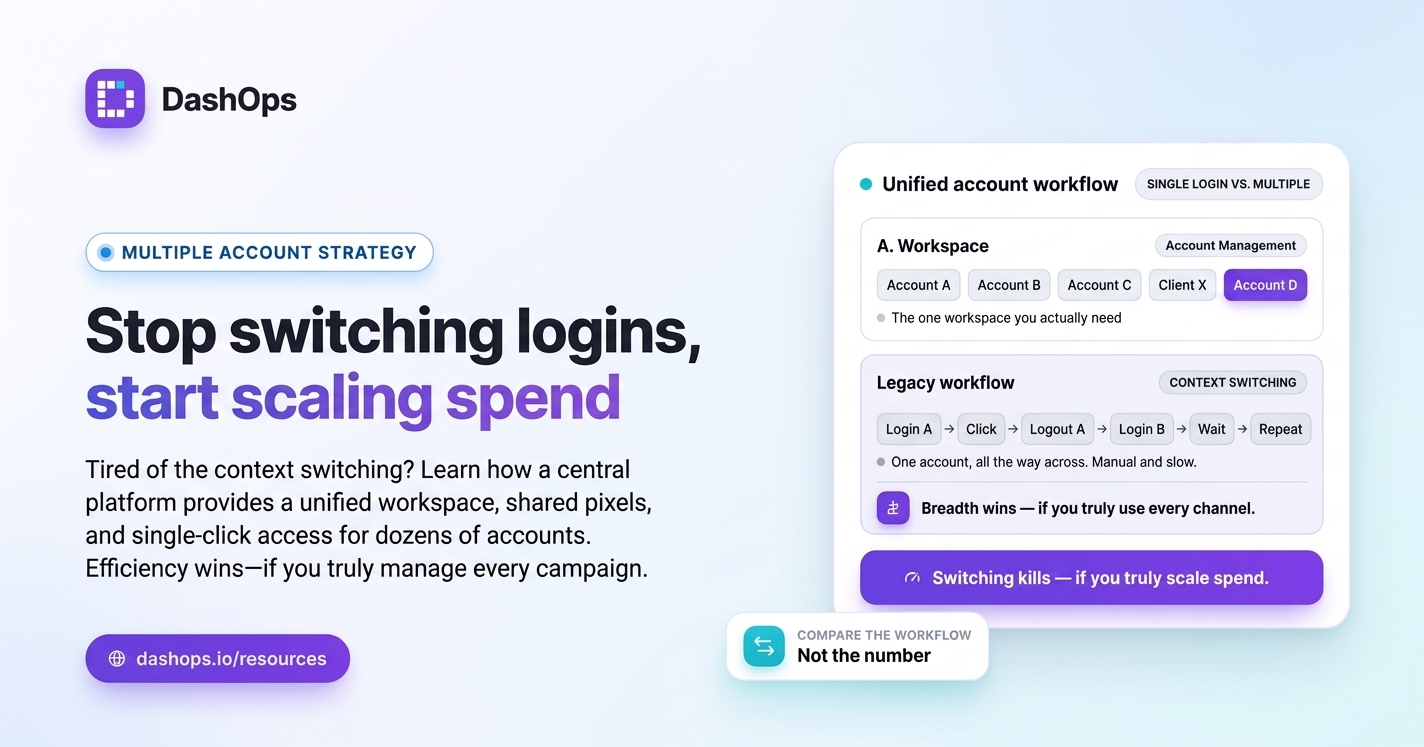
Separating the two is the fix. Reporting lives in one dashboard that shows every connected account without you switching anything, and Ads Manager is reserved for the moments you genuinely intend to change something. DashOps is built for exactly that split: connect all your Meta ad accounts once, see them together with period-over-period comparison and drill-down from campaign to ad set to ad, and let clients into a read-only view of only their own account instead of forwarding screenshots. Reports go out as PDF or Excel, or as a scheduled email, so nobody has to go looking. If pulling numbers manually is currently eating your week, this walkthrough on cutting reporting time covers the mechanics.
Step 6: Write the conventions down and audit quarterly
A convention that lives in your head is not a convention, it is a preference. Put the naming rules in a shared document, one page, with examples. New hires should be able to name their first campaign correctly without asking.
Then set a recurring quarterly review and do four things:
- Remove people who no longer need access, including former staff and former client contacts
- Rename anything that drifted from the convention, and fix the pixels and Pages first because they cause the most damage
- Archive or clearly mark ad accounts for clients you no longer work with, so they stop appearing as live options
- Confirm partner access is still correct on accounts the client owns
A short review on a fixed schedule keeps the portfolio from silently returning to the state you started in.
What to do next
Do it in this order, because each step makes the next one easier.
- Open Business Manager and decide, for every account, whether it should be client-owned with partner access or agency-owned. Fix the ones that are wrong.
- Rename every ad account to the client’s name, clean, with no prefix.
- Write the campaign, ad set and ad naming pattern into a one-page document and share it with the team.
- Restrict each teammate’s access to the accounts they actually work on.
- Adopt the header check before every edit, and keep holding yourself to it until it stops feeling deliberate.
- Move your routine reporting somewhere you can see every account at once, so you stop entering ad accounts you had no intention of changing.
None of this is glamorous. All of it is setup work you do once. And the payoff is that the question “am I in the right account?” stops being one you have to ask.
Frequently asked questions
Should my agency own the client's Facebook ad account, or should the client?
What is a good naming convention for Facebook campaigns?
How do I stop editing the wrong Facebook ad account by mistake?
How often should I audit my Business Manager?
Can I see all my Meta ad accounts in one place instead of switching between them?
See it in your own dashboard
DashOps brings Meta Ads reporting, campaign management, and white-label client portals into one place. Pick the plan that fits how you run ads.